Knowledge Base Article
How to Read an Email's Report: Opens, Clicks, Gifts and Sharing
Every email you send from the Mail Room or an email template goes out as an email batch, and every batch has a Report that answers one question: how did this email do? It shows how many people really opened it, what they clicked, who unsubscribed or bounced, and what gifts came in afterwards. You can share the totals with a board member or a colleague outside Argenta without showing anybody's name.
Who Can See It
The report is part of the Email Batch Workspace, so it is open to Master Admins and to users with the Email System User permission. The People list only shows constituents inside your own chapter, division, department and precinct permissions, and leaves out anyone whose record is locked to you.
Where to Find It
- Choose Communication > Email Batches.
- Each batch on the list now shows its headline rates: Delivered, Real Opens, Clicks, Unsubscribes and Bounces. A batch shows them once Argenta has counted it, which happens in the background.
- Click the open icon on the batch. The workspace opens on its Report tab, the first tab in the menu.
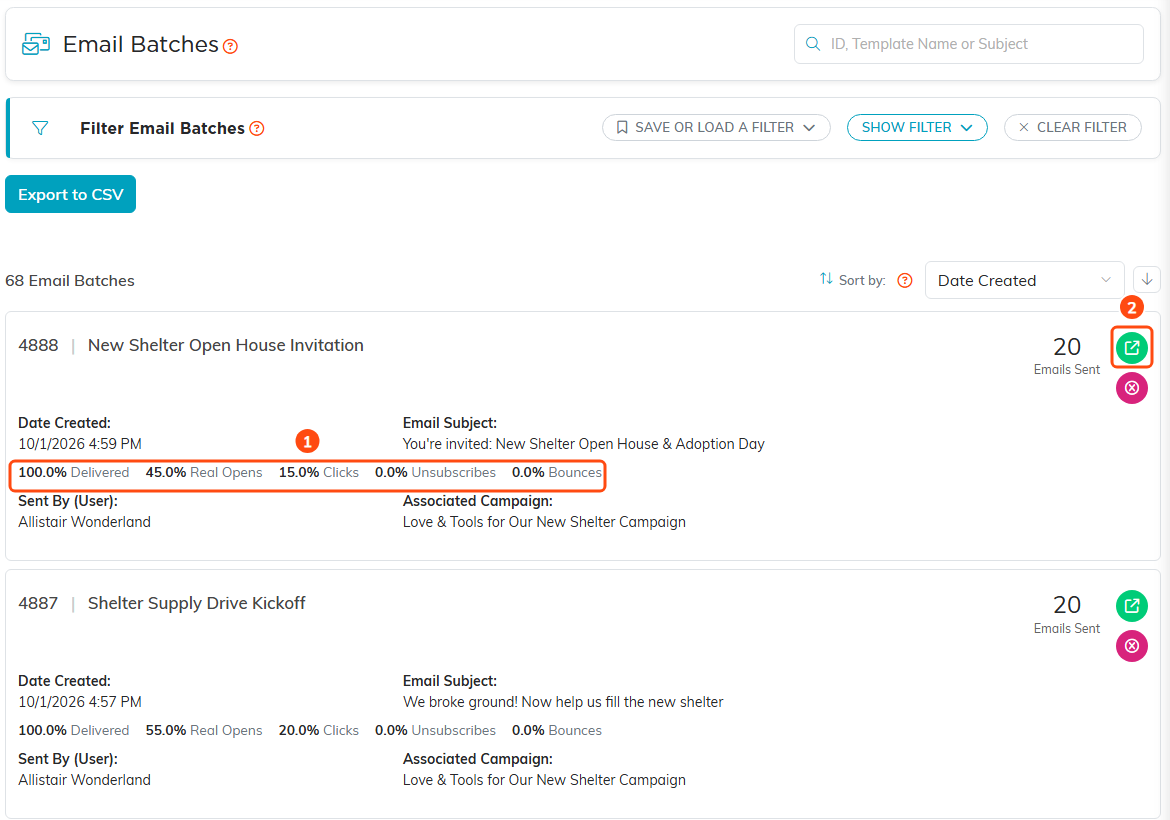
The rates on each batch (1) and the open icon (2).
Export to CSV on the Email Batches list carries the same five rates as columns.
The Mail Room home page shows your team's five most recent sends under Recent Sends, each with its Real Opens, Clicks, Unsubscribes and Bounces rates. Click one to open its report.
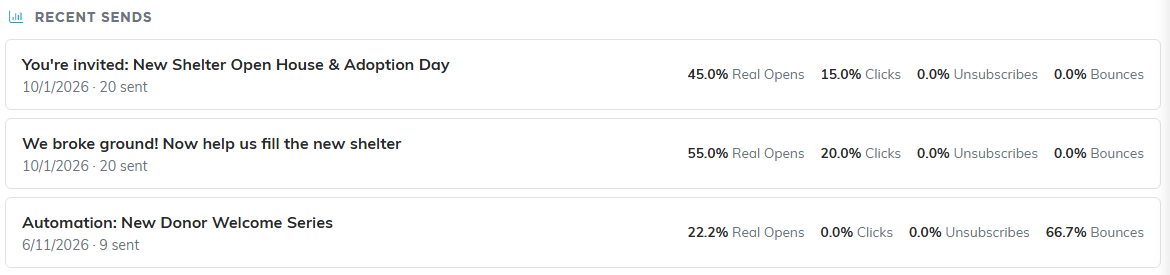
Recent Sends on the Mail Room home page.
How Did This Email Do?
The top card holds the headline figures. Each one counts emails, not events, so a person who opens your email five times counts once.
- Sent is how many emails went out.
- Delivered is how many reached the inbox, as a share of sent.
- Real Opens (People) is how many emails a person actually opened, as a share of delivered.
- Automatic Opens is how many emails were opened only by a mail app or a security scanner loading the images, not by a person. Apple Mail can load every image the moment an email arrives, which once made open rates look far higher than they were. These are kept apart so Real Opens tells the truth.
- Clicks (People) is how many emails had a link clicked by a person. Clicks made by security scanners checking links are left out, and the note under the tiles says how many.
- Unsubscribes and Spam Complaints are shares of delivered.
- Bounces is a share of sent, split into hard and soft.
Opens and clicks keep arriving for days after a send, so these figures grow. If no delivery receipts were recorded for a send, Delivered is worked out as the emails sent less the bounces, and the report says so.
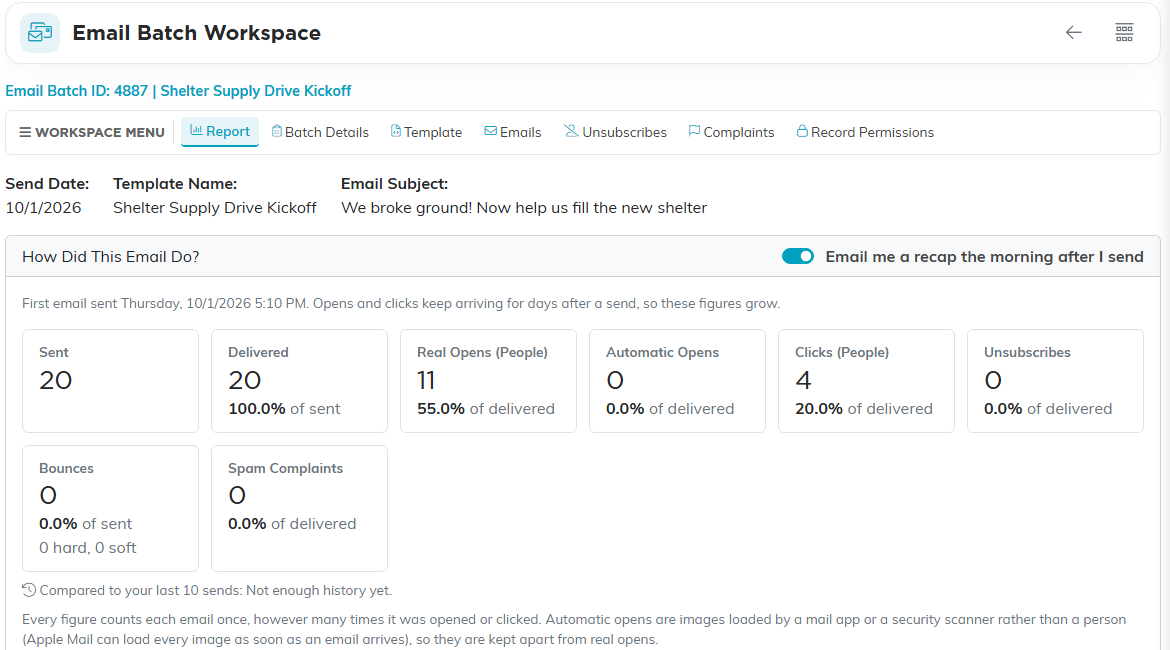
The headline figures at the top of the Report tab.
Compared to Your Last 10 Sends
Under each rate, an arrow compares it with your team's average over its last 10 sends before this one. A green arrow is better than usual and an orange one is worse, so a higher unsubscribe rate gets an orange up arrow. Automations are left out of the average, because an automation keeps sending for as long as it runs. Until your team has at least three earlier sends, the line reads Not enough history yet.
Links People Clicked and the Click Map
Links People Clicked lists each link in the email with its Clicks, the number of People who clicked it, and its Share Of Clicks. A link that carries something personal, like each reader's own unsubscribe link, is shown once with that part hidden.
The Click Map below it shows the email as it was sent, with each clicked link marked with how many times people clicked it, so you can see which part of the email people acted on.
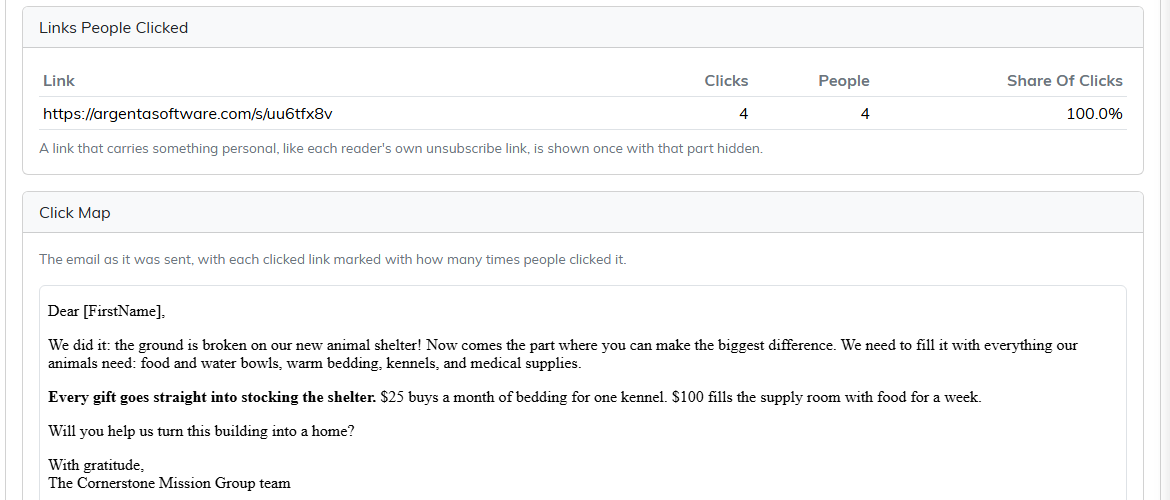
The link table, and the top of the click map.
Gifts in the 30 Days After This Email
Two totals, each with its number of gifts:
- From people who received this email adds up gifts from the people this batch went to.
- Coded to this email's campaign adds up gifts from anyone that are coded to the batch's Associated Campaign. If the batch has no campaign, set one on Batch Details to see this figure.
Both count gifts dated from the day of the first email through the 30th day after it. They are gifts that came in after the email, not proof the email caused them.

Gifts that came in during the 30 days after the send.
Activity Over Time
Two bar charts show when people opened and clicked: hour by hour for the first 48 hours after the send, then day by day. Each email is counted at its first real open and its first click, and the times are US Eastern. Show As Table lists the same figures as rows.
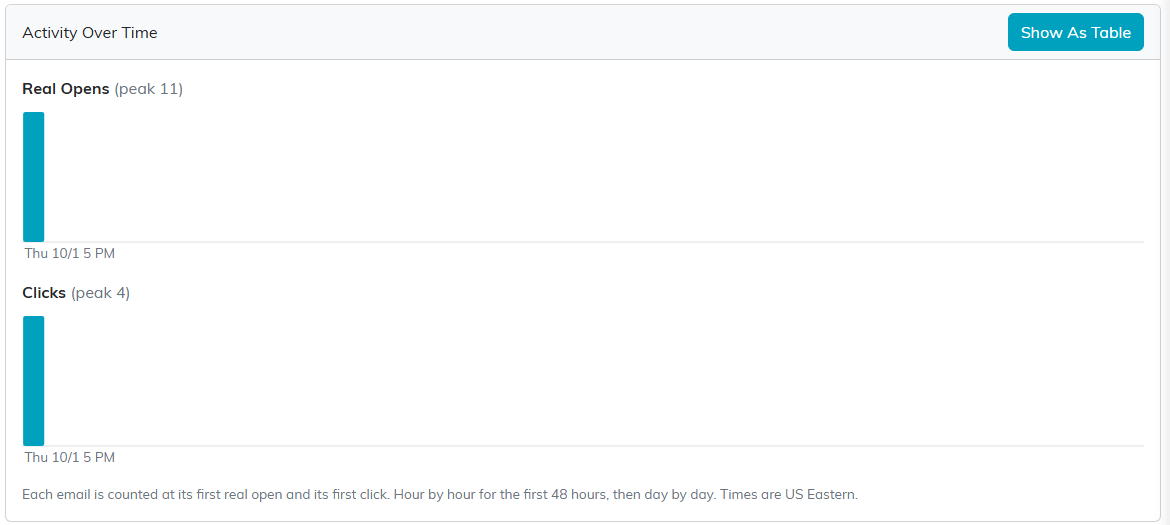
When people opened and clicked.
The People Behind the Numbers
The People card shows who is in each group. Click one:
- Opened: anyone whose email was opened, really or automatically.
- Clicked: anyone who clicked a link.
- Did Not Open: anyone the email reached with no open of any kind. Someone whose mail app opened the email automatically counts as opened here, even if they never read it.
- Bounced, Unsubscribed and Complained.
Each person shows their name, email address and what happened. Export To CSV downloads the group with columns for delivered, opened, clicked, bounced, unsubscribed and spam complaint.
Save As A Mail Room List makes a new email list of the people shown, ready to send to from the Mail Room. Anyone with no usable email address is left off. It is there for Master Admins and Mail Room Managers who are not View Only. Saving the Did Not Open group is the quickest way to follow up with the people who missed your email.
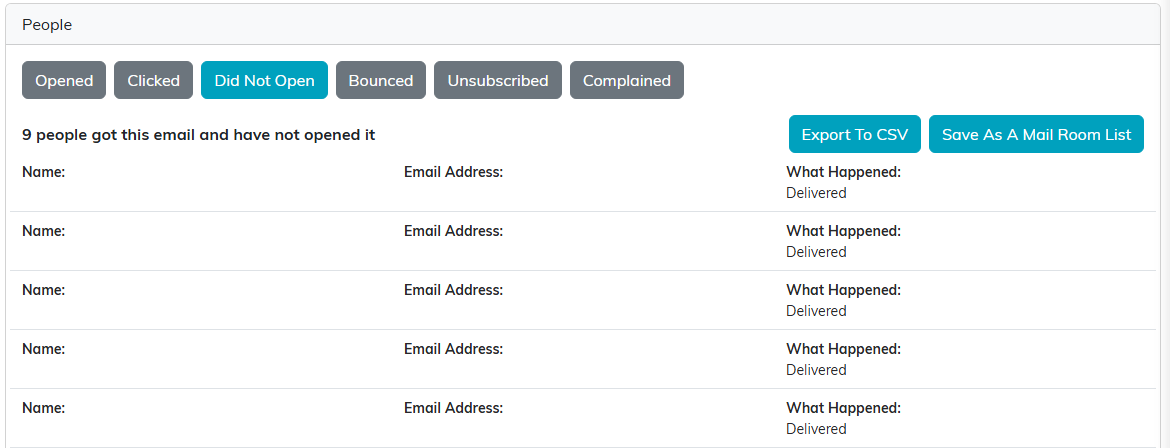
The Did Not Open group. Names and addresses are hidden in this picture.
Sharing the Report
The Share This Report card lets you show the results to someone who does not use Argenta.
- Click Create A Share Link. The link appears in the list under the buttons, and it is copied for you if your browser allows it.
- Paste the link wherever you need it. Anyone who has it can open the report, with no sign in.
- To copy it again later, click the copy icon on its row (1).
- To stop sharing, click the stop sharing icon (2) and confirm. This cannot be undone, but you can create a new link at any time.
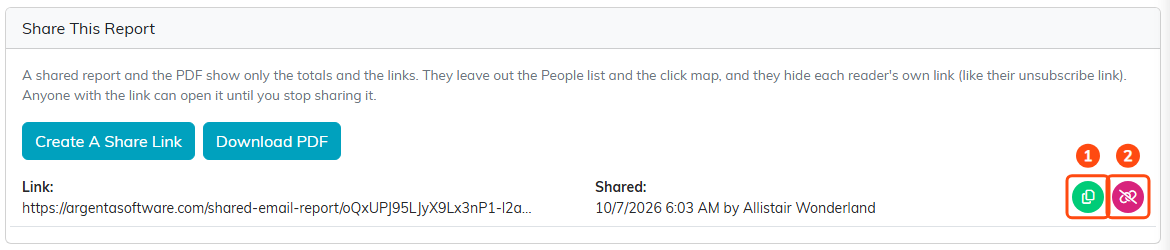
A shared link, with its copy icon (1) and stop sharing icon (2).
A shared report shows the headline figures and the link table only. It leaves out the People list, the comparison with your other sends, the gifts and the click map, and it hides each reader's own link. Anyone who opens a link you have stopped sharing is told the report is no longer shared.
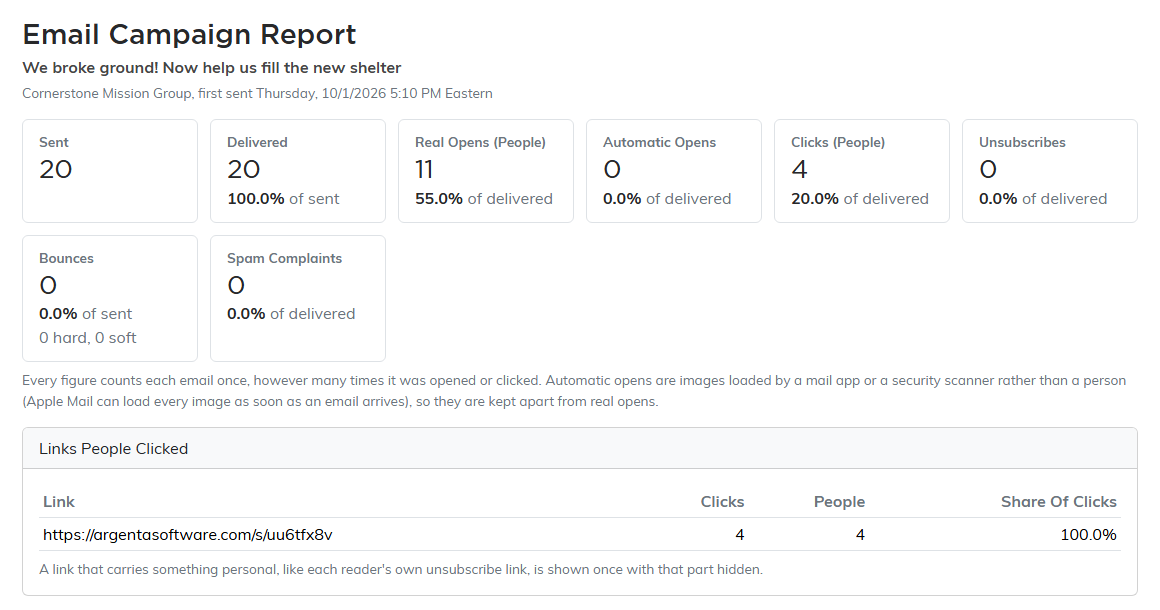
What someone with the link sees.
Download PDF saves the same figures and link table as a PDF. Creating or stopping a share link needs edit rights to the batch; a View Only user can still copy a link that already exists.
The Next-Morning Recap
The morning after you send, Argenta emails you a recap: the headline figures and a link to the full report. It arrives from 8 AM Eastern on the day after the first email went out. It is not sent for automations, for an email sent to a single person, or when nothing was delivered.
The switch Email me a recap the morning after I send sits at the top right of the Report tab. It is your own setting, not the batch's: turn it off on any batch and you stop getting recaps for all of them.
