Knowledge Base Article
How to Choose When a Mail Room Email Sends
When you send an email to a mail room list or a group, you choose when it goes out. It can go now, at a time you pick, at that same clock time wherever each person lives, or at the hour each person tends to read their email. Once a scheduled send is under way, you can pause it, change the emails that have not gone yet, resume it or cancel the rest.
Where You Choose the Send Time
The choice is in each of these windows:
- Communication > Mail Room, then Send Email, then Send To A Mail Room List or Send To A Group.
- On an email template, Send To A Mail Room List.
Send To A Single Recipient always goes straight away and has no send time to choose.
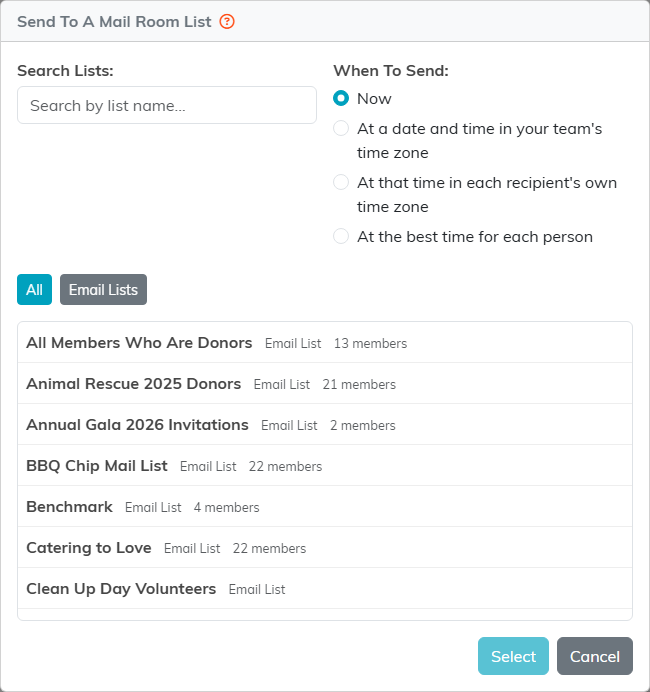
When To Send sits beside Search Lists.
The Four Choices
Under When To Send, pick one:
- Now sends as soon as you confirm. It is the choice the window opens on.
- At a date and time in your team's time zone sends to everyone at once, at the date and time you enter in Scheduled Send Date/Time. The line under the box names your team's time zone.
- At that time in each recipient's own time zone sends each person the email at the clock time you enter, where they live.
- At the best time for each person sends each person the email at the hour they have most often opened or clicked your emails.
After you pick a list or group, the green confirmation bar shows Send: with your choice and time, so you can check it before the email goes.
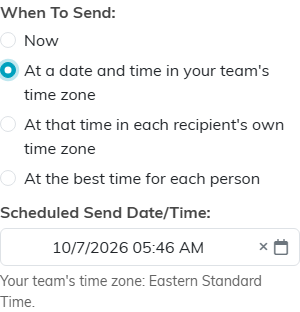
A send at one time for everyone, read in your team's time zone.
Sending at Each Recipient's Own Time
- Pick At that time in each recipient's own time zone.
- In Send Time In Each Recipient's Zone, enter the date and the clock time people should get it, such as 9:00 AM.
Argenta works out each person's time zone from the state and zip code in their mailing address. People with no usable mailing address get the email at that time in your team's time zone.
Schedule this kind of send at least 24 hours ahead, so the time has not already passed anywhere. An earlier time is refused with a message, and nothing is sent.
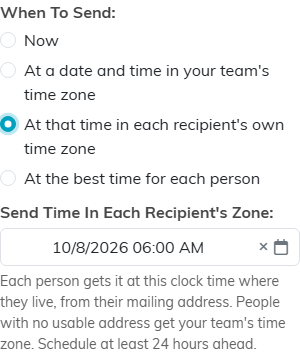
The clock time each person gets it, where they live.
Sending at the Best Time for Each Person
- Pick At the best time for each person.
- In Start Of The 24-Hour Window, enter when the window opens. Each person's email goes out at their best hour within the 24 hours that follow.
A person's best hour is the hour of the day they have most often opened or clicked your emails over the past year. Someone with fewer than 3 opens or clicks gets your team's best hour instead. Opens that a mail program makes on its own, and clicks from link scanners, are not counted.
Your team needs at least 50 opens and clicks over the past year before this choice can be used. Until then, a note says there is not enough history yet, with a link to use each recipient's time zone instead.
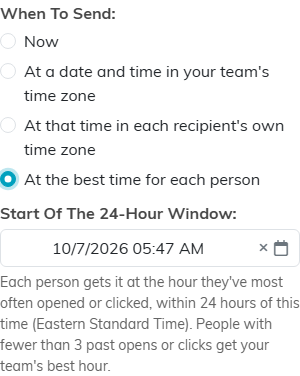
Each person's email goes out at their best hour within the window.
Setting Your Team's Time Zone
The date and time you enter are always read in your team's time zone. It starts as Eastern. To change it:
- Click Settings in the top right, then Email Settings.
- In Team Time Zone For Scheduled Email, choose your time zone.
- Click Save All Changes.

The zone your scheduled times are read in.
Pausing, Editing, Resuming or Canceling a Send
Open Email Batches from the left menu. A batch that is not simply sent carries a label: Scheduled, Sending, Paused, Stopped For Safety or Canceled. Open the batch, and its Sending card shows where it stands, how many emails are Sent and how many are Waiting, and the buttons that apply right now.
- Pause Sending holds every email that has not gone yet. Nothing more goes out until you resume. If an email was already on its way when you pressed it, that one email may still go.
- Edit Unsent Emails appears while the batch is paused. Change the Subject, the Preview Text or the Email Body, and turn on Change The Send Time to pick a new time. Click Save Changes. Only the emails that have not gone are changed, each rebuilt with its own merge values. Emails already sent are not changed, and the batch stays paused until you resume it.
- Resume Sending starts it again. Any email whose send time passed while the batch was paused goes out as soon as you resume.
- Cancel Unsent Emails asks you to confirm, then stops every email that has not gone. The batch, the emails already sent and their report all stay. A canceled batch cannot be resumed.
Every version of the email is listed under Versions, with the original as Version 1, and Activity shows who paused, edited, resumed or canceled it and when.
Stopped For Safety means Argenta stopped the batch because too many of its emails bounced or were marked as spam. It cannot be resumed from the batch. Contact Argenta support to review it.
