Knowledge Base Article
How to Add a Hyperlink to Text in the Content Editor
Choose what you want linked first. Highlight the words, click a picture so it is selected, or click in the text where the link should go. If you have not clicked in the editor at all, Argenta asks you to do that first rather than dropping the address at the top of your content.
- Select the text, or click the picture.
- Click Insert Link on the toolbar. The Insert/Edit Link box opens.
- Fill in the fields and click OK.
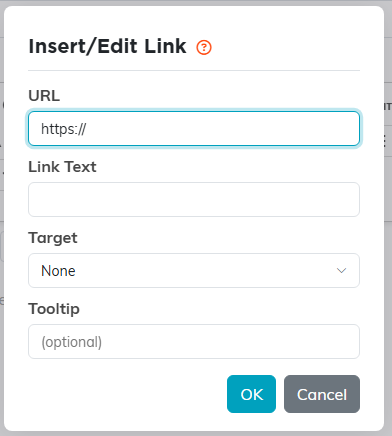
The Insert/Edit Link box. URL is the only field you have to fill in.
The fields
- URL. The only one you have to fill in. Use the full address, starting with https://.
- Link Text. The words the reader sees, pre-filled from your selection. Linking a picture ignores this, because the picture itself becomes the thing they click.
- Target. None, New Window (_blank), Same Frame (_self), Parent Frame (_parent) or Full Window (_top). New Window is the usual choice inside an email.
- Tooltip. Optional. The small note that shows when someone hovers over the link.
To take a link off again, select the words or click the picture, then use Remove Link on the toolbar.
