Knowledge Base Article
How to Reconcile Bank Accounts in Argenta
Reconciling a bank account means matching your bank statement to the transactions recorded in Argenta, so your books stay accurate. Argenta has reconciliation built in. (You need finance manager or administrator access to use it.)
Why reconcile
- Catch missing or duplicated transactions
- Spot unauthorized or unexpected activity
- Confirm your books match the bank
- Stay ready for an audit
Open the reconcile screen
- Go to General Financials > Chart of Accounts and find the bank account you want to reconcile.
- Click the account register icon on that account's row to open its Account Register.
- Click the green Reconcile Account button at the top of the register.

Step 2. The account register icon on the account's row.
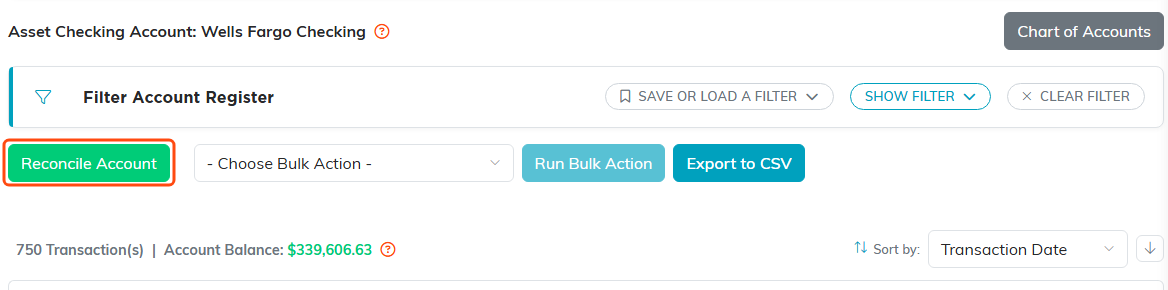
Step 3. The green Reconcile Account button.
How to reconcile
- Check the Enter Your Bank Balance field. If this account has a linked bank, Argenta has already filled in your bank's figure brought forward with anything posted since, and shows how old the bank's own reading is. Otherwise type the balance from your statement. You can type over the filled-in figure whenever you are working to your own dates.
- If you want to work one statement period at a time, set the optional Statement Period dates and click APPLY. Leave it blank to see all unreconciled transactions.
- Check off each transaction that appears on your bank statement.
- Watch the Difference and Discrepancy figures at the top. The Discrepancy reads BALANCED! when everything lines up.
- Click Mark as Cleared to mark the checked items as reconciled.

Steps 1 and 2. Leave the Statement Period blank to see everything unreconciled.

Step 4. Difference and Discrepancy are the two to watch.
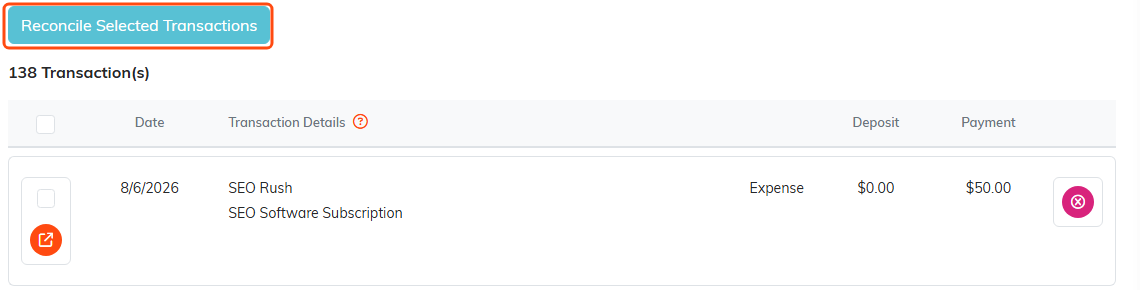
Steps 3 and 5. Tick what cleared, then click the highlighted button.
Finish and sign off
Marking transactions cleared is not the end of it. When the Discrepancy reads BALANCED!, click Close Out This Time Period, at the far right of the tab row next to Mark as Cleared. That is what turns a working session into a reconciliation on the record.
- It will not close a reconciliation that does not balance. If the difference is anything other than zero, Argenta refuses and tells you the amount it is out by. A closed reconciliation is what the Bank Reconciliation report shows an auditor and it cannot be edited afterwards.
- You do not need a Statement Period to close. Closing without dates means the reconciliation covers everything up to the day you closed it, and it is recorded in those words.
Closed reconciliations are listed under Past Reconciliations at the bottom of the screen, with the statement period, statement balance, cleared total, difference and who finished it. Open one with the orange arrow to see the whole record.
Common things that throw a reconciliation off
- Outstanding checks – written but not yet cashed
- Deposits in transit – recorded but not yet on the statement
- Bank fees – charged by the bank but not yet entered in Argenta
- Interest earned – not yet recorded
- Errors – a typo or a wrong amount
Record any bank fees or interest as transactions in Argenta before you reconcile, so they can be checked off with everything else.
Good habits
- Reconcile each account monthly, when the statement arrives.
- Investigate a discrepancy as soon as you see one.
- Keep your statements on file (you can store them under Account Statements).
Once a transaction is reconciled it is marked as such in the account register, which gives you a clean trail of what has cleared. You can filter the register by reconciled status at any time.
Reconcile against a connected bank
You can connect this account to your real bank with the Bank Feed. The reconcile screen then splits into two tabs, each carrying a count of what is waiting behind it: Match Your Bank, where the transactions your bank has posted are listed so you check off real bank lines instead of working from a paper statement, and Balance And Finish, which is the reconciliation itself. The screen opens on Match Your Bank whenever the account has a live bank connection, whether or not the bank has sent anything through yet, and an account with no linked bank never sees the tabs at all. You can also tick each bank line off against the entry in your books that it is. Ticking one off records the tie and nothing else, so ticking writes nothing into your ledger. See Connecting Your Bank with the Bank Feed.
When a bank line is one your books have not got at all, enter it first as the record it really is: an expense, a deposit or a donation. Then come back to this screen and tick the bank line off against it. Entering it as a real record is what puts it in the right list and keeps its vendor and its receipt with it, and that record posts its own ledger entries, so there is nothing to write by hand here.
A Stripe payout is a case worth knowing. It is booked into your ledger when it arrives, so the money is already there and it only needs matching. Use Match to point the bank line at the entry that already exists rather than entering it again.
What it writes is an ordinary journal entry. You can open it and change it afterwards like any other. Undoing the line later frees the line to be matched again but leaves that entry in your books, so remove the entry yourself if you did not want it.
If a payment is at your bank but has not reached the reconcile screen yet, you can ask for it straight away. See Check My Bank: Asking Your Bank for New Transactions and Your Balance.
