Knowledge Base Article
How to Use Dynamic Fields to Personalize Emails
In Argenta these are called merge tags. You drop a tag like [FirstName] into your email, and when the message goes out each recipient sees their own information in its place. One email, personalized for everyone on the list.
The Syntax
Merge tags use square brackets, not curly braces, and they are case sensitive. [FirstName] works. {FirstName} and [firstname] do not, and will print exactly as typed in the delivered email.
Tags work in the subject line as well as the body.

The Tags button in the editor toolbar.
Insert One
- Open your email template from Communication > Email Templates.
- Put your cursor where the personalized text should go.
- Click Insert Merge Tag in the editor toolbar. It has a tags icon and is labeled Tags.
- Pick the tag you want, and it drops in at your cursor.
You can also type a tag by hand. Just match the spelling and capitalization exactly.
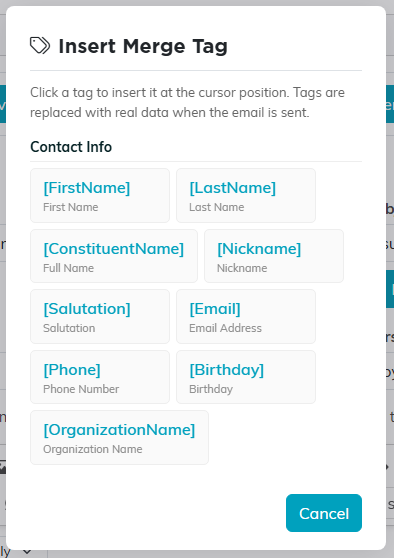
The picker, grouped by category.
What You Can Merge
The picker groups the tags under these names.
- Contact Info: [FirstName] [LastName] [ConstituentName] [Nickname] [Salutation] [Email] [Phone] [Birthday] [OrganizationName]
- Mailing Address: [MailingAddress] [MailingCity] [MailingState] [MailingZip]
- Organizational Segments: [Chapter] [Division] [Department]
- Donations: [TotalDonated] [LastDonationDate] [LastDonationAmount] [FirstDonationDate] [NumberOfDonations] [DonationYearTotal]
- Membership: [MembershipNumber] [MembershipLevel] [RenewalDate] [MemberSinceDate]
- Volunteerism: [VolunteerTaskHours] [YearsOfService] [VolunteerSinceDate] [NumberOfVolunteerTasks] [LastVolunteerTaskDate]
- Event / Program: [EventName]
[EventName] is the one tag that depends on how you send rather than on who you send to. It fills in the event or program name only when the email goes out from an event's guest or participant list, and comes out blank on every other send. The picker's heading for that group spells the condition out.
[OrganizationName] is your own organization's name rather than the recipient's, and in the picker it sits at the bottom of Contact Info.
When Someone Is Missing That Data
The tag is replaced with nothing. The recipient never sees a stray [FirstName] in their email, they see a blank where it would have been.
[FirstName] is the exception and does have a built-in fallback. With no first name on the record Argenta uses the nickname, and with neither it uses the word Friend, so "Dear [FirstName]," reads "Dear Friend," rather than "Dear,". Every other tag comes out blank, so write those sentences to survive an empty value, and if a clean result matters for a particular send, filter your list to people who have that field filled in.
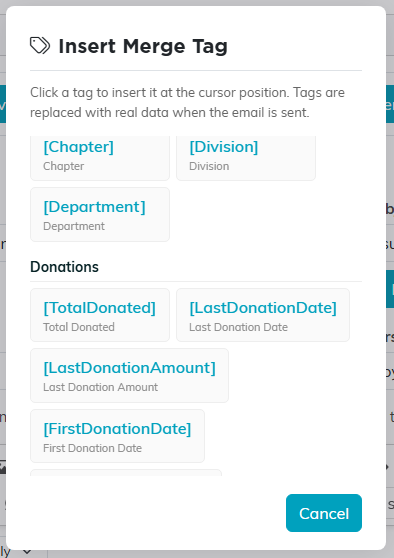
Scroll for the donation, membership and volunteering groups.
Test Before You Send
- Send a single test to yourself first.
- Check that every tag resolved. A tag that shows up in brackets in the delivered email is misspelled or miscapitalized.
- Check the subject line too, since it is easy to forget a tag is in there.
- Think about a record with thin data, not just your own well-filled one.
Worth Knowing
- Tags saved in a template personalize every time that template is used, so you set them up once.
- Team members you CC on a send get blank values for the personal tags. The CC copy is not personalized to the recipient, by design, so a CC never exposes another person's details. [OrganizationName] still fills in, and [FirstName] reads Friend for the same fallback reason.
- Sending a message with no merge tags at all skips the merge step entirely, so a plain announcement is not slowed down by this.
For the full reference, see Complete Guide to Using Email Merge Tags in Argenta.
