Knowledge Base Article
Using the Team Time Off Calendar
The Team Time Off Calendar shows when your people are scheduled to be away, laid out by date instead of as a list. Go to Staff & HR > Team Time Off Calendar.
Getting Around the Calendar
The view buttons at the top switch between Day, Week, Month, and Agenda. Week is what you land on. Click any entry to open its details or make a change.
Export To PDF gives you a copy to print or send around, which is handy for posting a month of coverage where the team can see it.

Week is the view you land on. The arrows either side of Today move the date range.
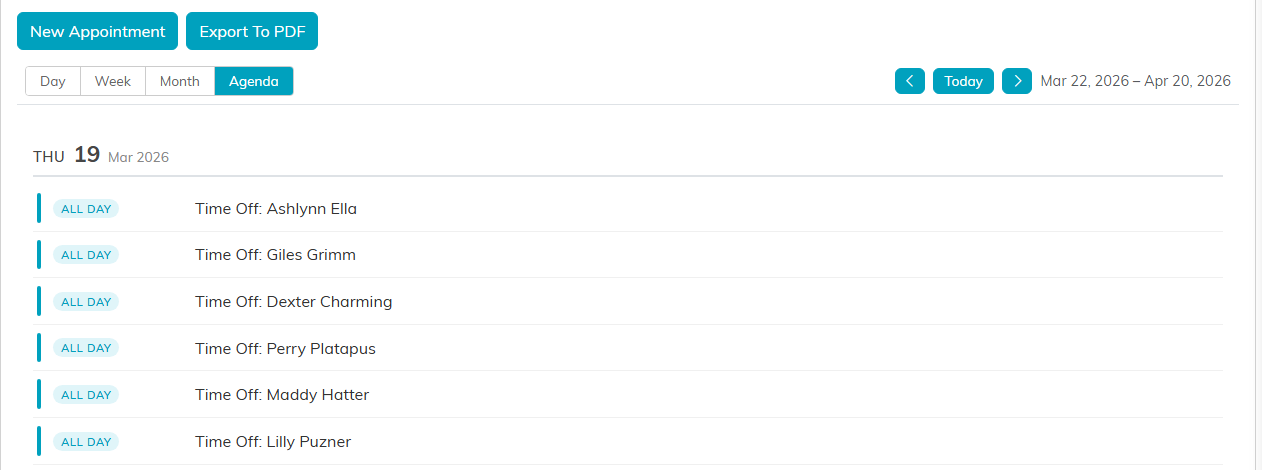
Agenda view lists what is booked. Click an entry to open it.
Adding Time Off to the Calendar
- Click New Appointment.
- Fill in the details on the calendar item screen.
- Click Save All Changes & Exit. You are returned to the calendar with the new entry on it.
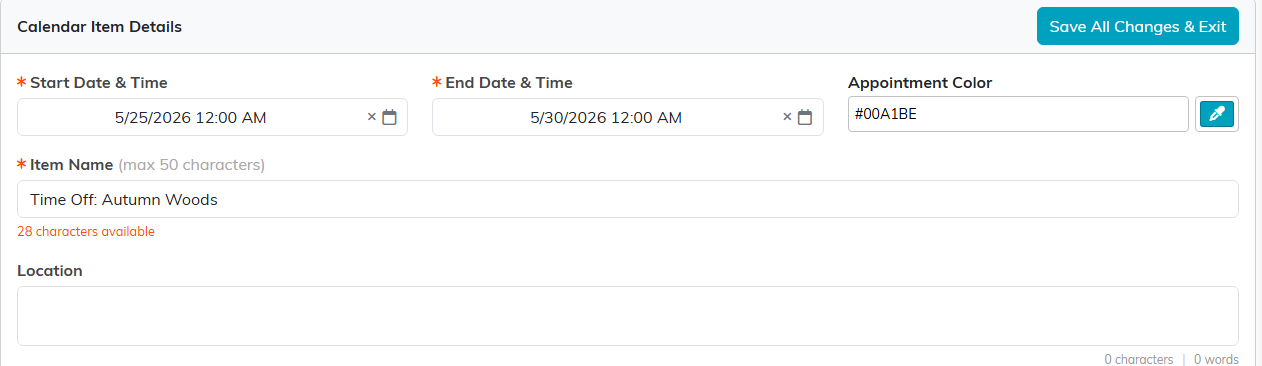
The calendar item screen. Save All Changes & Exit is in the header.
The Fields
- Start Date & Time (required) - type it in or use the picker
- End Date & Time (required)
- Item Name (required) - up to 50 characters, so keep it short and readable at a glance
- Location - optional
- Item Description - optional, and not limited in length
- Recurrence - Doesn't repeat, Daily, Weekly, Monthly, or Yearly. Defaults to Doesn't repeat

Recurrence sits at the bottom of the item screen.
How This Relates to Time Off Requests
An approved request adds itself to this calendar. As soon as a time off request is approved and has a start date, Argenta puts an entry here named Time Off: followed by the staff member's name, so you do not have to add it yourself. Change the dates, clear the approval, or delete the request, and that entry is updated or removed to match.
So the calendar is the visual view of who is out, while the request and approval trail lives in Time Off Requests, where a manager signs off on each one. Use New Appointment for time away that has no request behind it.
