Knowledge Base Article
Sending an Email to Your Registered Guests or Ticket Purchasers
Once people have registered or bought tickets, you will want to email them: a welcome note, a change of venue, the speaker line-up. There are three ways to do it, and two of them need no mailing list at all.
The Quick Way: Email Your Guests Straight From the Event
Open the event and go to Notifications in the workspace menu. It holds the event's email templates, each with an Edit Template button (it reads View Template if the record is locked or view only).
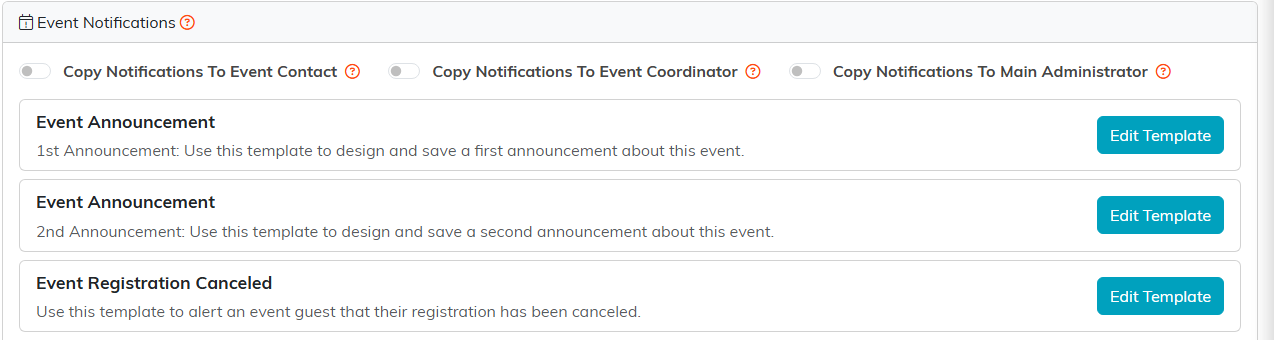
Notifications holds the event's email templates.
Open a template and you get these buttons:
- Send To Participants/Guests - emails everyone on the event's guest list now. No mailing list needed, which is what makes this the fast path
- Schedule Participants/Guests Email - the same thing at a date and time you pick
- Send To An Email List - send to a Mail Room list instead
- Schedule Email List Email - schedule that send
- Send A Test Email - pick a constituent, usually yourself, and send them a copy first
- Save All Changes and Exit Email Template

Send To Participants/Guests emails the whole guest list with no mailing list.
Always send yourself a test before a real send. It is the only reliable way to catch a broken link or a merge field that did not fill in.
Setting Up the Email
- From Email Address - if you have validated your address, that is what recipients see. If you have not, the email sends from our mail server with your address as the reply-to. See Validating An Email Address
- Include A Greeting - tick it, then set the greeting text ("Hello", "Welcome") and the Field that follows it: First Name, Full Name, or Prefix + Last Name
- Email Body - the editor handles formatting, images, documents, links, spell check, and tables. Hover any icon to see what it does
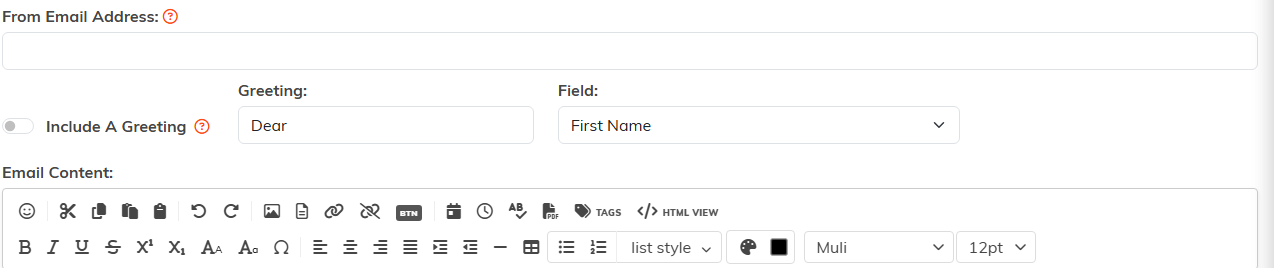
The from address, the greeting, and the body all sit on the template.
Emailing Only Some of Them, From the Participants List
Use this when you want to reach some of your guests rather than all of them, and you do not want a mailing list for it.
- Open the event and go to Participants/Guests.
- Tick the people you want. The bulk menu can also select everything matching your current filter, or everything on this page.
- From the bulk actions menu, under Email, choose Send An Email To Selected Records, then click Run Bulk Action.
A window opens headed Send An Email To 1 Selected Participant, counting up as you select more, so the number is in front of you before you send. Fill in:
- Email Template (required), which fills the subject and message for you. Send stays greyed out until you pick one, and the window says so. To write a one-off message instead, pick any template and replace the subject and message below it.
- Send From Email Address, the address the email is sent from and the one people see it come from.
- Display From Name, the name shown beside that address in the inbox. Leave it blank and your organization name is used.
- Reply To Email Address, where an answer goes when somebody replies. It opens holding your own address, so replies come back to you. Clear it and replies go to the Send From address instead.
- Send On, if you want it to go later rather than now.
- Subject (required) and Message, either as the template left them or changed for this send. An empty subject also keeps Send greyed out, and the button comes to life as you type.
- Message Type, on an event's participant list, which decides whether a marketing unsubscribe applies. It is covered in its own section below.
Then click Send.
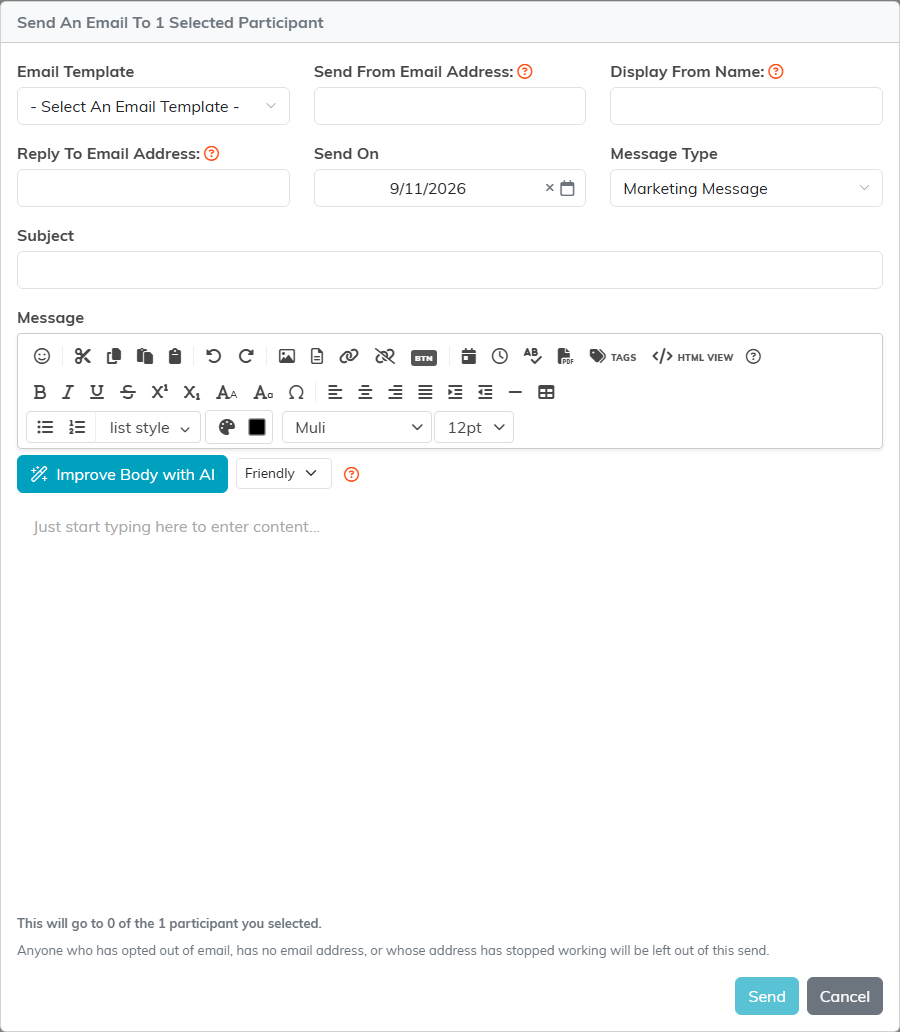
The count is in the window title. Send On lets you schedule it instead of sending now.
Improve Body with AI sits under the message editor with a tone to choose, the same as anywhere else you write in Argenta. It replaces what you have written, so Undo is the way back.
Marketing Message or Program Message
An event's participant list is the one place in Argenta where you choose what kind of email you are sending. Message Type offers Marketing Message and Program Message, and it starts on Marketing Message.
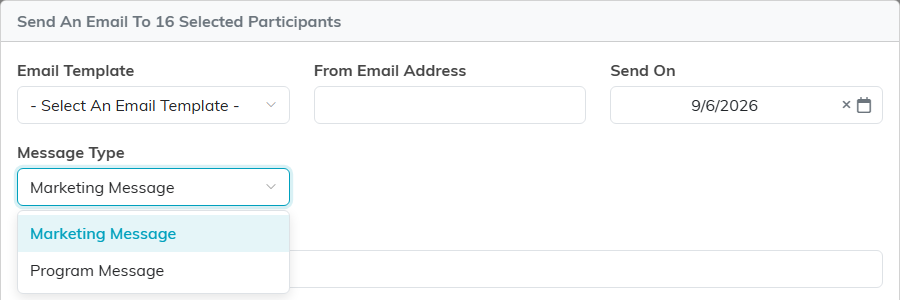
Message Type sits with Email Template, From Email Address and Send On.
The difference is who it reaches:
- Marketing Message is the normal choice, and it behaves the way every other send in Argenta does. Anyone who has unsubscribed from your marketing email is left out.
- Program Message reaches everyone currently registered on this event, including people who have unsubscribed from your marketing email, because it tells them about something they signed up for.
A program message must carry only what a registered person needs for this program: dates, what to bring, where to meet, a change of venue, a cancellation. Anything promoting another program, or asking for a donation, makes the whole email a marketing one and it has to be sent as one. That is a judgment about the words you wrote, and it is yours to make rather than something Argenta can check.
Two exclusions apply to a program message exactly as they do to a marketing one: a participant with no email address, and an address that has stopped working or whose owner reported an earlier email as spam. Choosing Program Message sets aside the marketing opt-out and nothing else.
When Program Message Is Greyed Out
Argenta offers Program Message only when every person you selected holds a current registration on this event. If even one of them does not, the choice is greyed out and the window tells you why, and how many of your selection would qualify.

Select just the people it names and the choice becomes available.
A current registration means the event has not finished yet, and the person holds a ticket, answered Yes to attending, or RSVP'd yes. Someone who attended a past event does not qualify however recently they came, because an email to a past attendee is marketing whatever it says. A cancelled event still counts, since telling registered people that it is cancelled is exactly what this is for.
Fewer people may receive it than you selected, and that is deliberate. The window works the number out for you before you send and shows it on its own line, so you are never guessing. On a marketing message, anyone who has opted out of email, has no email address, or whose address has stopped working is left out, and the send runs the same consent and address checks as a Mail Room list send. A program message keeps every one of those checks except the marketing opt-out. Either way, a shortfall in the number is those checks working rather than the feature losing people.
The email lands on each participant's contact history, so you can see later who was written to.
The Other Way: Build a Mail Room List
Use this when you want to email a subset of guests, or combine them with other constituents.
- Open the event and go to Participants/Guests.
- Select the people you want, or use the bulk menu to select everything matching your current filter.
- From the bulk actions menu under Mail Room Management, choose Create A New Mailroom List With Selected Records, or Add Selected Records To An Existing Mailroom List if the list already exists.
- In the Create A New Mail Room List window, turn on the list type or types you want (Email, Text (SMS), Postal Mail), give it a Mail List Title, and click Add This List.
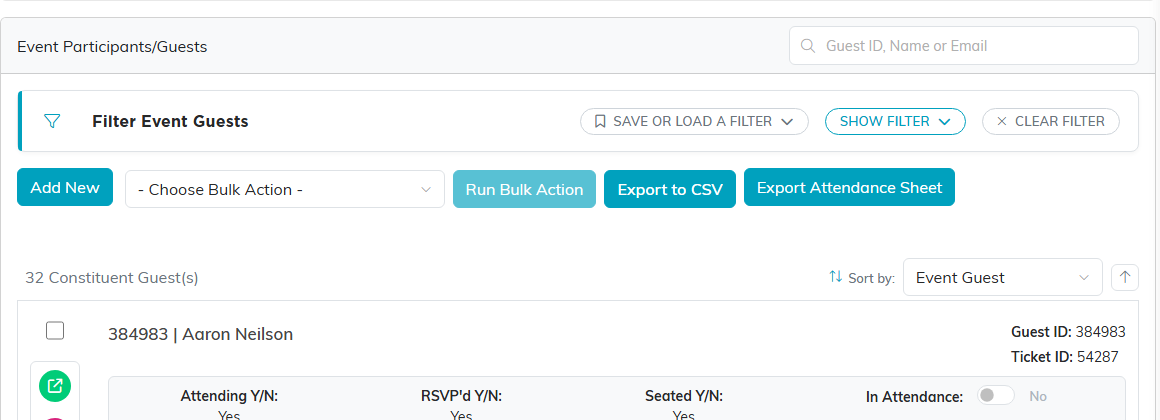
Start on the event's Participants/Guests page.
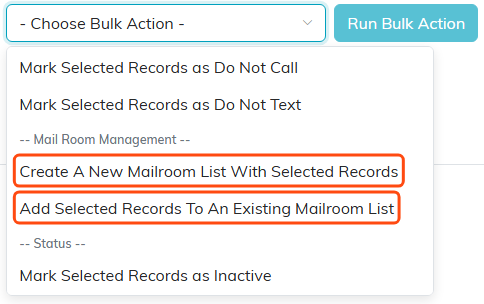
The bulk menu carries both Mail Room options.
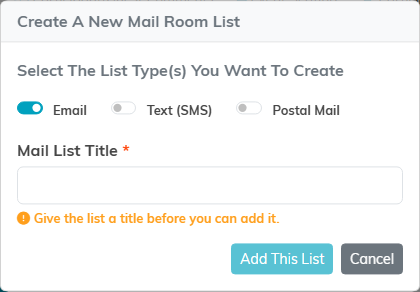
Turn on the list types you want, give it a title, then click Add This List.
To add people who are not on this event's guest list, see Add Constituents to the Argenta Mail Room.
Sending From the Mail Room
Go to Communication > Mail Room and open Email Templates. Add a new template or open an existing one. The Email Template Workspace has three pages:
- Template Details - template name, associated campaign, and your organization's chapter, division, and department
- Template Design - the subject, greeting, from address, body, and the send buttons, including Send A Test Email, send to a single recipient, and send to a Mail Room list
- Record Permissions - who can view or edit the template

Communication > Mail Room holds your email templates.

Template Design carries the send buttons.
Save before moving between pages. More detail is in How to Create and Use Email Templates.
Which One Should You Use
If you are emailing everyone who registered, use the event's Notifications page and skip the list entirely. Build a Mail Room list when you need a subset, when you want to reuse the audience later, or when you are mixing guests with other constituents.
