Knowledge Base Article
How To Set Record Level Permissions
Sometimes one record needs protecting even though everyone involved has every right to be working in that module: a sensitive donor, a personnel matter, a grant that is not public yet. Record-level permissions handle that single record without changing anybody's account.
Any record in Argenta can be locked or set to view only, and every record workspace has a Record Permissions page where you name the people the restriction should not apply to.

Every record workspace carries a Record Permissions page in its menu.
The two settings
- Set As View Only. People can open the record and read it, but cannot change it in any way.
- Lock This Record. People cannot view or update it at all.
Either way, three groups keep full access:
- The person who created the record.
- Master admins.
- Anyone given specific permission on that record's Record Permissions page.

The two switches sit side by side under Record Level Permissions.
Protect a record
- Open the record and stay on its details page.
- Near the top you will find Set As View Only and Lock This Record. They are switches, so one click is enough.
- Save the record. On a campaign sale the two switches take effect as soon as you click them, so there is nothing further to save.
A locked record shows a lock icon beside it in lists, so your team can see at a glance that it is protected. Deleting a locked record is refused from the list and from the workspace alike, because both routes run the same check. To delete one, open it, untick Lock This Record, save, and then delete. A Master Admin can delete a locked record without unlocking it first.
A record set to view only cannot be deleted from a list either. Argenta refuses the delete and tells you that the record is set to view only, so it cannot be deleted. The same three groups above are unaffected and can still delete it.
Locking also keeps a record out of the Export to CSV file for anyone locked out of it. The row still appears in the list with its padlock, so what is on screen and what lands in the file are deliberately different. Master admins and anyone named on the Record Permissions page still get the row in their export. A locked record you created yourself comes through in your own export, on every list.

On any record, the switches sit at the top of the details page.

A locked record carries a padlock beside its name in every list.
Grant access to a locked record
- Open the record and go to its Record Permissions page.
- Find the Locked Record Access section on the right.
- Start typing the user's name in the Add User box and choose them from the list.
- Click Add. They appear in the list below and can now open the record.
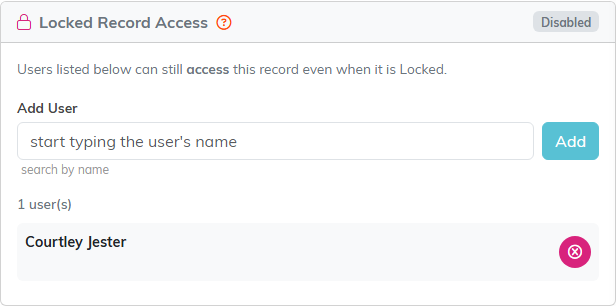
Locked Record Access sits on the right of the Record Permissions page.
Grant access to a view-only record
- Open the record and go to its Record Permissions page.
- Find the View Only Access section on the left.
- Start typing the user's name in the Add User box and choose them from the list.
- Click Add. That person can now modify the record.
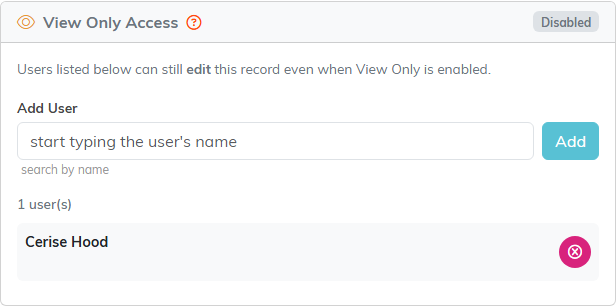
View Only Access sits on the left, and works the same way.
Remove someone's access
In either section, click the remove icon next to the person's name in the list. That works the same way for locked records and view-only records.

The pink button at the end of the row takes the person back off the list.
When to use something else
Record-level permissions are for exceptions, one record at a time. If somebody should be restricted across the board, that belongs on their user record instead, where you can make them view-only everywhere or limit them to particular chapters, divisions, departments, or precincts. See What are User Roles and Permissions in Argenta?
