Knowledge Base Article
How to Send a Contract for Electronic Signature
Every contract has a Signing tab. Upload the contract as a PDF, add the people who need to sign, show each of them where to sign, and send it. Each signer gets an email link and signs in their browser, with no Argenta login. When the last person signs, Argenta adds a Certificate of Completion, seals the document, files it in the contract's Contract Files, and emails everyone the signed copy.
Start a signing request
- Open the contract and click Signing in the workspace menu.
- Click New Signing Request and choose the contract as a PDF, up to 25 MB.
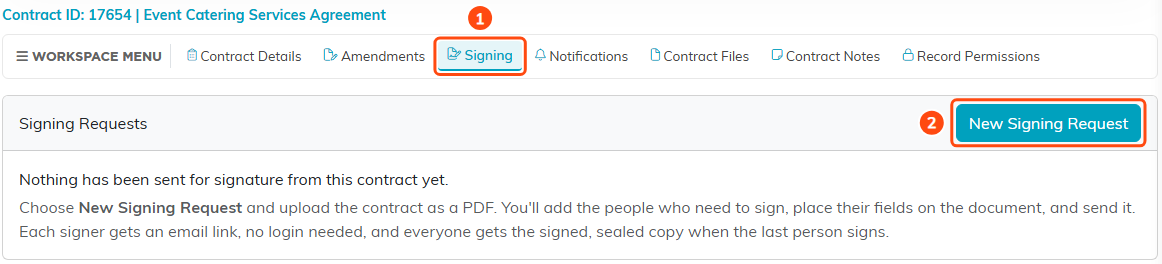
1 is the contract's Signing tab. 2 uploads the PDF and starts a draft.
Argenta opens the new request as a draft. Nothing is sent until you click Send, and Save Draft keeps your work so you can come back to it.
Add the recipients and the email
- Click Add Recipient for each person, and enter their name and email address.
- Under Action, choose what each person does:
- Needs to Sign fills in the fields you give them and signs.
- Needs to View opens the document and confirms they have viewed it.
- Receives a Copy gets nothing to do, only the signed copy at the end.
- To have people sign one after another, turn on Set signing order and number them. The lowest number goes first. People with the same number get their links at the same time. With it off, everyone gets their link at once.
- Check the Subject and add a Message if you want one. Both go in the email every recipient receives.
- Under Reminders and Expiration, choose how many days before the first reminder, how often after that, and how many reminders at most, or turn Send reminders off. Expires after (days) sets how long the request stays open, from 1 to 365 days.
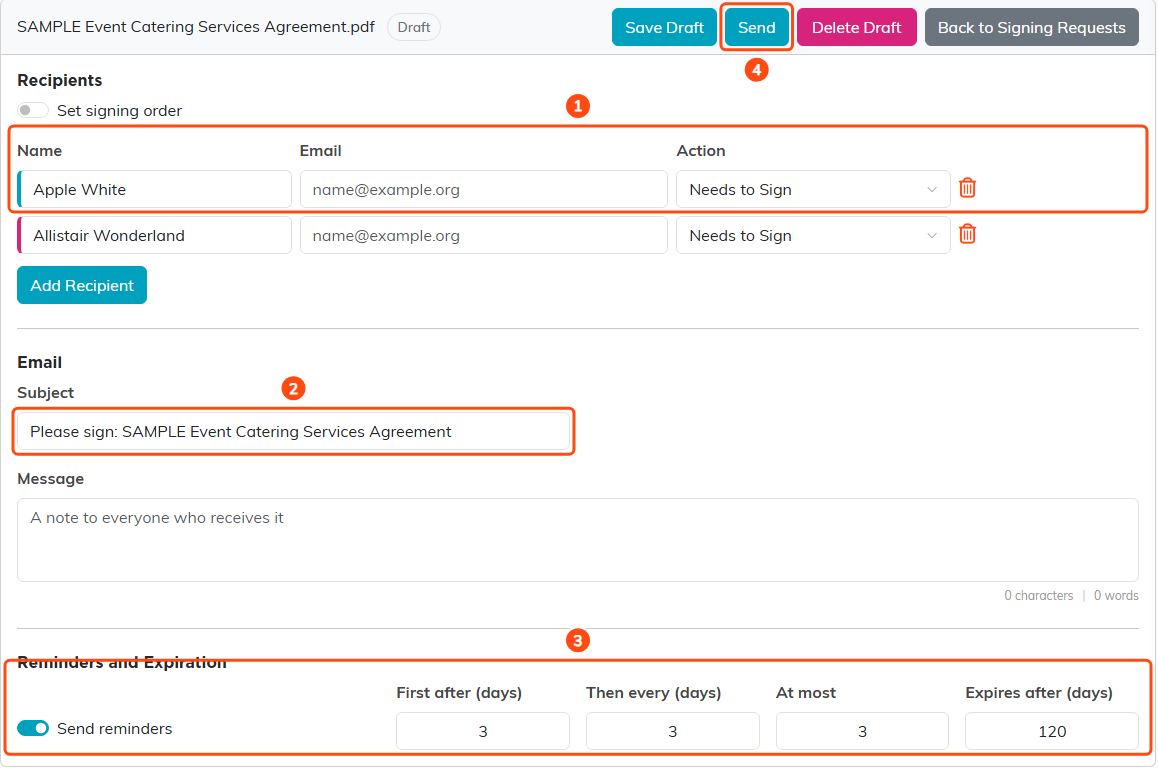
1 is a recipient and what they need to do. 2 is the email subject. 3 sets reminders and expiration. 4 sends the request once the fields are placed.
Place each signer's fields
- Under Place Fields, pick a signer by name above the document. Each signer has their own color.
- Drag a field from the list onto the document, or click the field and then click the spot on the page. Drag a field to move it, or drag its corner to resize it.
- Give every signer at least one Signature field. Date Signed, Name and Email fill themselves in when the person signs. Fields like Text, Checkbox and Dropdown are for the signer to fill in.
- Click a placed field to change it on the right, or click Remove Field to take it off.
- Click Save Draft.
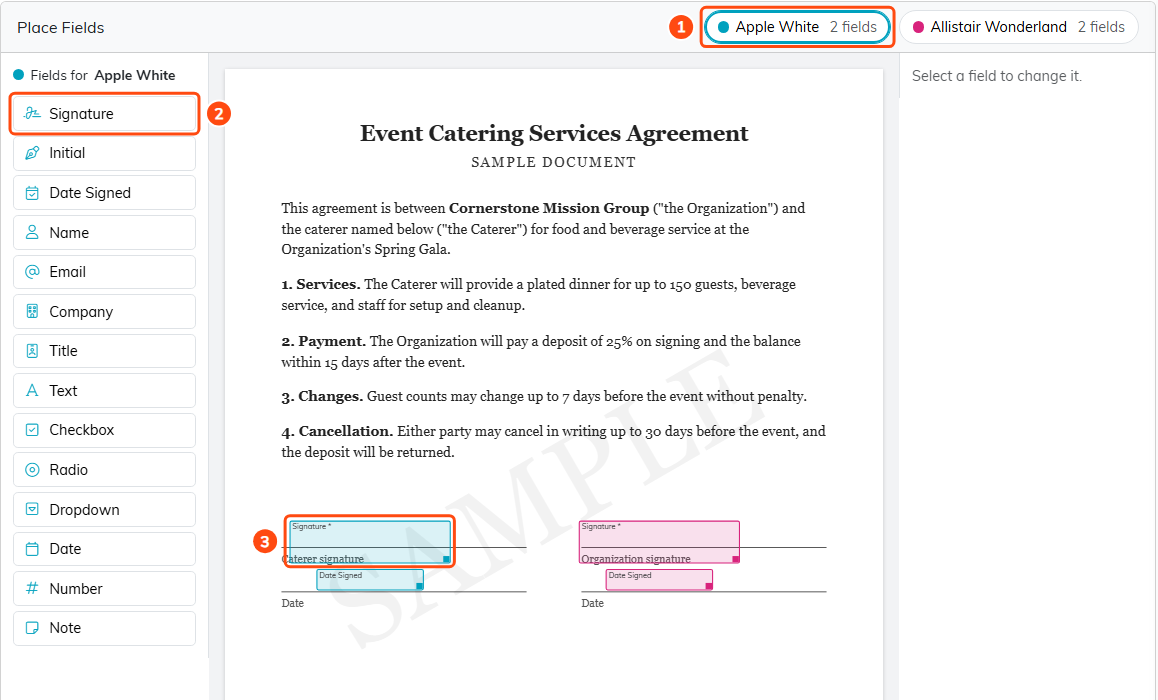
1 chooses whose fields you are placing, with their count. 2 is the field list. 3 is a placed Signature field.
Send it
Click Send and confirm. Everyone who needs to sign or view gets an email with their link, in turn if you set an order. Once it is sent, the document can no longer be changed.
The request then shows each recipient's status, when they were sent the link, when they opened it and when they finished, with a History underneath that records every step. While it is out for signature you can:
- Resend the link to everyone whose turn it is.
- Void it with a reason. Everyone is told, and the links stop working.
- Download Original to get the PDF you uploaded.
A draft that was never sent can be removed with Delete Draft.
What your signers see
The link opens a page with your organization's logo. The signer reads the Electronic Record and Signature Disclosure, ticks I agree to use electronic records and signatures, and clicks Continue. They can also choose Decline to Sign and give a reason, which closes the request for everyone and tells you why.
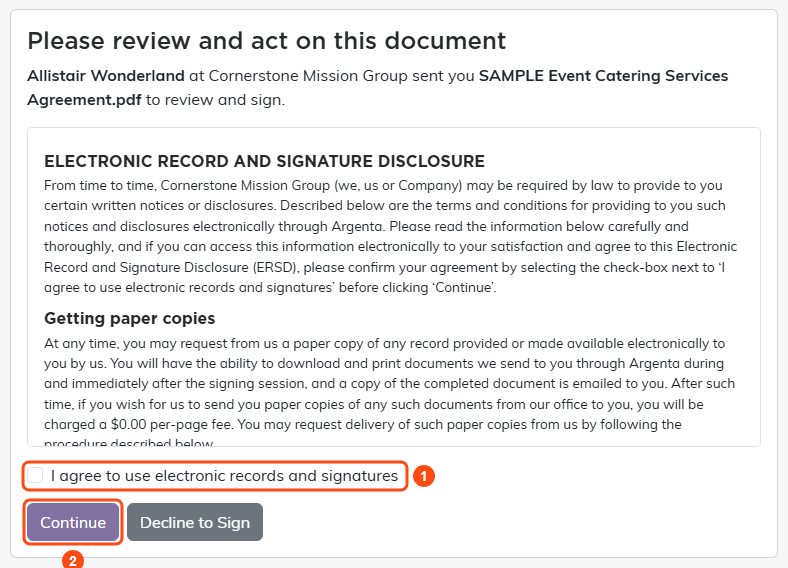
1 is the agreement to sign electronically. 2 opens the document.
Next they see the document. Start takes them to their first field, marked Sign, and the bar at the top counts how many required fields are done.
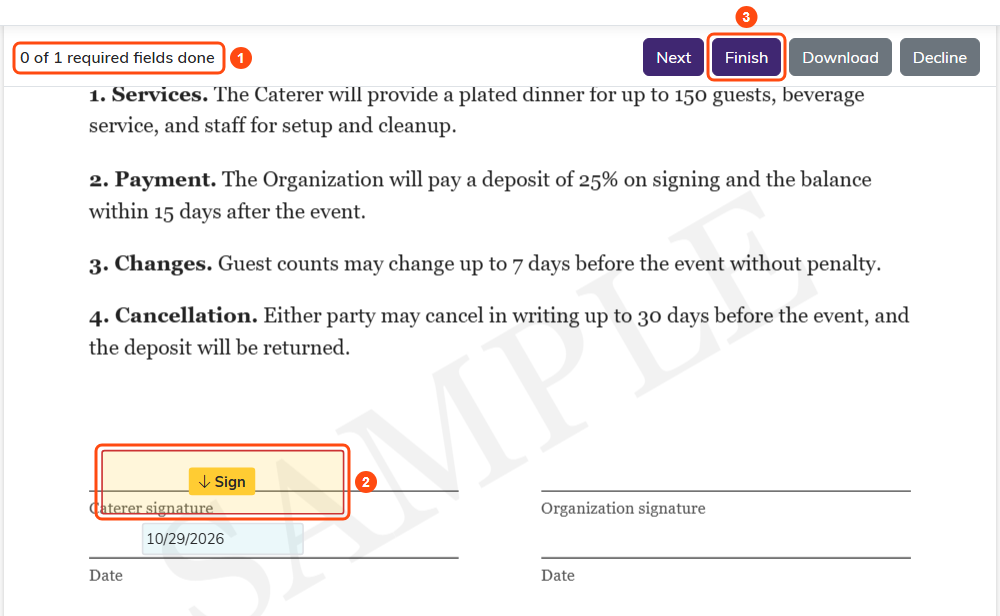
1 counts the required fields. 2 is where they sign. 3 finishes once everything is done.
Clicking the field opens Adopt Your Signature. The signer confirms their name and initials, then chooses a style, draws their signature, or uploads a picture of it, and clicks Adopt and Sign.
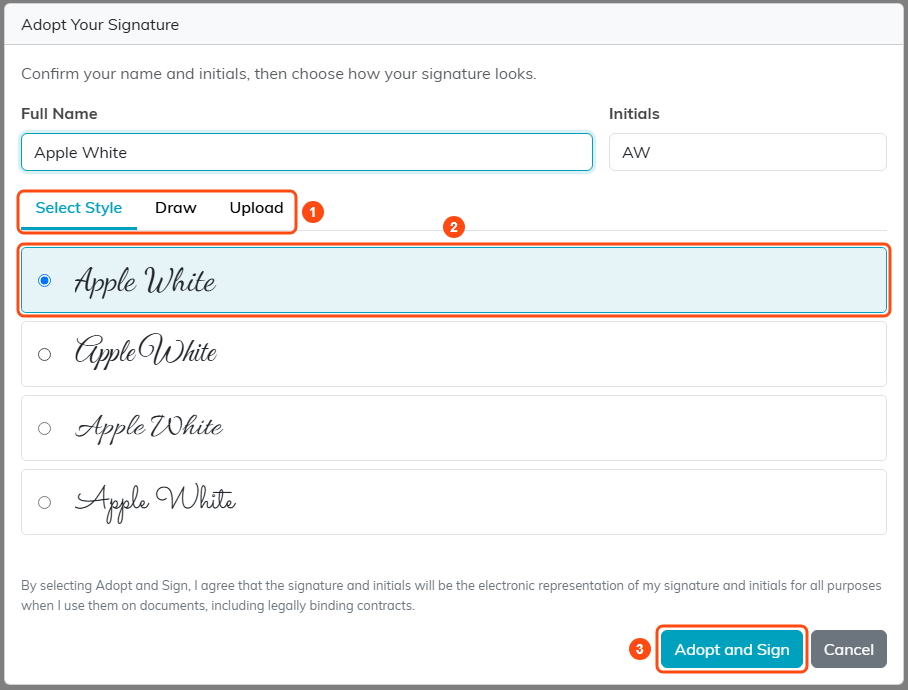
1 picks how to make the signature. 2 is the chosen style. 3 signs with it.
When every required field is done, the bar says so and the signer clicks Finish.
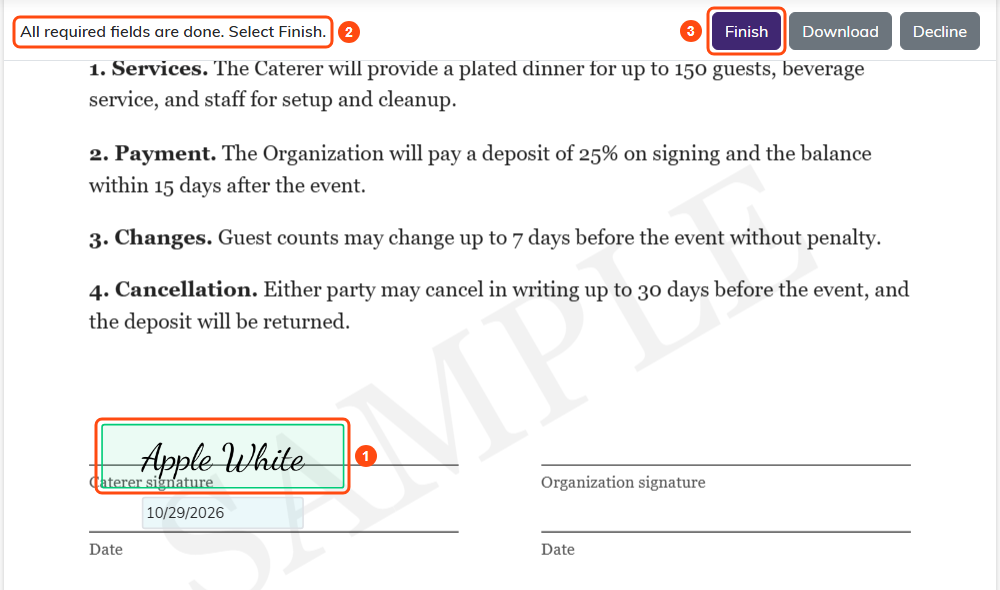
1 is the signed field. 2 confirms everything is done. 3 finishes signing.
Anyone who opens the link after everyone has signed sees that the document is complete and can download it.
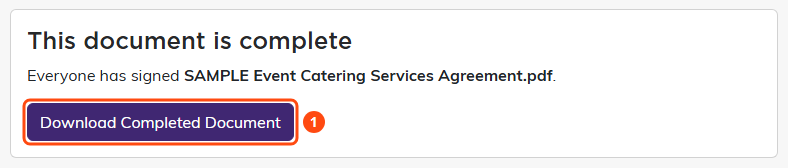
1 downloads the signed, sealed copy.
When everyone has signed
The request turns Completed. Argenta writes every value into the PDF, adds a Certificate of Completion page that lists each signer and what they did, and seals the file so any later change can be detected. The sealed copy is filed in the contract's Contract Files, and everyone on the request, you included, is emailed a copy.
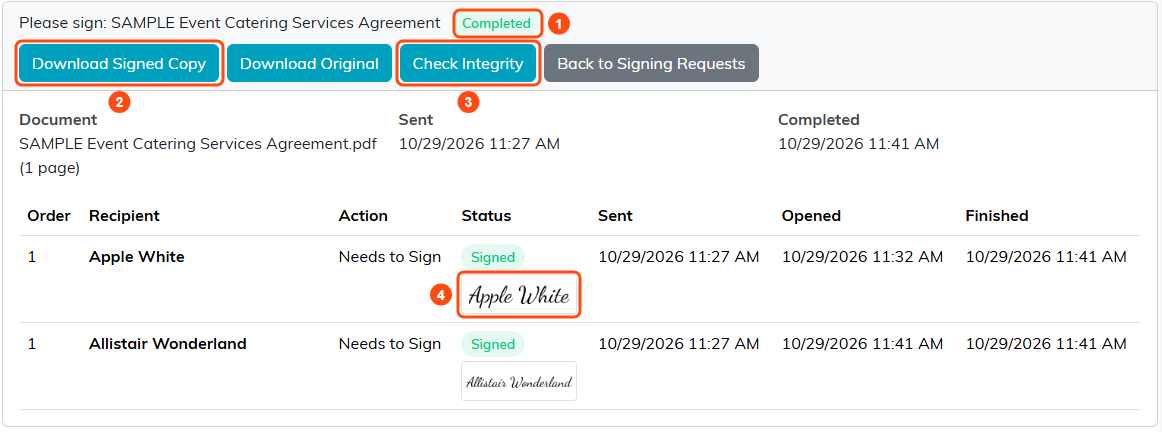
1 shows the request is complete. 2 downloads the sealed copy. 3 checks it has not been changed. 4 is the signature each person adopted.
Check Integrity confirms the sealed copy and its history are exactly as they were when the last person signed.
A request that is still open when its expiration passes expires, its links stop working, and everyone is told. To try again, start a new signing request.
Good to know
- You need to be able to manage contracts to send for signature. A view-only login can see signing requests but not create, send, void or resend them.
- A request can go to up to 50 people.
- For the rest of the contract record, see Add Contracts.
