Knowledge Base Article
How to Count the People You Served in One City
Funders often ask how many people you served in one town. No single screen in Argenta adds up household members for one city, but two places get you there: the Material Distributions Demographics Report counts the people you actually served in a date range, and the Recipients list shows everyone on file in a city, served or not.
Count the people you served in one city
- Click Report Center at the top right of the screen, choose Materials Management Reports, and open Material Distributions Demographics Report.
- Set the Distribution Date Range, or click a shortcut such as Last Year. Leave Include Dependents on No.
- Click Run Report.
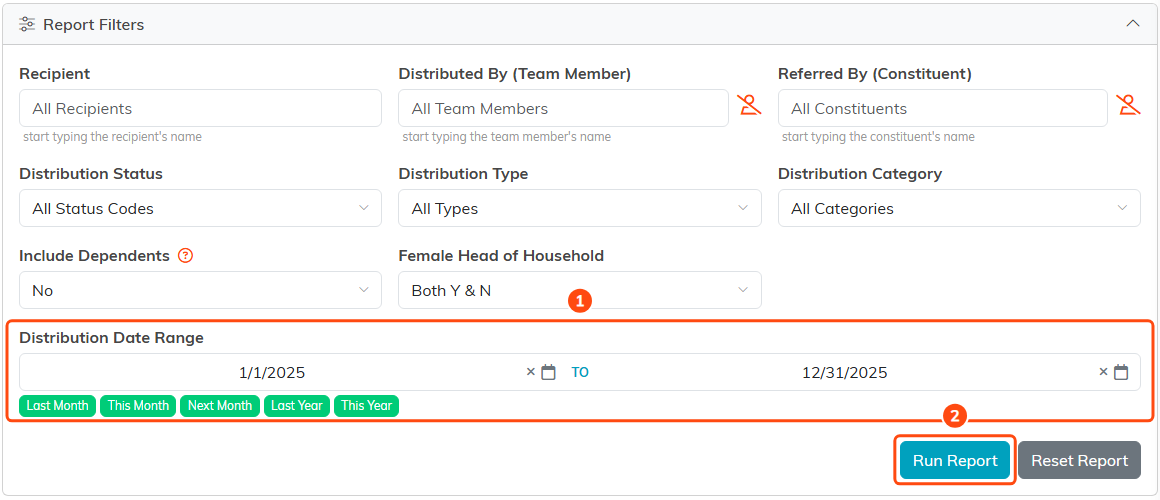
1 sets the dates you want to count. 2 runs the report.
The cards across the top answer the question for every city in the results:
- Unique Recipients is the number of households you served, each counted once however many times they came.
- Total Household Members adds up each of those households once, using the household size on the recipient's record. A household with no size recorded counts as one person, and the card says how many of those it includes. Recipients that are organizations are left out.

1 is the number of households served. 2 is the number of people in them.
The report has no city filter, so to count one city, download the results and finish in a spreadsheet:
- Click Export To Excel or Export To CSV above the results. These buttons appear for admins and anyone with export permission.
- In the spreadsheet, filter the Mailing City column to your city.
- Remove duplicate rows by Recipient ID, so a household served several times appears once.
- Add up Total Household Members, counting a blank cell as 1, the same way the card does.

Either export gives you the Recipient ID, Mailing City and Total Household Members columns.
The city is the recipient's mailing address as it is today, not where the items were handed out. If a family moved, they count under their new city.
See everyone on file in one city
When you want the households you know in a city, whether or not you served them in a given period, use the Recipients list.
- Choose Materials Management > Recipients from the main menu. The list starts on Active Recipients. Choose All Recipients to include inactive ones.
- Click Show Filter, pick your city under City, and click Apply Filter. The number beside the status dropdown is how many recipients live there.
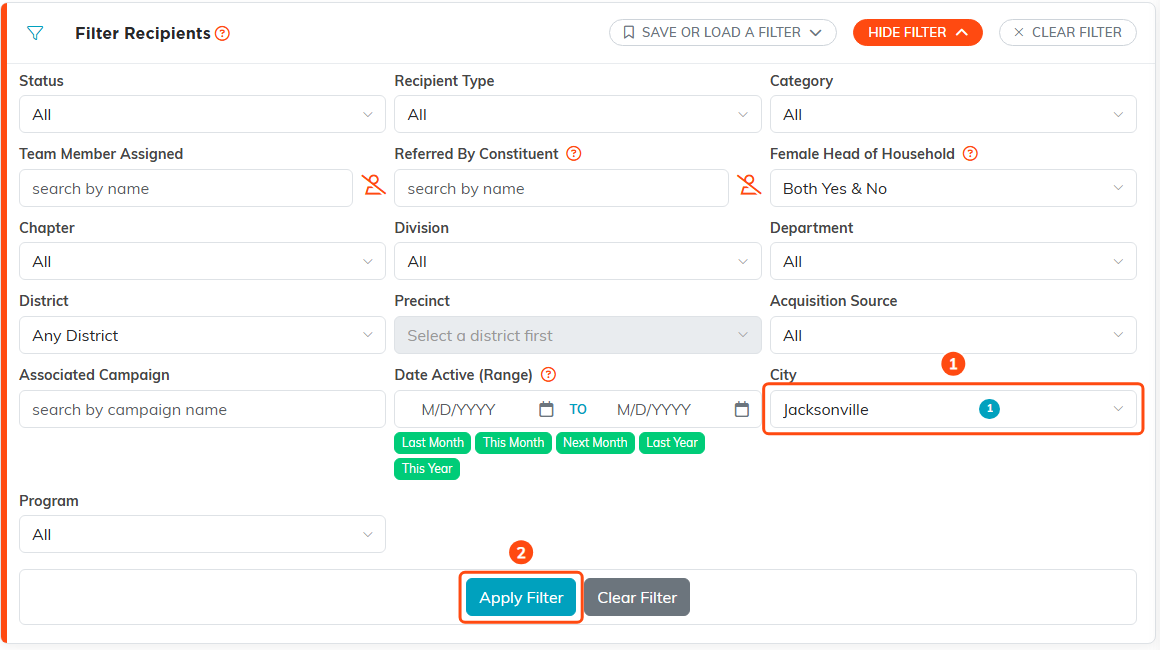
1 picks the city. You can pick more than one. 2 applies the filter.
- Click Show All List Details. Each recipient's Household Members appears with their other details once a size has been recorded.
- To get a total, click Export to CSV. The file has Household Members and City columns. Add up the Household Members column. A 0 there means no size was recorded, so decide whether to count that household as one person.
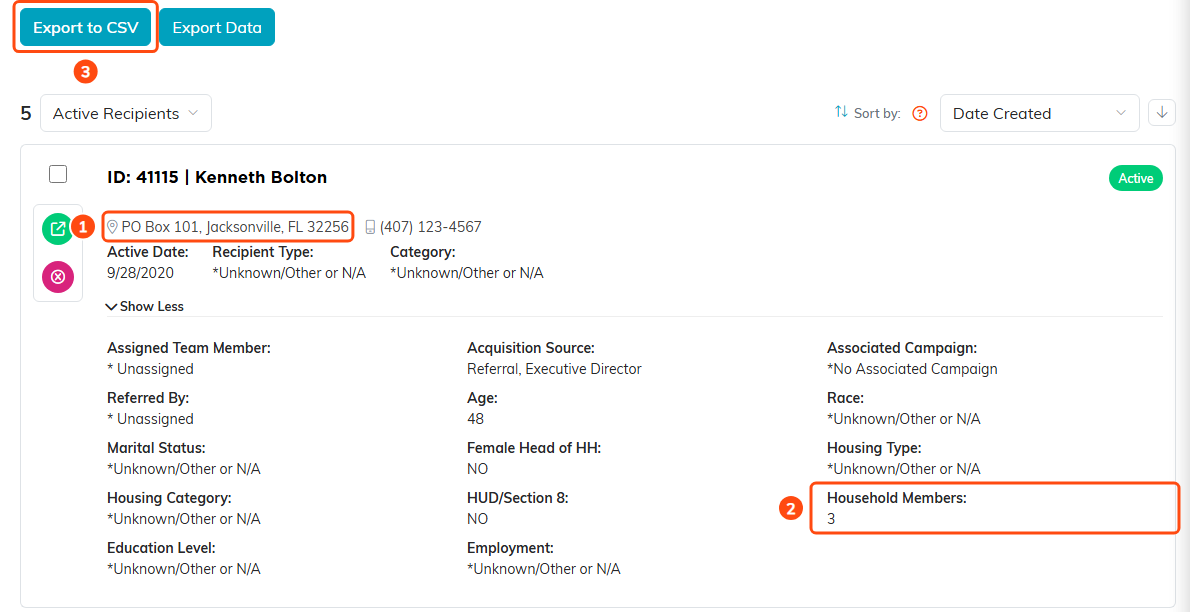
1 is the recipient's city. 2 is their household size. 3 downloads the filtered list.
Keep the numbers right
- Household size comes from Total Household Members on the Housing Info tab of the person's constituent record. A blank there is why a family counts as one, so fill it in when you register someone.
- For more on the Recipients list and its filters, see View and Filter Your Recipient List.
