Knowledge Base Article
How to Set Reservation Rates and Invoice a Stay
Reservation Rates are the nightly prices your team charges for a stay. Give a stay a rate, and once the stay is confirmed you can turn it into an invoice with one click. Rates are optional: a stay with no rate works exactly as before. For how stays, rooms and occupants work, see How Reservations Work: Stays, Rooms, and Occupants.
Set up your rates
- Choose Reservations > Reservation Rates from the main menu.
- Click Add A New Rate.
- Type the Rate name, such as Standard Room or Family Suite, and the Amount Per Night.
- Click Add.
For a stay you do not charge for, add a rate with an amount of zero. Each name can be used once on your list.
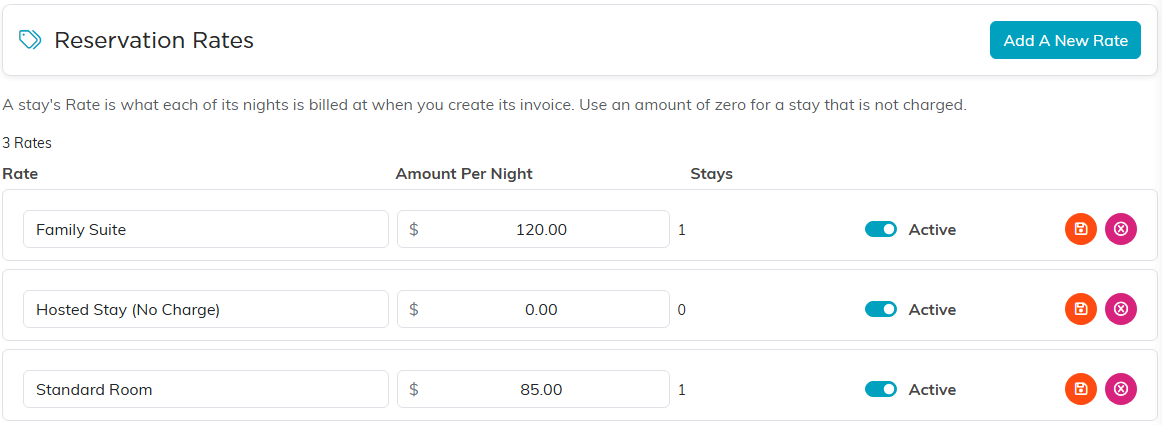
Each rate shows its amount per night and how many stays use it.
To change a rate, edit its name or amount in the list and click its orange save icon. The Stays column shows how many stays use each rate. A rate that is on any stay cannot be deleted. Switch off Active instead: the rate leaves the picker for new choices and stays on the stays that already have it, marked inactive.
Reservation Managers and admins can manage rates.
Give a stay its rate
- When you add a stay, or later on its Reservation Details, choose a Rate. The picker shows each rate with its amount, such as Standard Room ($85.00 a night).
- Save the stay.
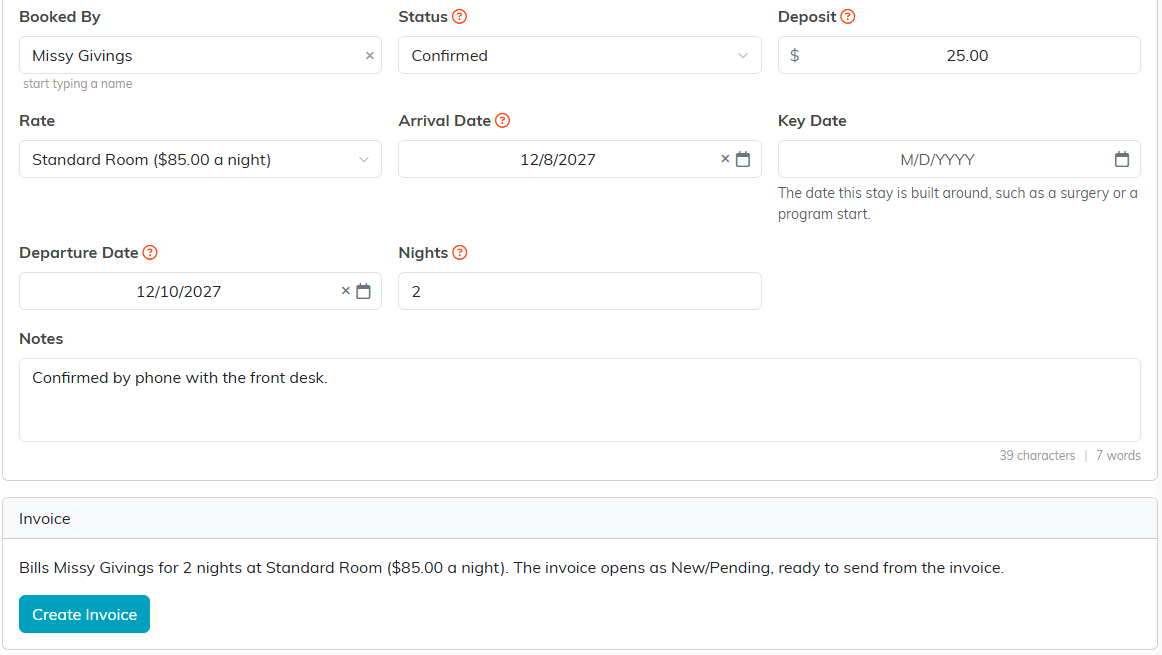
The Rate sits beside Booked By. The Invoice card below shows what the invoice will bill.
Create the stay's invoice
The Invoice card on Reservation Details is for admins and Finance Managers. It shows exactly what will be billed, for example "Bills Missy Givings for 2 nights at Standard Room ($85.00 a night)."
- Make sure the stay is saved with its Status set to Confirmed, a Booked By person, a Rate, and both dates. If anything is missing, the card says what to fill in instead of showing the button.
- Click Create Invoice.
- Check the summary, which gives the total and the due date, and click Yes.
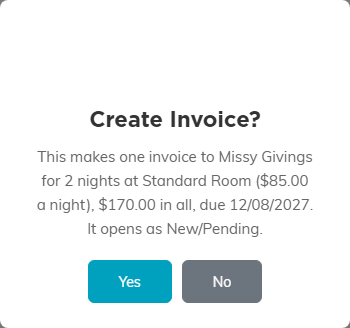
Argenta confirms the total and the due date before it makes anything.
The invoice goes to the person in Booked By, with one line for the stay: the rate as the item, the nights and dates as its description, and the number of nights as the quantity. It is due on the arrival date, or today if the stay has already started, and it opens as New/Pending. Send it, take payments and print it from the invoice itself, as with any other invoice.
Nothing is invoiced on its own. Changing a stay's status never creates an invoice; only the button does, and each stay can have one invoice.
After the invoice exists
The Invoice card now shows the invoice number, its status and its balance. Click the number to open the invoice.

The stay's invoice, with its status and balance.
- If you later change the stay's dates or rate, the card warns that the invoice may need updating. The invoice itself does not change; open it and edit the line if it should.
- A stay with an invoice cannot be deleted. Delete the invoice first if the stay really should go.
- Team members who cannot open invoices still see the invoice number on the stay, without the link, status or balance.
Rates and invoices on the Reservations list
A stay with a rate shows it on its card in the Reservations list, along with its invoice number and status once it has one.

Rate and Invoice appear on a stay's card only when it has them.
Click Show Filter to filter by Rate, including No Rate, and by Invoice Status, including No Invoice. The Invoice Status filter is shown to people who can open invoices.
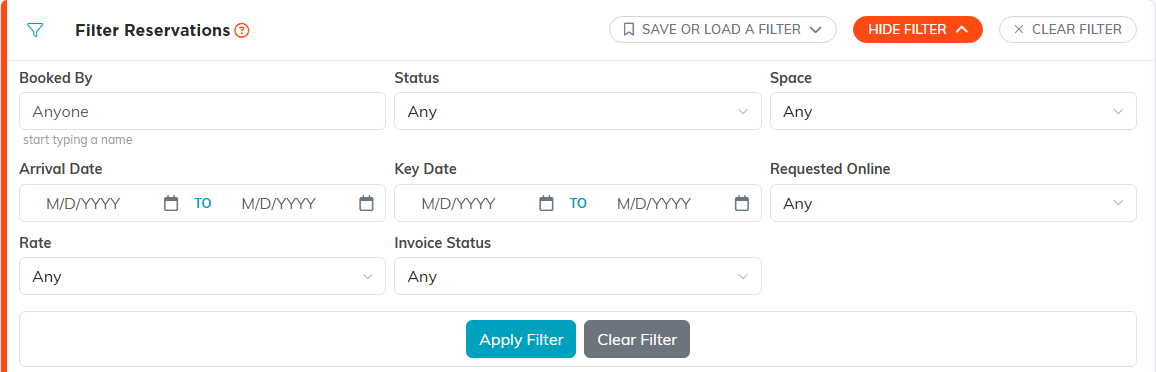
Rate and Invoice Status are on the second row of the filters.
Export to CSV ends with three columns: Rate, Invoice and Invoice Status. Invoice Status is filled in only for people who can open invoices.
