Knowledge Base Article
How to Track Leads for a Campaign
When you run a campaign, such as a capital campaign for a new building, you can keep the people you are approaching as leads and tie each one to the campaign. Each lead's own record tracks every contact you make with them, and the campaign shows you all of its leads and where each one stands.
You need the Marketing Manager permission or an admin account to work with leads.
Add your leads
- Go to Marketing & Engagement > Leads/Opportunities, or Constituents (CRM) > Leads.
- Click Add New, find the person or organization, and click Add Lead & Enter Details. Every lead starts from a constituent record, and you can create the constituent from the same screen if they are not in Argenta yet.
For the full walk-through, see Add Leads/Opportunities. To bring in a whole prospect list at once, use Import & Export under the Settings menu (Using the Import & Export Hub), then connect the imported leads to the campaign in bulk as described below.
Connect each lead to the campaign
- Open the lead and click Connections in the workspace menu.
- Under Associated Campaigns, start typing the campaign title and pick it.
- Click Connect. The campaign appears in the list below, with a green icon to open it and a pink one to disconnect it. Disconnecting never deletes the campaign.
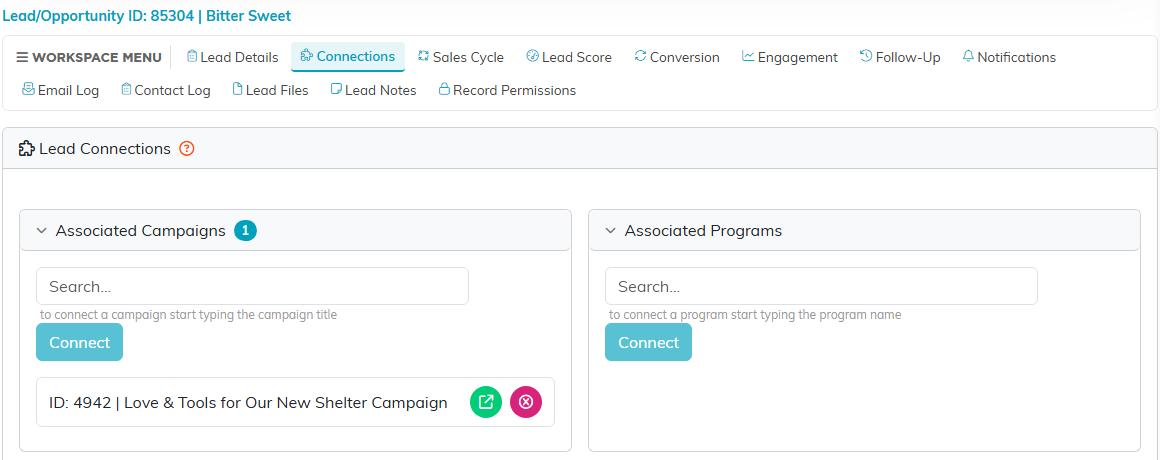
Connecting a lead under Associated Campaigns is what puts it on the campaign's list of leads.
A lead can be connected to more than one campaign.
Connect many leads at once
- On the leads list, tick the leads you want. To take everyone your current filter shows, choose Select All Records That Meet The Current Filter Criteria from the bulk action dropdown.
- Choose Add Selected Records To A Campaign and click Run Bulk Action.
- In Add To Campaign, start typing the campaign name, pick it, and click Add to Campaign. Leads already connected to that campaign are skipped.
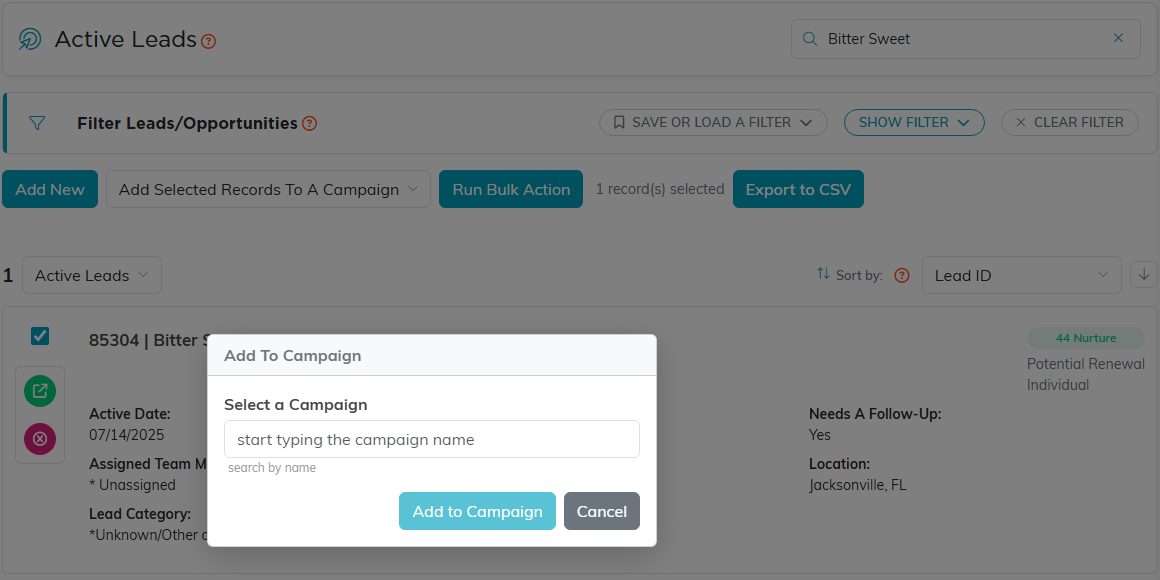
Add Selected Records To A Campaign connects every ticked lead in one step.
A Campaign column in a lead import fills in Acquired By Campaign (see the next section), but it does not connect the lead under Associated Campaigns. After an import, use this bulk action so the new leads show up on the campaign.
Track where each lead stands
Open the lead and click Sales Cycle. This is where you keep their progress up to date:
- Status / Sales Cycle Stage: where the conversation is, such as Made Initial Contact, In Discussions, or Meeting Scheduled.
- Last Date of Contact: the last time someone spoke with them.
- Is Follow-Up Needed?: set it to Yes when someone owes them a call, and click Create A Follow-Up beside it. Argenta saves the page and opens the lead's Follow-Up page, where you schedule it.
- Acquired By Campaign: the campaign that won them over. Set it when the lead commits.
- Date Converted and Final Outcome: how it ended.
Click the Save icon in the title bar when you are done.
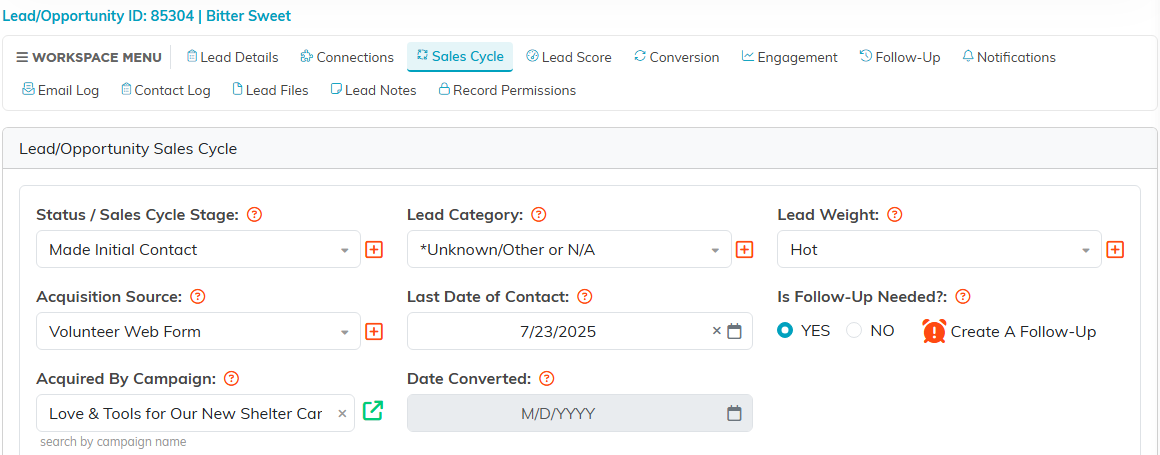
Sales Cycle holds the lead's stage, last contact, follow-up flag, and the campaign that won them over.
Log every contact
- Open the lead and click Contact Log.
- Click Add New, fill in the date, the team member who made the contact, and what was said, and save it.
Each entry stays on the lead, so anyone picking up the conversation can see its history. Adding an entry also fills in the lead's Last Date of Contact when the entry is more recent.
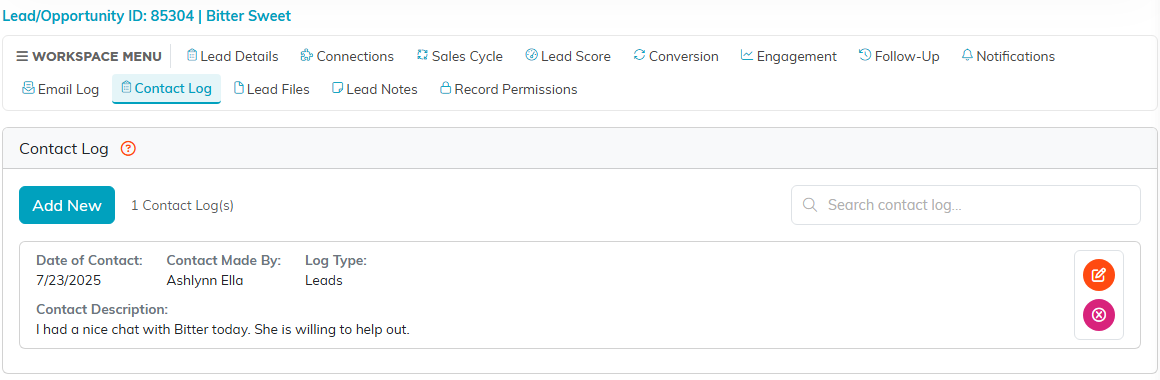
The Contact Log keeps the history of every conversation with this lead.
See the campaign's progress
- Open the campaign and click Campaign Acquisition in the workspace menu.
- The Leads Acquired card counts the leads connected to the campaign. Leads Converted counts the leads whose Acquired By Campaign is this campaign and whose status is Successfully Converted.
- Click Leads Acquired to list those leads. Each row shows the lead's current status, and the arrow at the end opens the lead.
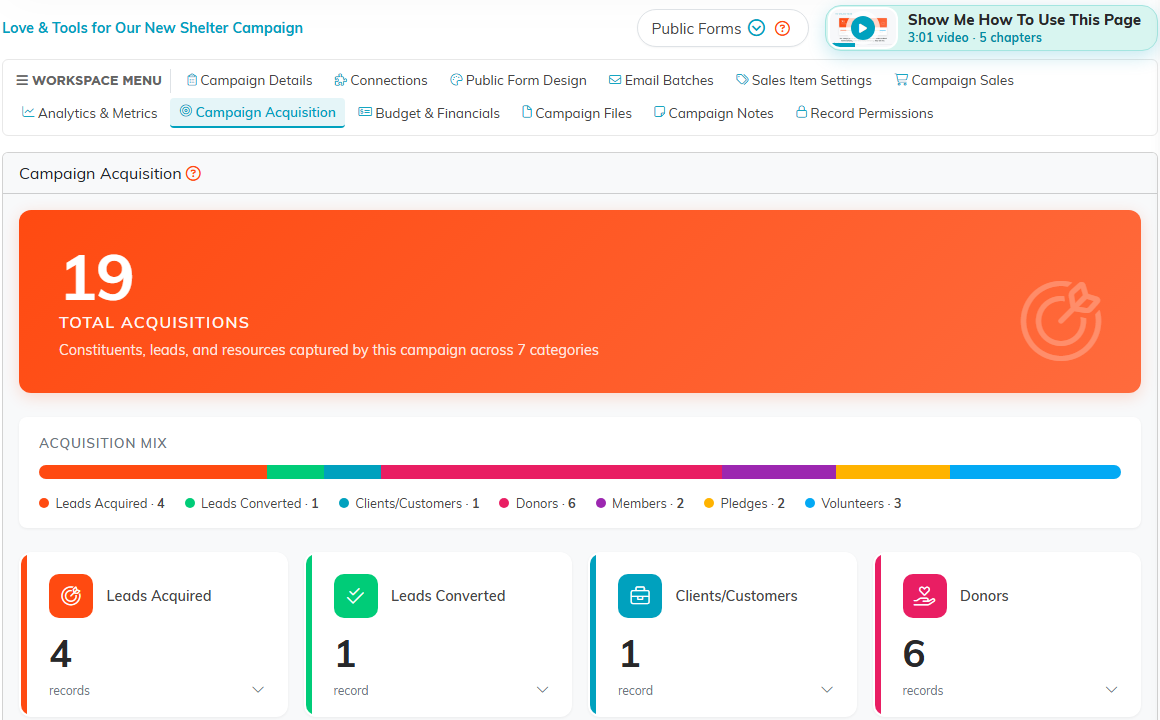
Leads Acquired and Leads Converted sit first among the campaign's acquisition cards.
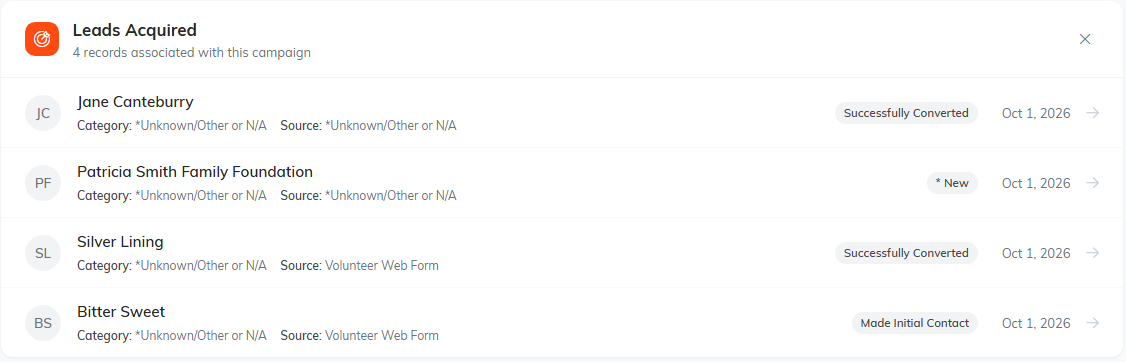
The Leads Acquired list shows every lead on the campaign and the stage each one has reached.
A lead set to Successfully Converted counts as converted for this campaign only when its Acquired By Campaign is also this campaign. If a lead you closed is missing from Leads Converted, check that field on its Sales Cycle page. For more on the other cards, see How to See What a Campaign Brought In (Campaign Acquisition).
Find the leads that need attention
On the leads list, click Show Filter and use Needs Follow-Up, Date of Last Contact, and Lead/Opportunity Status to find the leads nobody has spoken to lately or who are waiting on a call.
