Knowledge Base Article
How to Set Up a Reservation Request Form
The Request Form gives Reservations a public stay request form. You design it once and share its link. Each request a guest sends arrives as a Pending reservation, with the guest added to your records.
Open the Request Form
Go to Reservations and click Request Form, beside Occupancy Chart. Reservation Managers and admins can open it, and one whose login is view only can read it but not change it.

Request Form sits beside Occupancy Chart.
The Form
Turn on Accepting Requests to take requests, and turn it off to close the form. While it is off, the public link says "This form is not available." Form Title is the heading guests see; left blank, it reads Request A Stay.
Public Link is the address to share or put on your website. Copy Link copies it, and Preview opens the form as it was last saved, in a new tab, with sending switched off. The link and Preview work only once you have saved the form.
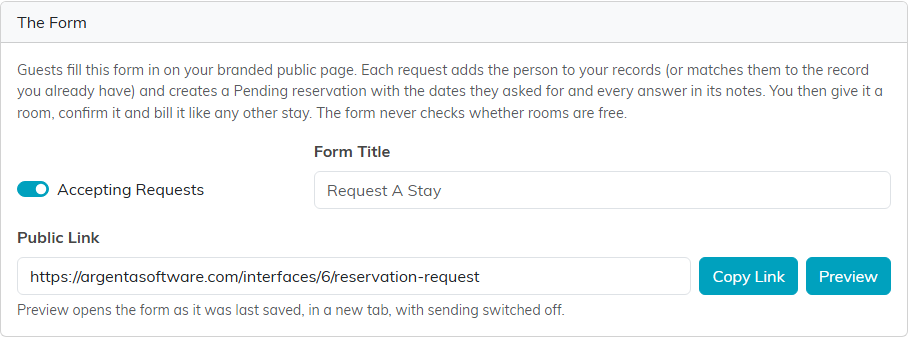
Switch the form on, give it a title, and copy its link.
A request is matched to the person already in your records with the same name and email, or adds them as a new person. It then creates a Pending reservation with the dates they asked for and every answer in its notes. You give it a room, confirm it and bill it like any other stay. The form never checks whether rooms are free.
Under The Form, the Introduction is the text shown at the top of the public form. Say who the form is for and what happens after they send it.
Standard Questions
These are the questions every stay request needs, in the order the form asks them. Turn on Ask It for each one you want, and Required for the ones a guest must answer. First and last name and Email are always asked and always required, because they are how Argenta finds the person in your records.
- Email, phone, OK to text and pronouns are saved on the person; everything else is saved on the reservation. For a person already in your records, Argenta fills only the fields that are empty and never overwrites what you hold.
- OK to text is shown only when the form asks for a phone number.
- Key Date asks for one more date, such as a surgery or appointment date. Type what the form should call it in What The Form Calls It. It is saved as the stay's Key Date, and it can fall before the stay starts.
- Caregiver plan and How they heard of us take their choices one on each line. Turn on Other Box to let guests type their own answer.
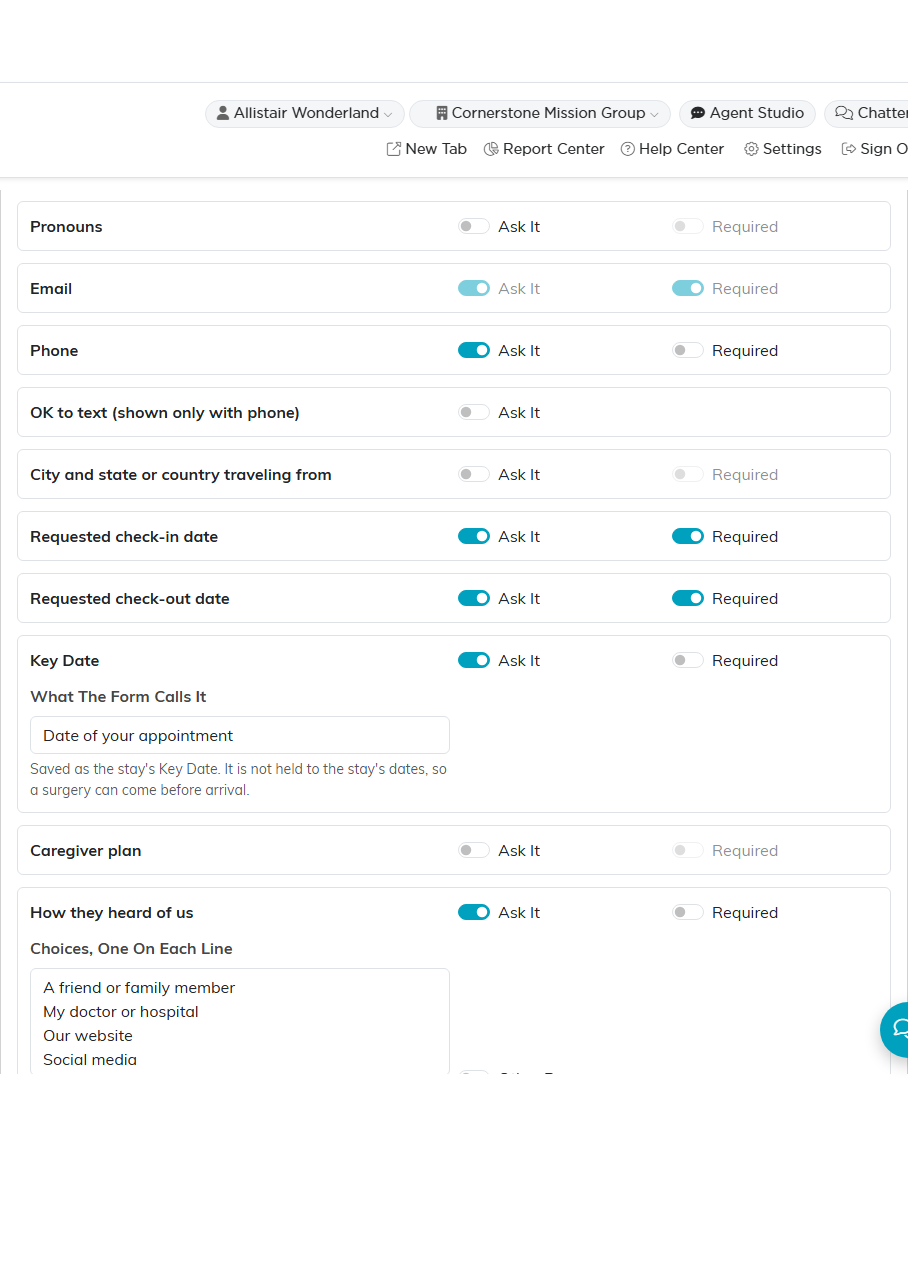
Choose which standard questions the form asks, and which are required.
Your Own Questions
Click Add A Question to ask anything else. Type the question, then choose its Type: Text, Long text, Date, Yes/No, Dropdown (one choice) or Checklist (any number of choices). A dropdown or checklist takes its choices one on each line, and Other Box adds a box for an answer of the guest's own. Turn on Required if it must be answered. Use the green arrows to change the order, or the pink button to remove a question.
Answers are saved on the reservation. A Text or Date answer can go to a field on the person instead, such as their date of birth: choose it in Save The Answer To. Your questions come after the standard ones and before "Anything else you want us to know".
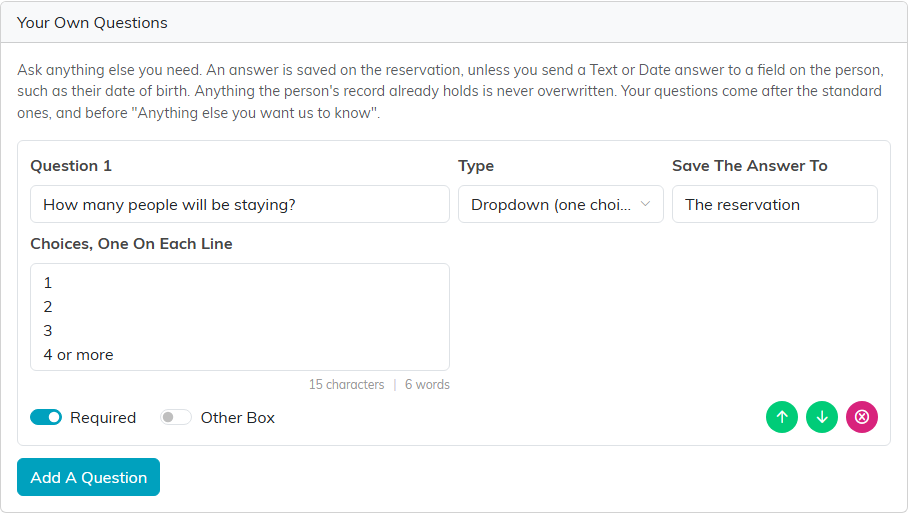
Add your own questions, with choices for a dropdown or checklist.
Inquiry Call
Choose an Event Type to have a new guest book a call with you on the screen that thanks them, without leaving the page. A guest who says they are returning is not offered it. The choices are your team's active Calendar Hub event types; choose No Inquiry Call to offer none.
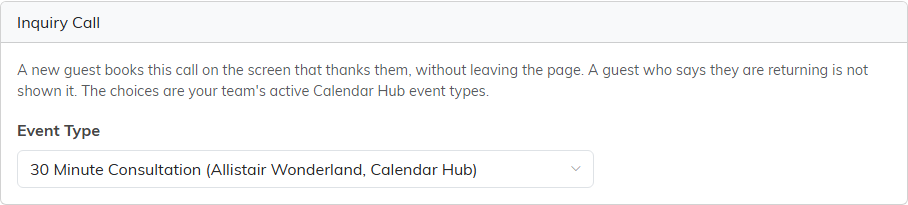
Pick the Calendar Hub event type a new guest books.
After They Send It
- Thank You Message For A New Guest and Thank You Message For A Returning Guest are what each sees once their request is in. Left blank, the guest sees "We received your request and will be in touch soon."
- Turn on Confirmation Email to email the guest, then fill in the Email Subject and Email Message. The email adds a copy of their answers and, for a new guest, the inquiry call link.
- Staff Notification Address gets one email per request, with the answers and a link to the reservation. Leave it blank to send none.
Click Save when you are done.
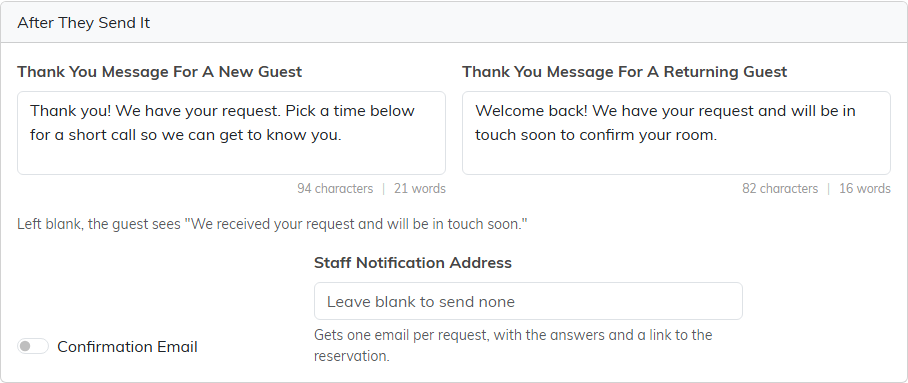
Set the thank you messages and who gets an email.
What Guests See
Guests open the link to find your logo, the form title and your Introduction, then the questions in three groups: About You, Your Stay and A Few More Questions. The check-in and check-out dates can't be in the past. They click Send My Request to send it.
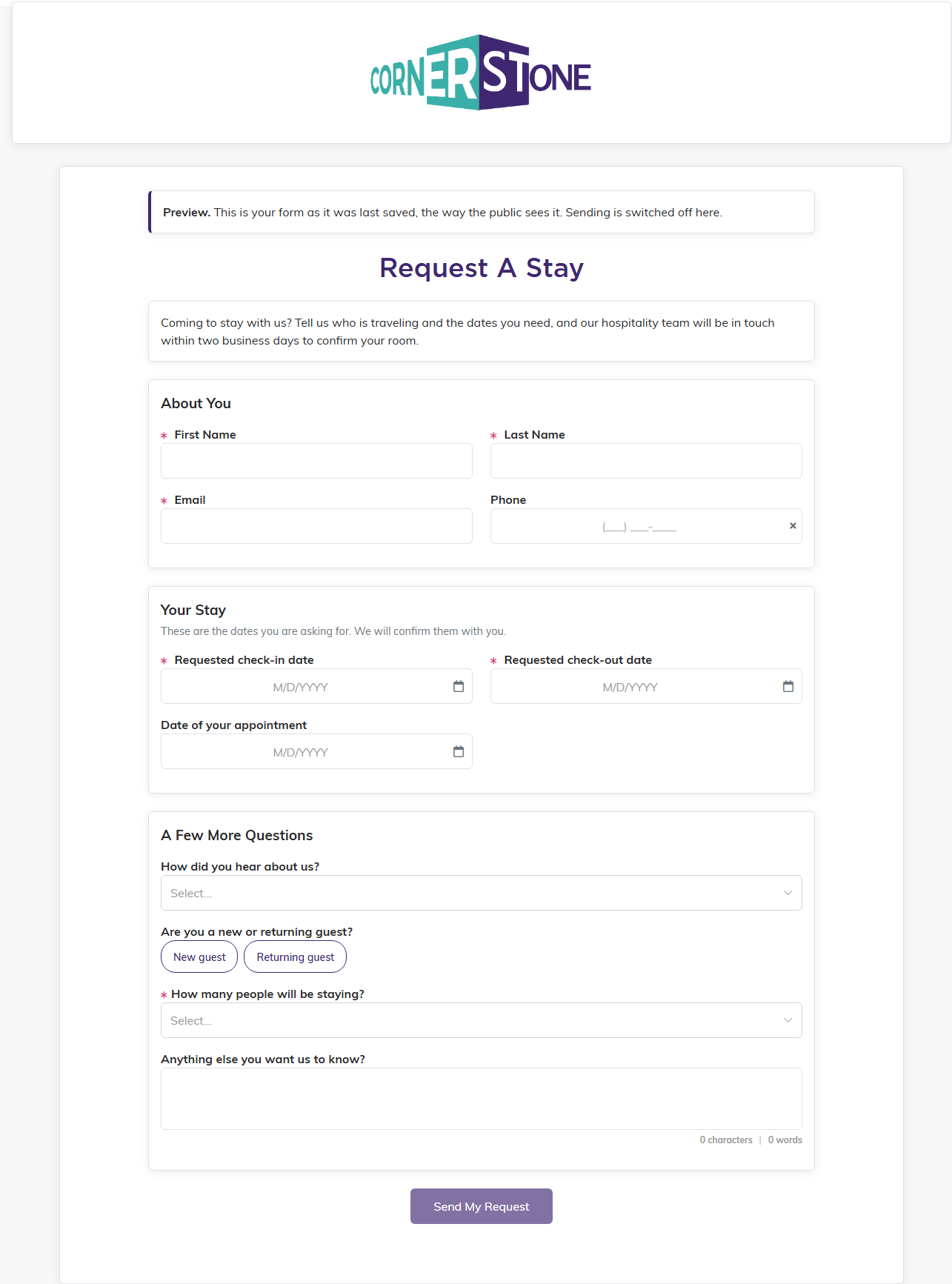
The form your guests fill in, shown here in Preview.
Finding Requests in Reservations
Each request shows on the Reservations list as a Pending stay with its Requested Online date. Under Show Filter, the Requested Online filter lists only the stays Requested online or only those Entered by hand. The CSV export has a Requested Online column too, blank for stays your team entered.
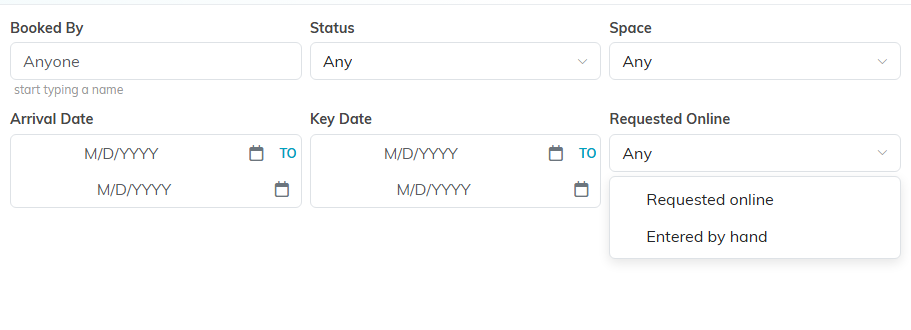
Filter the list to the stays that came in on the form.
A requested stay has no room until you give it one. Until its departure date passes, it is listed under Unscheduled Room Segments, below the Occupancy Chart. For more on stays, see How Reservations Work: Stays, Rooms, and Occupants.
