Knowledge Base Article
How to Add Files to a Volunteer Task
Attach the paperwork for one shift to the shift itself: a station map, a briefing, a signed form. Anyone who opens the task finds it there.
Open Volunteer Task Files
Open the volunteer task and click Volunteer Task Files in the workspace menu.
Add a file
- Drag a file onto the box marked Drag & Drop Files Here, or click the box to choose one. You can choose more than one.
- Click Save The Selected File(s).
The files appear in the list beside the box. Click a file's name to open it in a new browser tab, the green icon to download it, or the pink icon to delete it. Argenta asks you to confirm before it deletes anything.
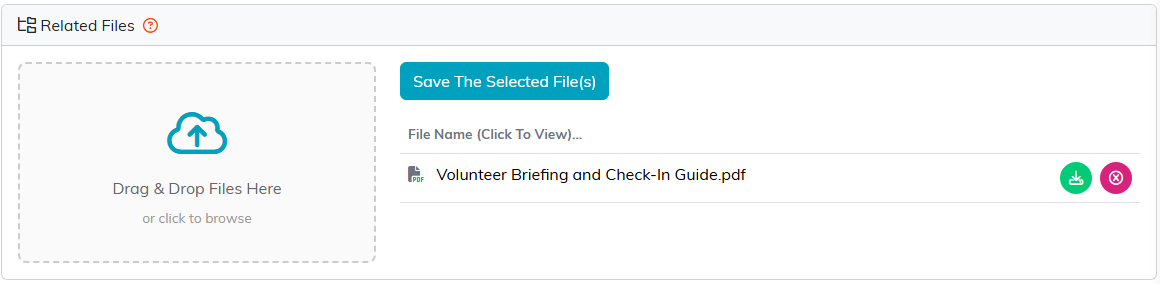
The volunteer briefing, attached to the morning registration desk.
A file every shift in a group needs, such as the full schedule, goes on the group instead; see How to Add Files to a Volunteer Task Group.
