Knowledge Base Article
How to Schedule Email Notifications on a Volunteer Task
A notification is an email you write now and Argenta sends later, at the date and time you choose. Use it to remind yourself or a coordinator to confirm volunteers a week before a shift, or to send a checklist the morning of.
Open Notifications
Open the volunteer task and click Notifications in the workspace menu. The page lists the task's notifications. A green Sent badge marks one that has already gone out.
Add a notification
- Click Add New.
- In Date/Time To Send, choose when the email goes out. To send it now instead, select Send immediately.
- In Send To Email, enter who gets it. It starts filled with your own address.
- In Send From Email, enter the address the email comes from. Replies go to this address, so use one at your organization's own domain.
- Enter a Subject.
- Write the Message.
- Click Save Notification.
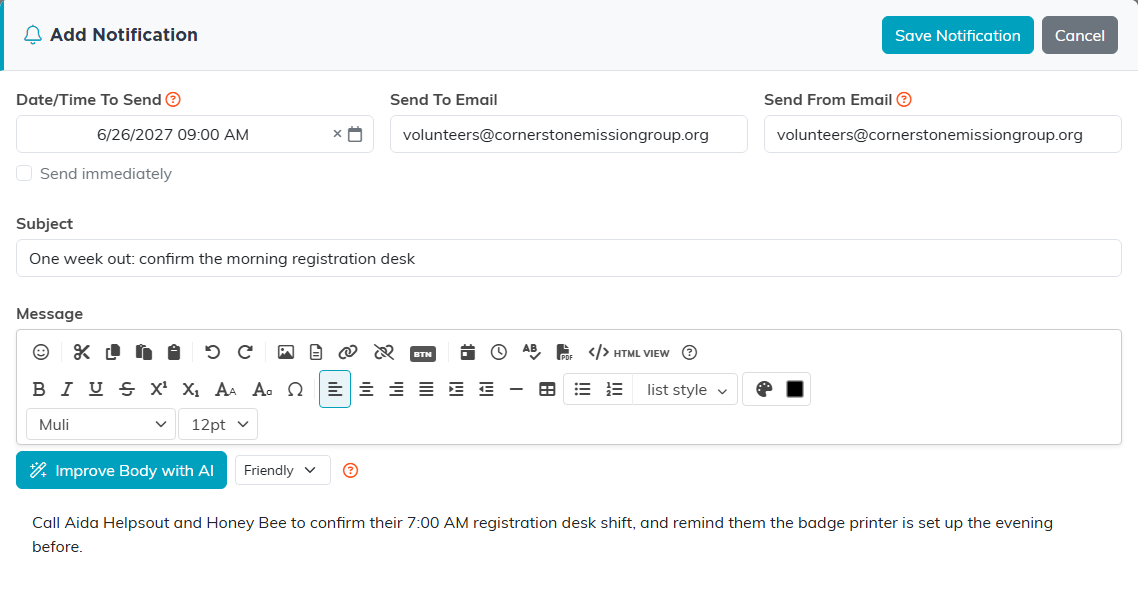
A reminder to confirm the registration desk volunteers one week before the conference.
Nothing is emailed unless Send To Email holds an address.
Change or delete a notification
- To change one that has not gone out yet, click its green icon, make the change and save.
- To delete one, click its pink icon. Argenta asks you to confirm first.
Search the list with the Search notifications box at the top right.
To remind the volunteer themselves, use Send Volunteer Reminder at the bottom of Task Details; see View Or Update Volunteer Task Details.
