Knowledge Base Article
How to Set a Volunteer Task's Contact and Location
The Contact & Location page of a volunteer task says who the volunteer reports to and where to go. Fill it in so the volunteer arrives at the right door and knows whom to call.
Open Contact & Location
Open the volunteer task and click Contact & Location in the workspace menu.
Contact information
Enter the person the volunteer reports to on the day: Contact Person's Name, Email Address, Phone and, if they have one, Extension.

Apple White coordinates the conference volunteers.
Task location
- To use a place you already have on file, start typing in Associated Org/Location and pick it. Argenta fills the address from that record. To add a new place, use the orange plus icon.
- Check Task Location Name, Task Location Address, City, State and Postal Code. Make the name specific enough to find the room, such as the venue and the hall.
- Optional: In Delivery Location Parking Instructions, tell the volunteer where to park and how to get in. The same text shows as Special Instructions/Comments on the task's Task Details page, so a change on either page changes both.
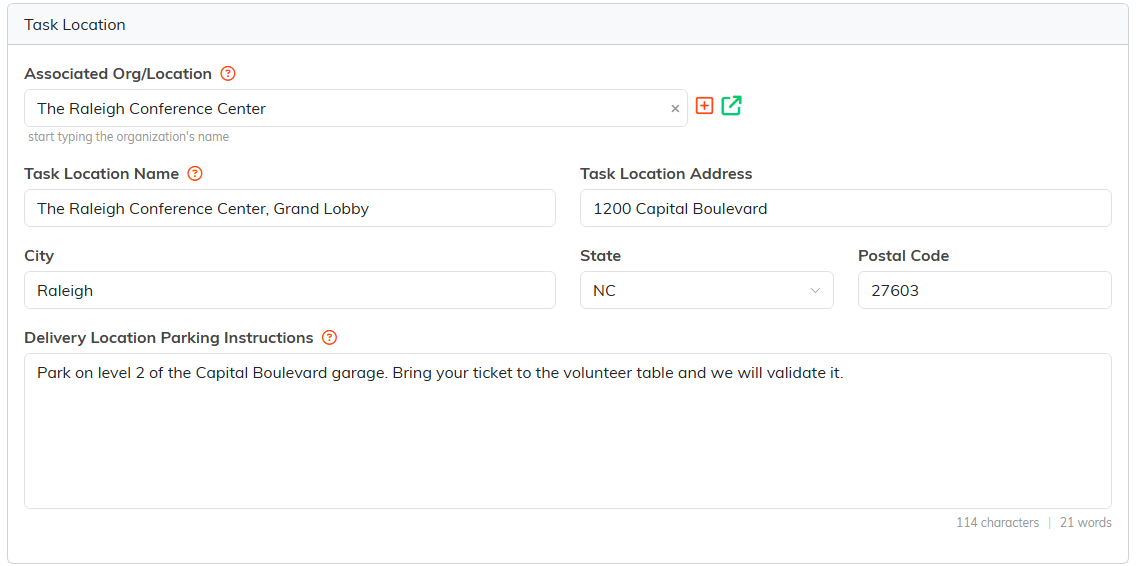
The Grand Lobby at The Raleigh Conference Center, with parking instructions.
Save
Click Save All & Continue to stay on the task, or Save All & Exit to return to the list. Cancel & Exit leaves without saving.

The buttons at the bottom of Contact & Location.
When the task belongs to a task group, the public sign-up page shows the group's location and organizer, not the task's; see Working With Volunteer Task Groups.
