Knowledge Base Article
How to Connect a Volunteer Task to Sessions and Programs
A single volunteer shift often belongs to something bigger: the conference session it supports, the program its volunteer comes from, the property it takes place at. The Connections page of a volunteer task ties the task to those records, so you can open any of them straight from the task.
Open Connections
Open the volunteer task and click Connections in the workspace menu.

The workspace menu of the morning registration desk shift.
The page has five panels: Associated Event Sessions, Associated Participants, Associated Properties, Associated Expenses and Associated Programs. The number beside a panel's title counts its connections.
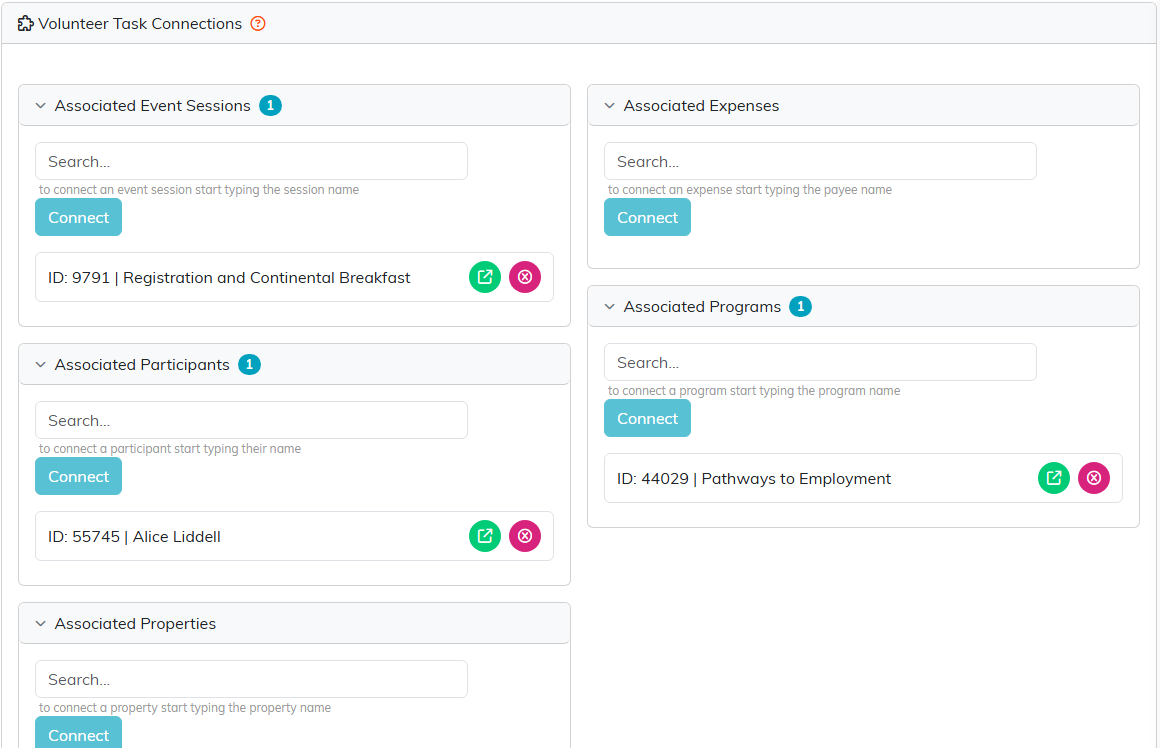
The registration desk shift, connected to the session it staffs, a program participant and her program.
Connect a record
- In the panel you need, start typing in the Search box. Search sessions, participants, properties and programs by name, and expenses by payee.
- Pick the record from the list.
- Click Connect.
Open or remove a connection
- To open the connected record, click its green icon.
- To remove the connection, click its pink icon. Only the link goes. The session, participant, property, expense or program stays in Argenta.
Links that apply to every shift in a task group belong on the group instead; see How to Connect a Volunteer Task Group to Sessions, Programs and Participants.
