Knowledge Base Article
How to Set Record Permissions on a Volunteer Task Group
Two switches at the top of Task Group Details protect a task group. Set As View Only lets people see the group but not change it. Lock This Record keeps it from everyone except master admins and the person who created it. The Record Permissions page names the users who are still allowed in.
Open Record Permissions
Open the task group and click Record Permissions in the workspace menu. The page has two lists:
- View Only Access: users on this list can still edit the group while it is view only.
- Locked Record Access: users on this list can still open the group while it is locked.
The badge on each list reads Enabled when that switch is on for the group, and Disabled when it is off. You can fill in the lists ahead of time, before you turn a switch on.
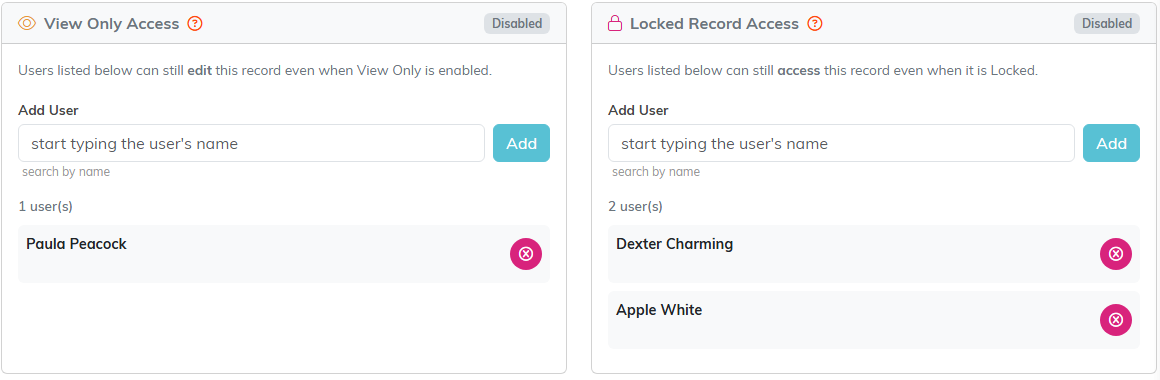
The people allowed into the conference volunteer group if it is made view only or locked.
Add a user
- In the list you need, start typing the user's name in Add User.
- Pick the user from the list that appears.
- Click Add.
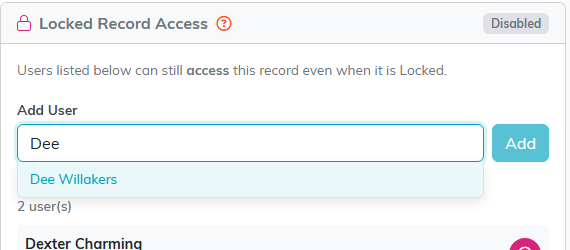
Finding a user by name.
To take someone off a list, click the pink icon beside their name.
Each volunteer task has the same page for its own record; see How to Set Record Permissions on a Volunteer Task.
