Knowledge Base Article
How to Use a Task Group's Volunteer Roster
The Volunteer Roster answers the question every organizer asks before the day: who is covering which shift? It lists every task in the group with the volunteer assigned to it and how to reach them.
Open the roster
Open the task group and click Volunteer Roster in the workspace menu. The line above the list counts the tasks and how many of them have a volunteer.
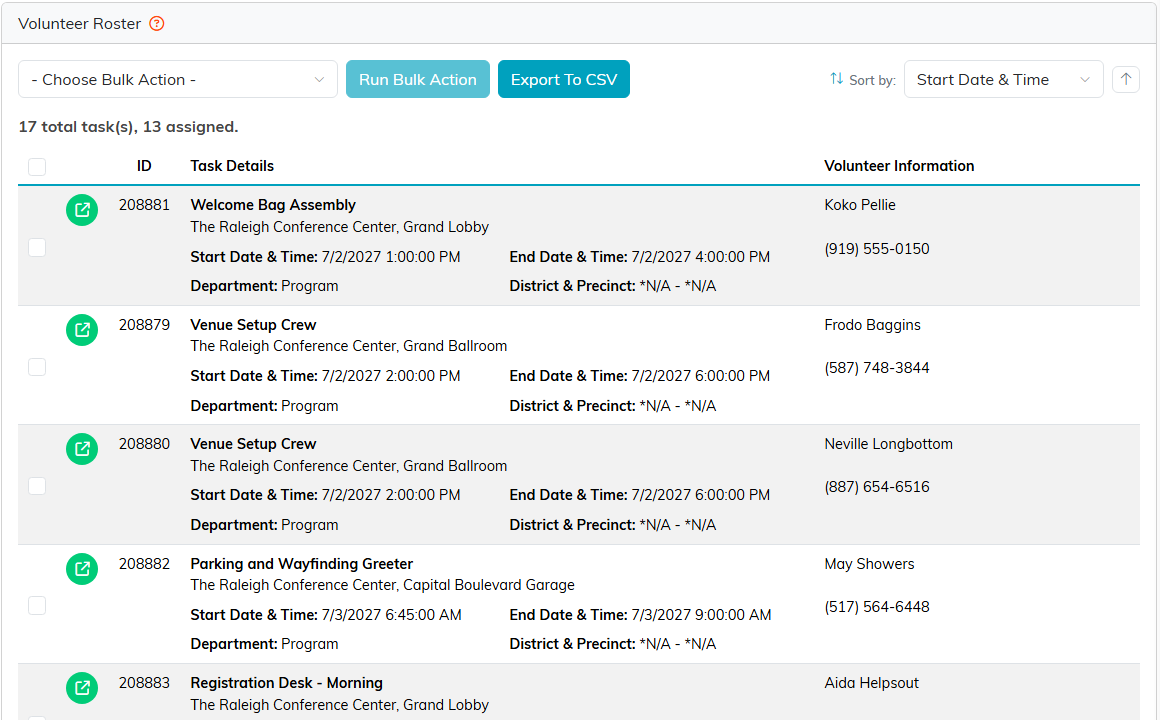
17 shifts, 13 of them covered.
Read the roster
- Task Details shows each task's name, location, start and end, department, and district and precinct.
- Volunteer Information shows the assigned volunteer's name, email and phone. A shift nobody has taken reads * Unassigned.
- Click the green icon on a row to open that task.
To change the order, choose a field from Sort by. The arrow beside it switches between ascending and descending.
Share or email the roster
- Click Export To CSV to download the roster as a spreadsheet, ready to print for the volunteer table.
- To email the volunteers, select their rows, choose Create A New Mailroom List With Selected Records or Add Selected Records To An Existing Mailroom List from Choose Bulk Action, and click Run Bulk Action. Send the email from the Mailroom.
Argenta can also email this roster to the group's organizer on a schedule. Set it up in the Roster Email card on Task Group Details; see Working With Volunteer Task Groups.
To fill the open shifts, share the group's sign-up page; see How to Design and Share a Task Group's Public Sign-Up Page.
