Knowledge Base Article
How to Set Record Permissions on an Event
Two switches at the top of Event Details narrow who can work on an event. Set As View Only makes it read only, and Lock This Event hides it. The Record Permissions tab names the people who keep their access when those switches are on.
Open Record Permissions
Open the event and click Record Permissions in the Communication group of the workspace menu.

Record Permissions is the last tab in the event workspace menu.
The two lists
- View Only Access: users listed here can still edit the event while View Only is on.
- Locked Record Access: users listed here can still open the event while it is locked.
Each list shows Disabled in its corner until its switch is turned on in Event Details, so you can set the list up first and switch it on when you are ready.
Add or remove a user
- In Add User, start typing the user's name and pick them from the list.
- Click Add.
To take someone off a list, click the pink icon beside their name. Argenta asks you to confirm first.
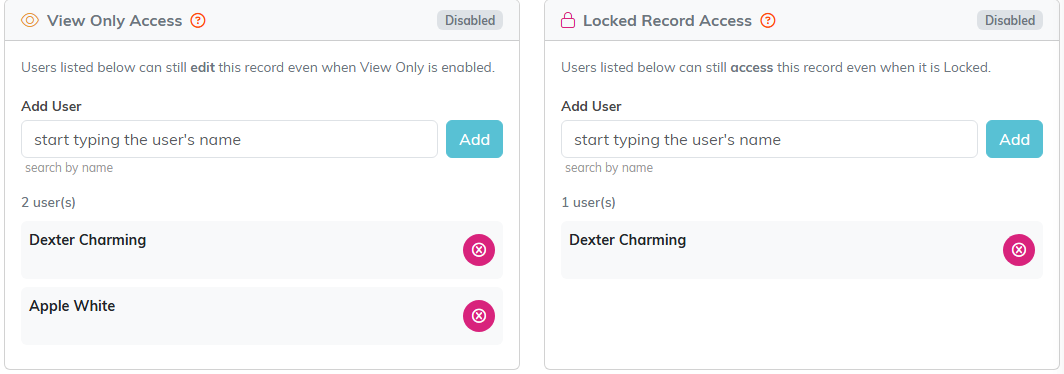
Two users on the View Only list and one on the Locked list. Both show Disabled because neither switch is on yet.
For a map of the whole event workspace, see Overview Part 1 of the Argenta Event Management System.
