Knowledge Base Article
How to Add Notes to an Event
Notes keep the running story of an event with the event: what was booked, what a sponsor promised, what still needs doing before the day. Everyone working the event reads the same notes.
Open Event Notes
Open the event and click Event Notes in the Communication group of the workspace menu.

Event Notes sits with the other pages in the Communication group.
Add a note
- Click Add A New Note.
- Type your note. There is no length limit.
- Click Add This Note. Cancel closes the box without saving.
Each note shows the date it was created and who created it. The green icon opens a note to edit it, with Save & Continue and Save & Exit. The pink icon deletes it, after you confirm.
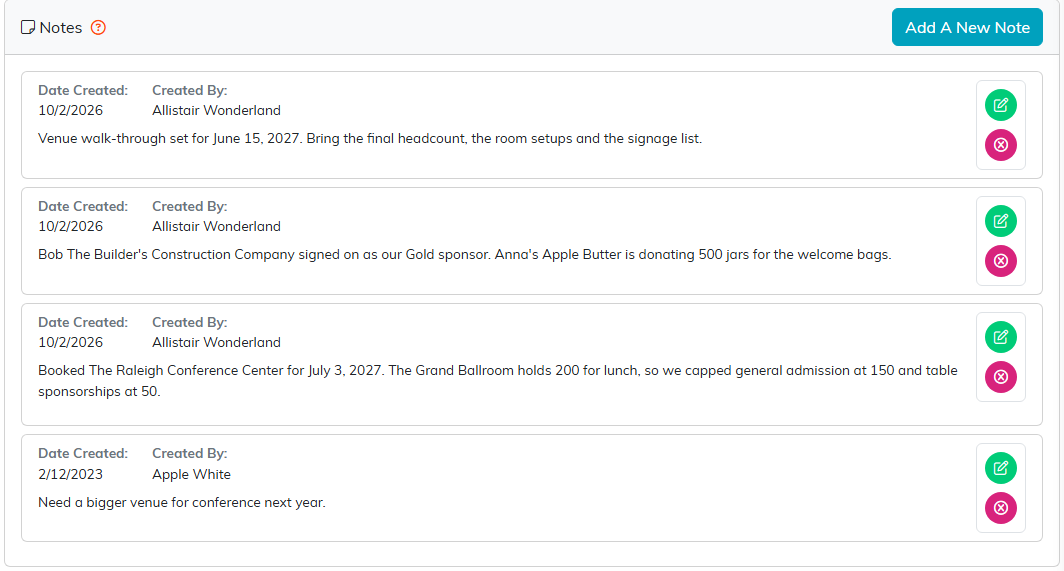
This year's planning notes, newest first, with one from last year at the bottom.
Notes work the same way on every record in Argenta. See Add A Note to the Notes Section.
For a map of the whole event workspace, see Overview Part 1 of the Argenta Event Management System.
