Knowledge Base Article
How to Set Up Tables and Seat Guests at an Event
Event Seating is where you set up the tables for your event and decide who sits where. The seating chart then gives you every table, its guests and their meals, ready for the venue and the caterer.
Open Event Seating
Open the event and click Event Seating in the Participants/Guests group of the workspace menu. Each table shows its name, its description and how many guests are seated at it.
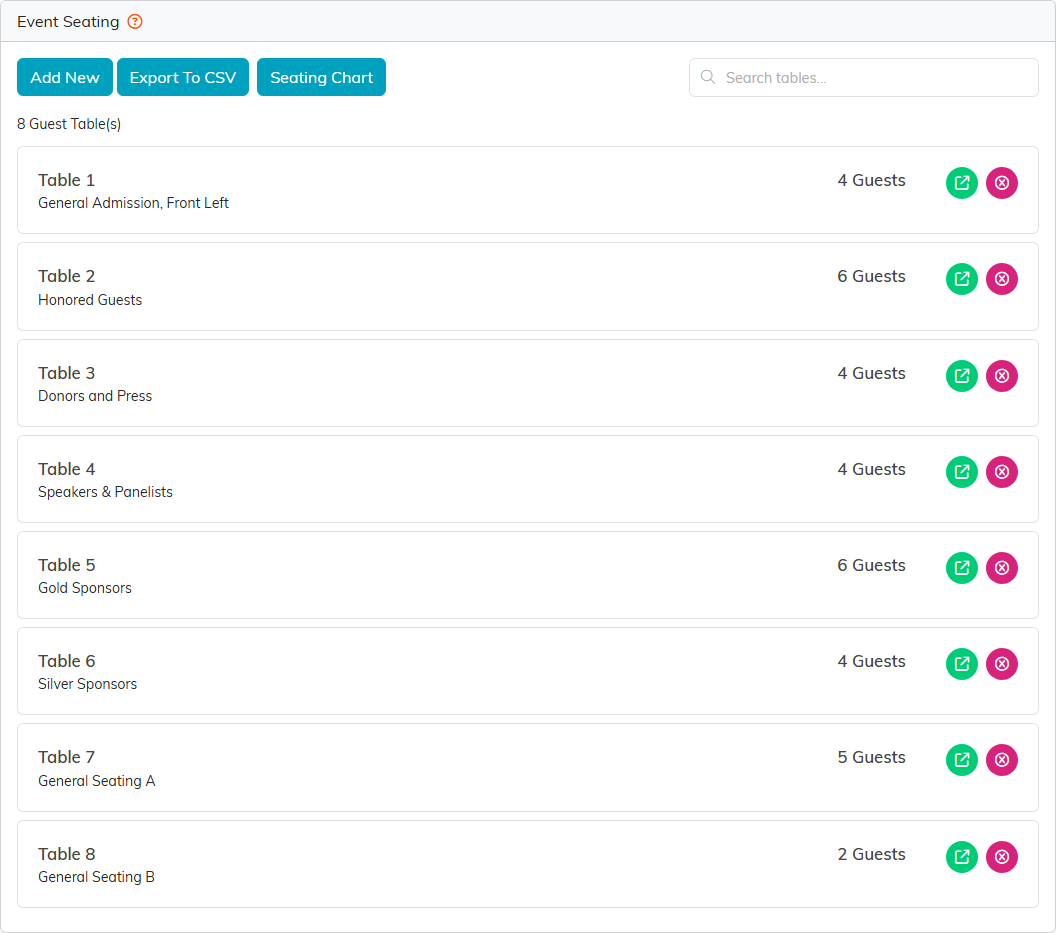
Eight tables, from the honored guests to general seating.
Add a table
- Click Add New.
- Enter a Table Name and, if you like, a Table Description such as Gold Sponsors or Speakers & Panelists.
- Click Add This Table. Cancel closes the form without adding one.

A name and a description are all a table needs.
Seat guests at a table
- Click the green icon on a table to open it, then click Guests At This Table.
- Click Add New. A picker lists the event's guests who are not seated anywhere yet.
- Tick the guests to seat here, or use Select All, and click Add Selected Guest(s).
A guest sits at one table at a time. To move someone, take them off this table with the pink icon and they will show up in the next table's picker. Taking someone off a table only unseats them; their registration and ticket do not change.
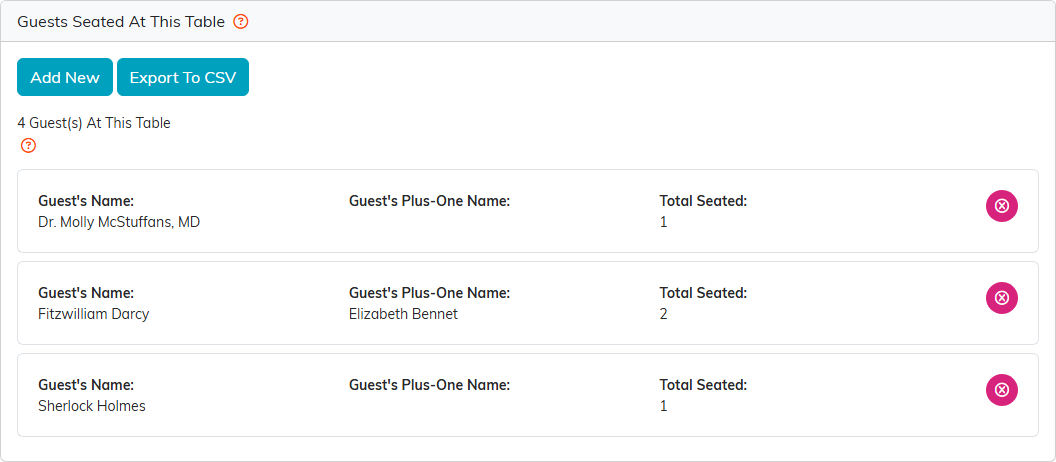
Three guests and one plus-one make four seats.
The count is seats, not people listed. A guest bringing a plus-one takes two seats, which is why Total Seated can read 2. Argenta does not cap the seats at a table, so check the counts against your venue's layout.
Print the seating chart
Click Seating Chart. It opens a report of every table with each guest and the meals they chose. Export To CSV and Export To PDF give you a copy for the venue and the caterer.
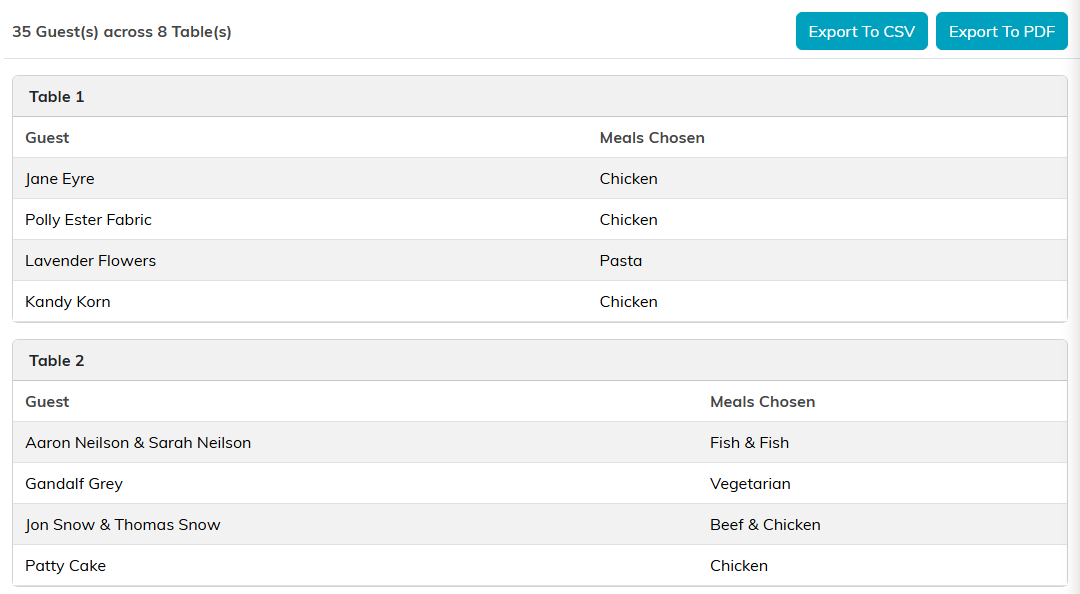
Every table, every guest and every meal on one page.
Remove a table
The pink icon on the Event Seating list deletes a table after you confirm. Its guests are not deleted; they are unseated and go back into the pool for another table.
For meals, see How to Offer Meal Choices at an Event.
