Knowledge Base Article
How to Use an Event's Wait List
The Event Wait List holds the people who want to come but are not registered yet. Nothing moves off it on its own and nobody is emailed for you, so you decide who gets in and when.
Open the wait list
Open the event and click Wait List in the Participants/Guests group of the workspace menu. Each person shows the date and time they were added.
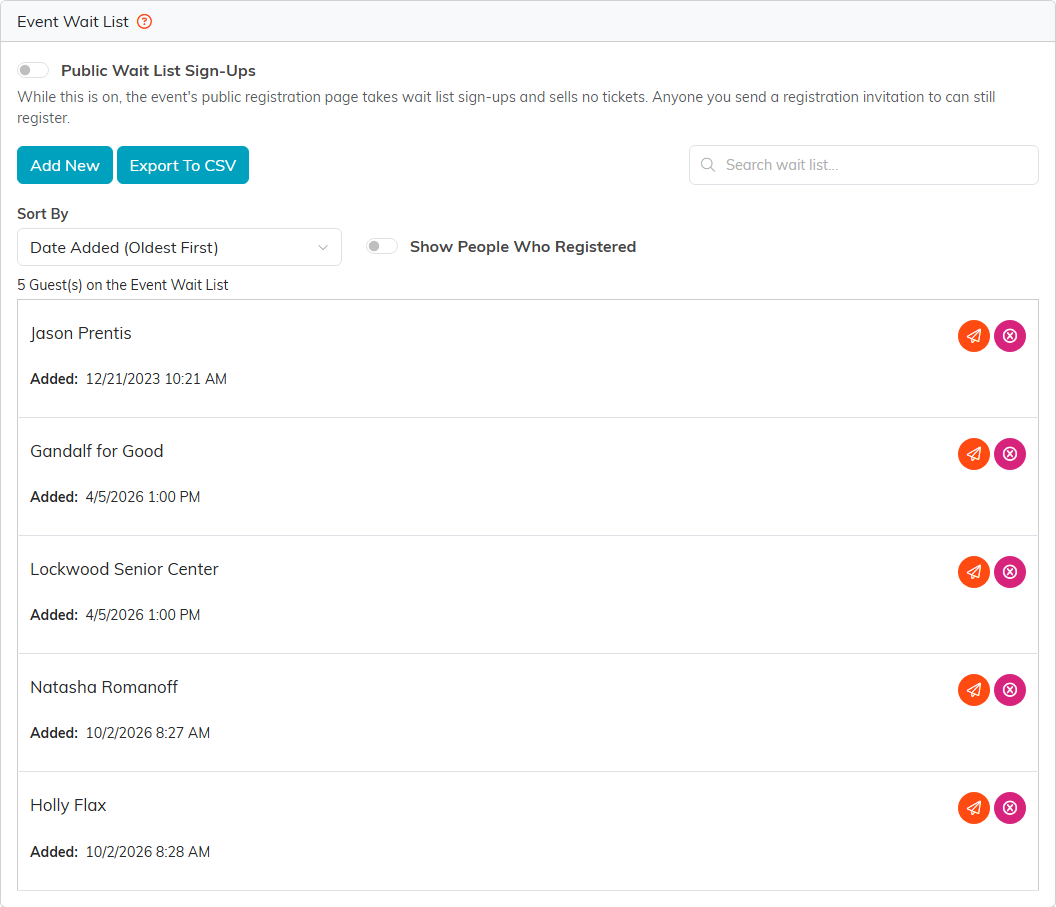
Five people waiting, oldest first.
How people get on the list
- You add them yourself with Add New.
- Someone registers through the event's free registration form after the event has reached its Max Number of Guests.
- On an event that sells tickets, with Public Wait List Sign-Ups switched on, someone signs up on the public ticket page. While that switch is on, the public page takes wait list sign-ups and sells no tickets.
Add someone
- Click Add New.
- In Constituent, search by name, email or ID and pick the person. The orange plus creates a new constituent if they are not in your records.
- Click Add to Wait List.
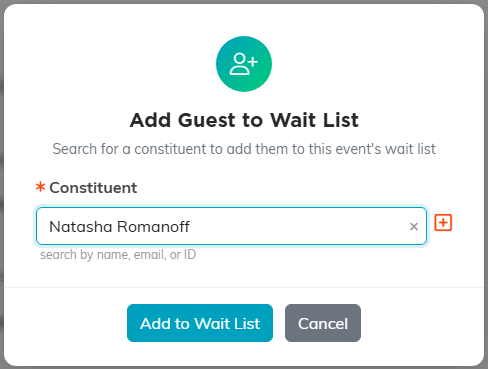
Pick the person, then add them.
Let someone in
On an event that sells tickets, the paper plane on a row sends that person a registration invitation. It carries a Register Now link that lets them register once, even while the event is full or the wait list is on. Once they register they drop off the active list; switch on Show People Who Registered to see them again.
On other events, add the person to the Participant/Guest List yourself, then take them off the wait list.

The paper plane invites; the pink icon removes.
Remove someone
The pink icon takes a person off the wait list after you confirm. Only the wait list entry goes; their constituent record stays as it is.
Use Sort By to change the order, Search wait list to find someone, and Export To CSV to download the list. To limit how many guests the event takes, see How to Set Up Event Registration.
