Knowledge Base Article
How to Track an Event's Ticket Sales
Ticket Sales lists every ticket sold for an event, with running totals at the top. It is where you find a buyer, record a sale you took by hand, and open a sale to apply a payment or a refund.
Open Ticket Sales
Open the event and click Ticket Sales in the Tickets & Sessions group of the workspace menu.
The totals
The box at the top adds up the sales below it:
- Total Guest(s) counts seats. A ticket that admits two people counts two each time it is sold.
- Ticket Sale(s) adds up the quantity on each sale.
- Ticket Gross Revenue is what was actually paid, and Ticket Net Revenue is that less the processor's fees.
- When the event has sponsorships, Sponsorship Revenue and Grand Total appear too. Sponsorships are kept out of ticket revenue so they are never counted twice.
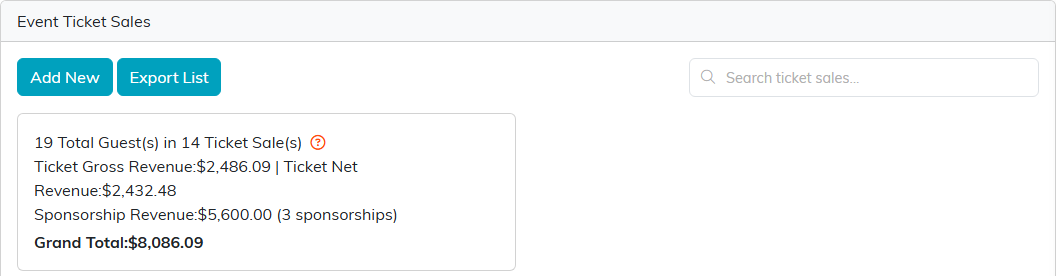
Nineteen guests so far, plus three sponsors.
Each sale
Every sale shows its ticket number and type, the purchaser, the purchase date, and the money: quantity, price, the tax-deductible and non-deductible parts, gross revenue, fees and net revenue. A sale that is still waiting on payment, such as a mailed check that has not arrived, is marked NO PAYMENT RECEIVED in red.
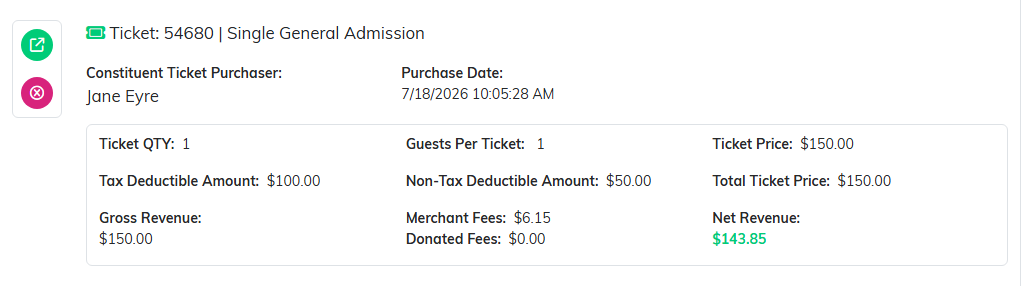
One general admission ticket paid by card, with the processor's fee taken out of net revenue.
Search the list
Type in Search ticket sales to find a sale by the purchaser's name, the ticket type or the ticket number. The totals at the top follow your search, so searching for a ticket type shows what that type has brought in.
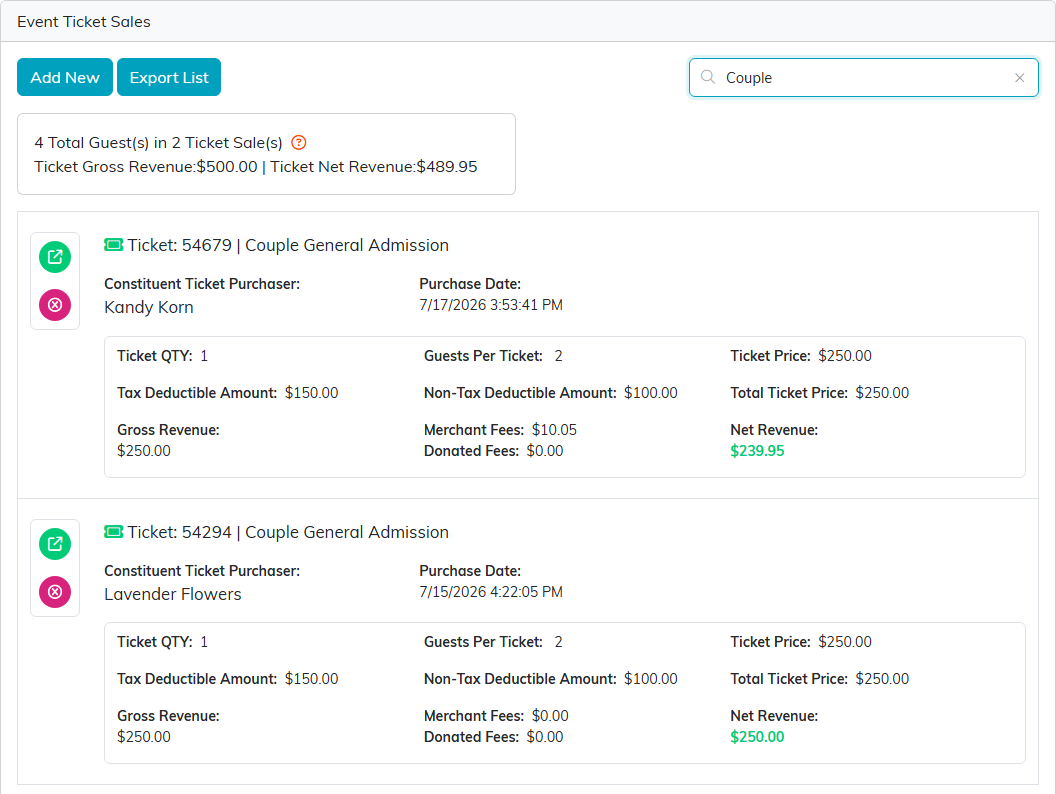
Searching for Couple narrows the list and the totals to the couple tickets.
Add a sale by hand
Click Add New to record a ticket you sold yourself, at the door or by phone. Pick the Purchase Date, the purchaser, the Ticket QTY and the Ticket Type, then click Add This Ticket Sale. Export List downloads every sale for the event as a CSV file, whatever you have searched for.
Open a sale
The green icon opens the sale in its own workspace. Its menu has Ticket Details, Ticket Guests, Additional Guests, Applied Refunds, Related Files, Notes and Record Permissions.

Everything about one sale, in one place.
Ticket Details shows the money at the top, with links to the payment and to the donation recorded for the tax-deductible part. Below it you can change the date, the purchaser and the payment method. A sale paid by card through Stripe keeps its payment details as they are; to give money back, issue a refund.
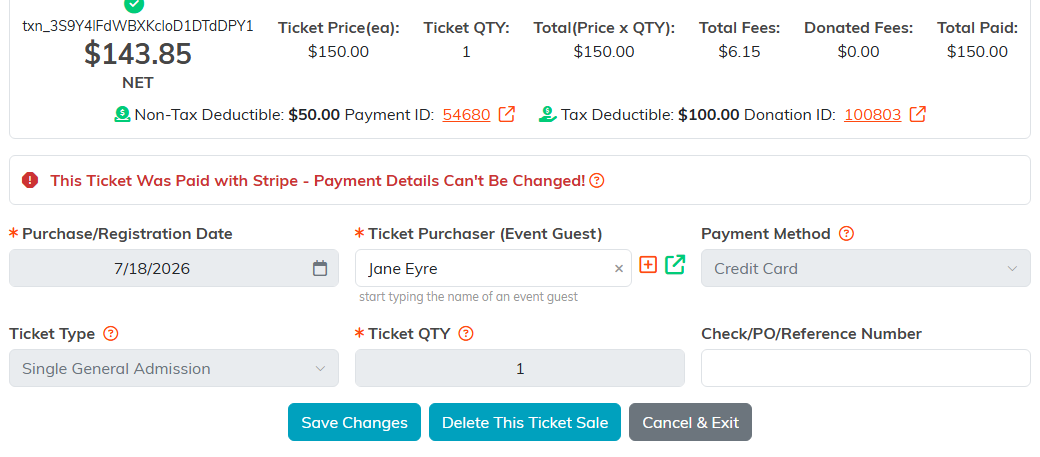
A card sale: the payment details are locked, and refunds are on Applied Refunds.
Delete a sale
The pink icon deletes a sale after you confirm. A sale paid through Stripe cannot be deleted; issue a refund instead.
Sponsorships
When sponsors have bought packages for the event, they are listed under Sponsorships at the bottom, each with its level, sponsor, included seats and revenue. The green icon opens the sponsorship itself.
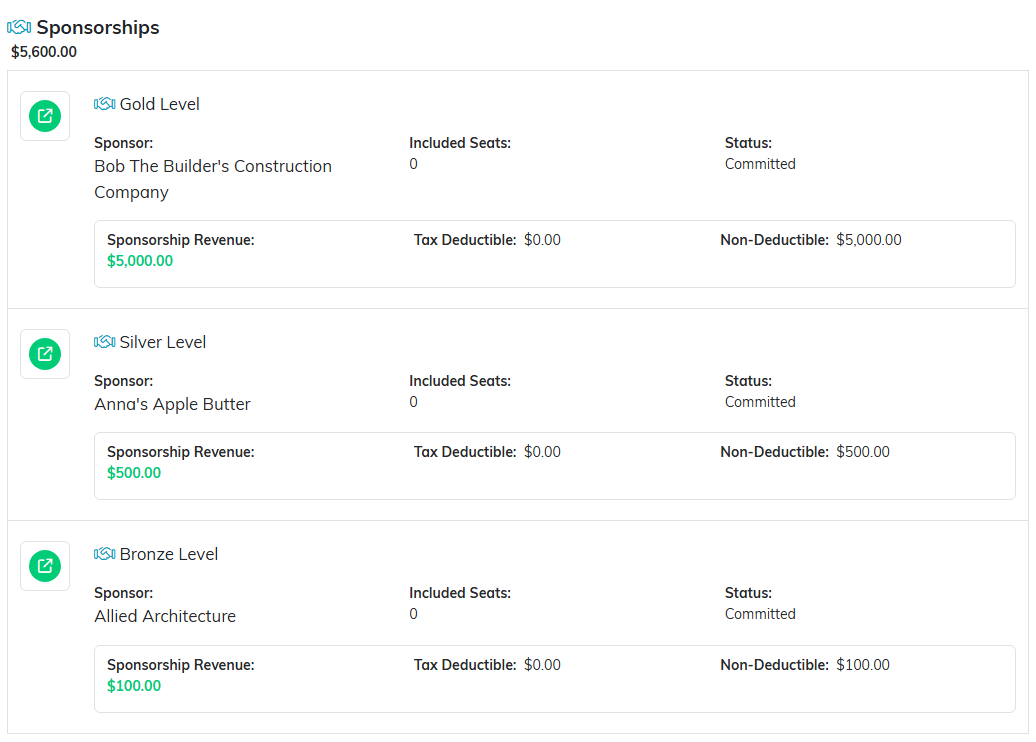
Three sponsors, totalled apart from ticket sales.
To set up the tickets themselves, see How To Sell Tickets to an Event in Argenta.
