Knowledge Base Article
How to Fill In an Event's Details
Event Details is where every event starts: its name, how many people it can hold, when it happens, and whether its public form is taking registrations.
Open Event Details
Open the event from Event Management > Event List. The workspace opens on Event Details, the first tab in the Setup group of the workspace menu.
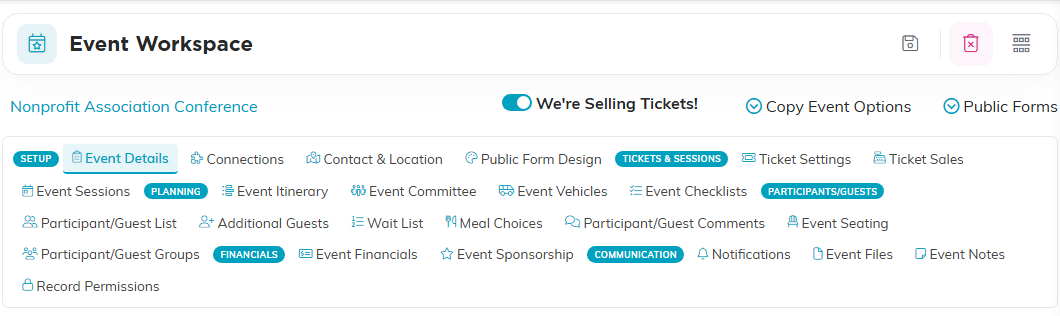
Every page of the event is one click away in the workspace menu.
The basics
- Event Title is required and holds up to 140 characters. The count below the box shows how many you have left.
- Max Number of Guests is the event's capacity. Leave it at 0 for no limit. Once registrations reach the number, the public form stops taking them.
- Event Theme is a line of your own, such as the conference's theme for the year.
- Event Type, Event Category and Season come from your organization's own lists, so you can group events three ways. Administrators see an orange plus beside each box to add a new choice on the spot. All three are filters on the event list and columns in its export.
At the top, Set As View Only and Lock This Event narrow who can change or open the event. On the right, Argenta shows when the event was created and who changed it last.
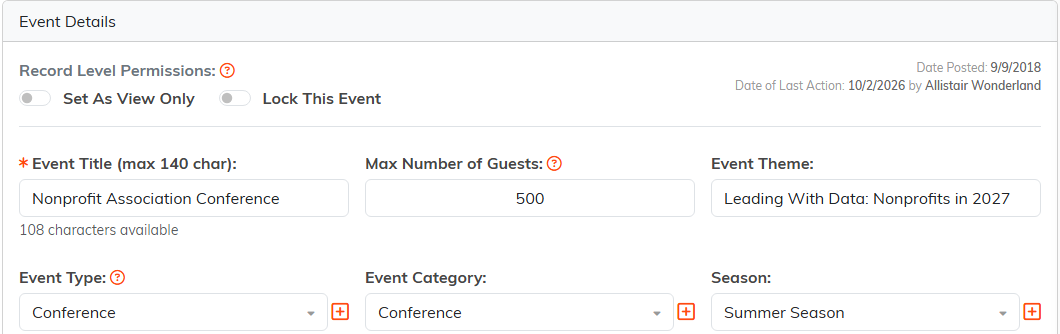
A conference for 500 guests, labeled so it is easy to find on the event list.
Registration
Three fields decide whether the public form takes registrations. Event's Current Status set to Registration Open turns the form on. Open Registration Date and Close Registration Date are both optional, and each works on its own. How they combine is explained in How to Set Up Event Registration.

Registration opened in July and closes a few days before the conference.
Dates and times
Event Start Date and Event Start Time are required. Add the end date and end time, and pick the Time Zone the event happens in. Registration dates are judged in this time zone, not in yours.
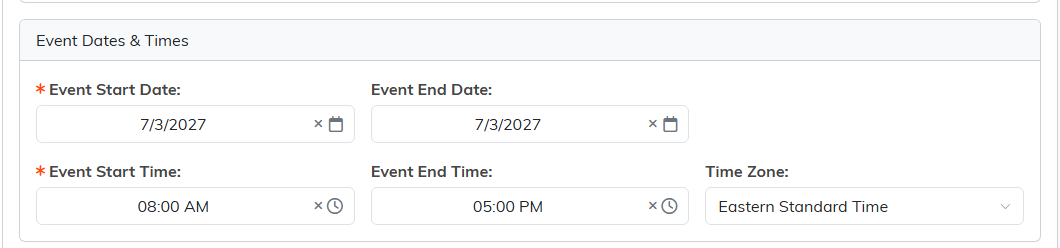
A one-day conference, 8:00 AM to 5:00 PM Eastern.
Webinar link, chapter and saving
- If the event happens online, paste the meeting link into If You're Hosting A Webinar Enter The Link/URL Here. It must start with http:// or https://. The link is printed on the ticket receipt people get after they register online.
- Chapter, Division and Department say which part of your organization runs the event. Political organizations also see District and Precinct.
Save All Changes saves and keeps you on the page, and Save All & Exit Record saves and closes the event. Exit Record leaves the event. Delete Record asks you to confirm before it deletes the event.
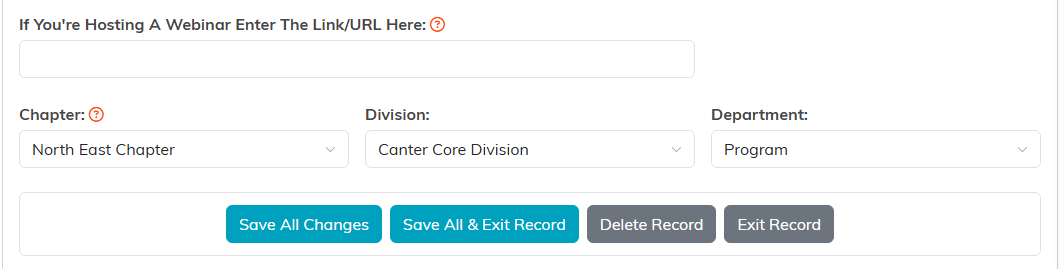
An in-person event, so the webinar link stays empty.
For a map of the whole workspace, see Overview Part 1 of the Argenta Event Management System.
