Knowledge Base Article
How to Track and Record Campaign Sales
Campaign Sales lists every purchase made from a campaign's sales form, and every sale you record by hand for a cash or check order taken in person. Each sale splits into a tax-deductible part, recorded as a donation, and a taxable part, recorded as a payment.
Open Campaign Sales
Open the campaign and click Campaign Sales in the workspace menu.
Above the list you see how many sales there are, the Gross taken, and the Net after merchant fees. Each sale shows its ID, the buyer, the purchase date, the tax-deductible and taxable parts, the total, the fees, and the net revenue.
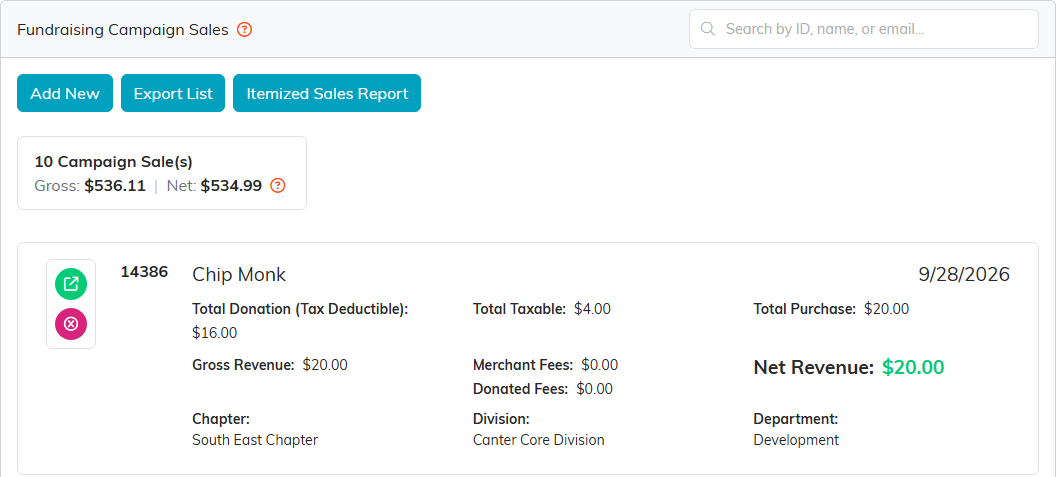
The campaign's sales, newest first, with the totals above them.
The buttons above the list:
- Add New records a sale you took offline.
- Export List downloads the sales you are looking at as a CSV file.
- Itemized Sales Report breaks the sales down by item.
Find a sale
Type an ID, a buyer's name or an email address in the search box. The list narrows as you type, and the count, the gross and the net narrow with it, so you see one buyer's totals on their own. Export List uses the same narrowed list.
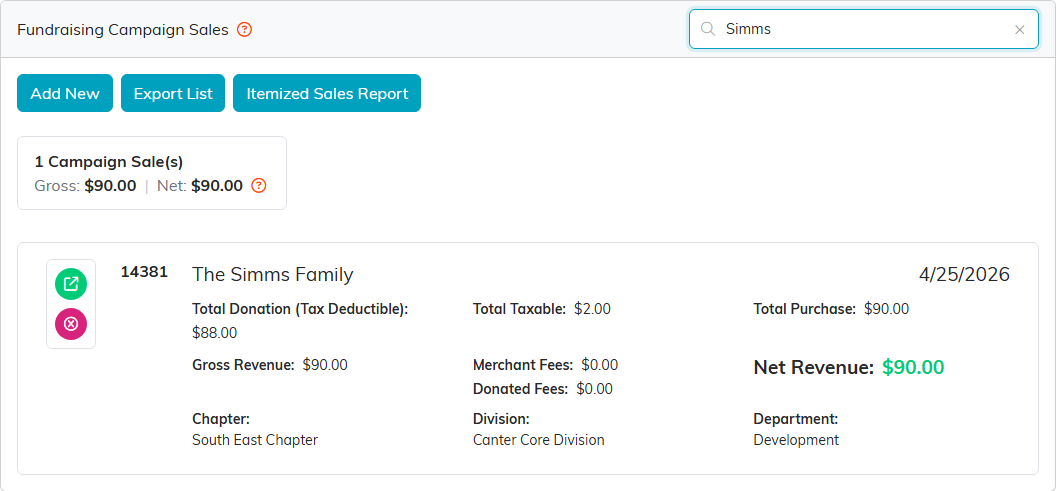
The totals follow the search box.
Record a sale taken offline
- Click Add New.
- In Constituent Purchaser, start typing the buyer's name and pick them. If they are not in Argenta yet, the plus icon adds them.
- Click Add & Enter Details. The sale opens on Sale Details.
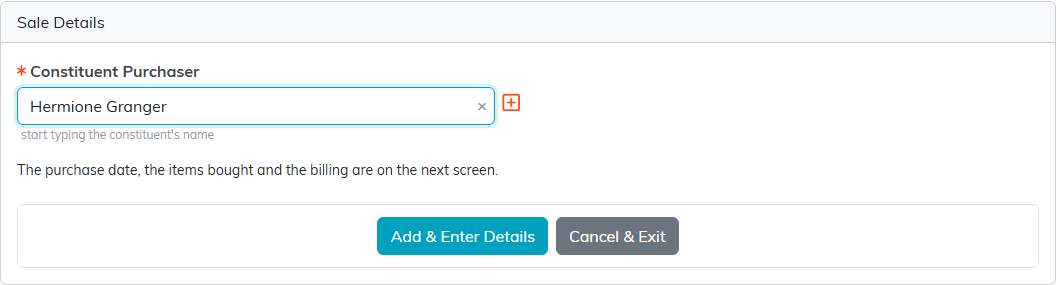
Only the buyer is asked for here. Everything else is on the next screen.
On Sale Details:
- Set the Purchase Date and click Save Purchase Info.
- Under Items in this Campaign Sale, click Add New, pick an item, and click Add Item. Repeat for each item bought.
- Change any QTY that is more than one, then click Save All Items.
- Click Apply Payment for Sale. Argenta records the tax-deductible part as a donation and the rest as a payment, posts both to your general ledger, and marks the sale paid.
Read a sale
The top of Sale Details shows how many items were sold and the sale total, then the payment and the donation the sale created, each with its own ID and an icon that opens it.
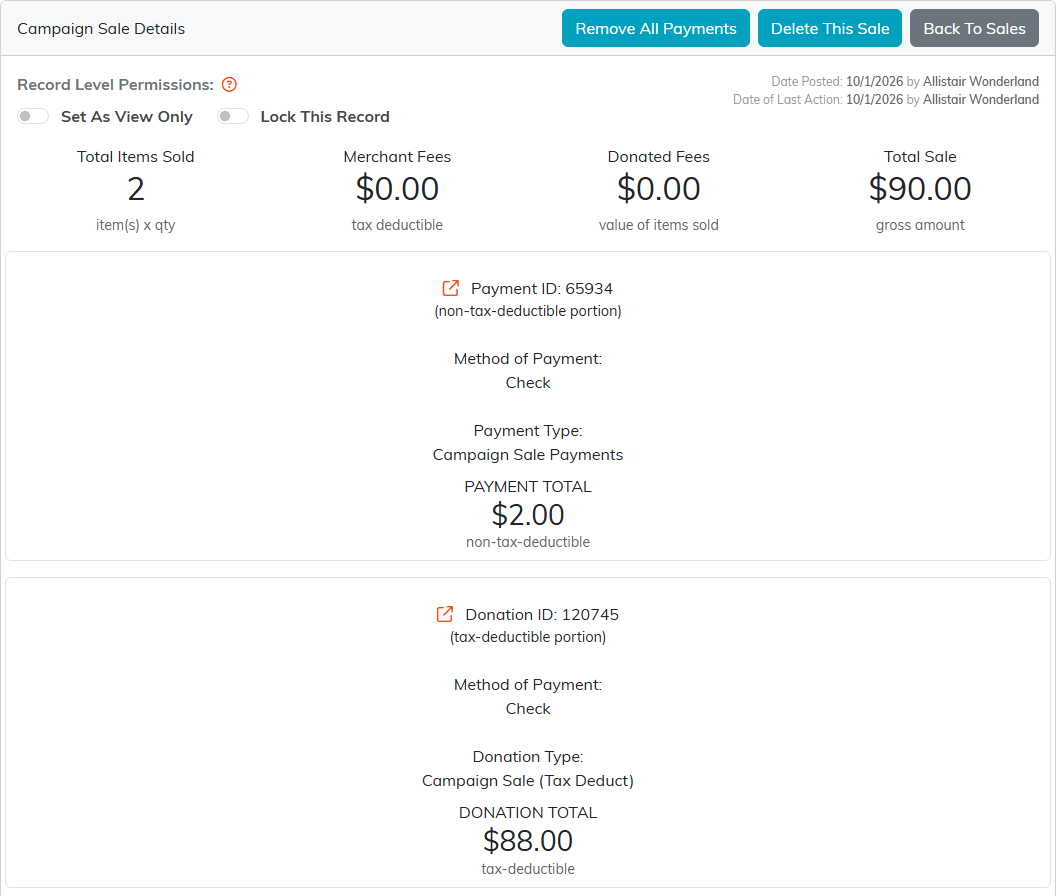
A paid sale and the payment and donation it was split into.
Below them are the buyer, the purchase date and every item on the sale, with each item's tax-deductible part, its payment and donation totals, and its quantity. Once a sale is paid, its purchase information is locked. To change it, click Remove All Payments first, which takes the payment and donation back off, ledger entries included. A sale paid by card on the sales form cannot be undone this way; the card payment refuses to be removed.
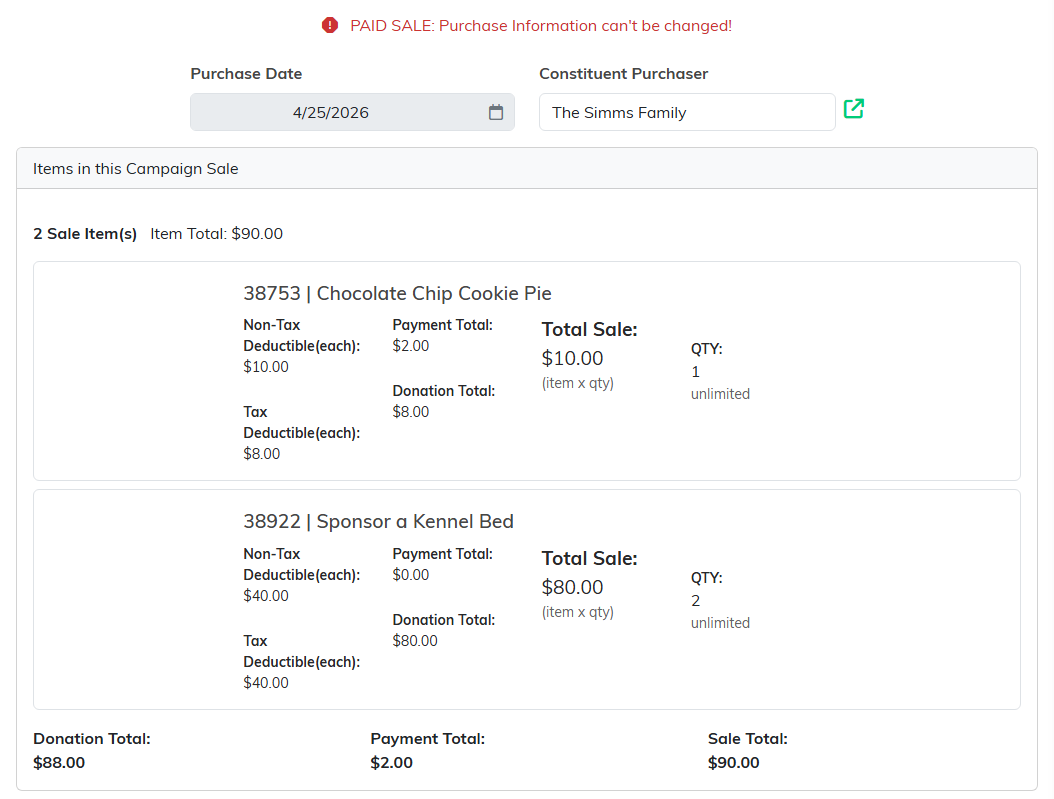
A paid sale can't be edited until its payments are removed.
Billing
The sale's Billing tab shows the total, the donation and the payment again. Generate An Invoice creates an invoice for the sale, for a buyer who will pay later.
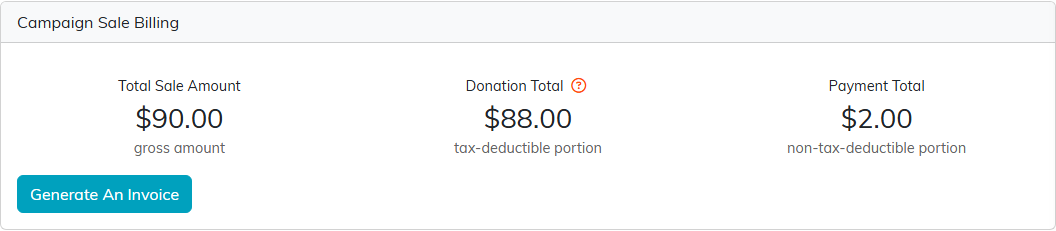
Generate An Invoice is for a buyer who pays later.
Delete a sale
The pink icon beside a sale on the list deletes it, along with its items, notes, files and any invoice it generated. A sale that still has a donation or a payment attached cannot be deleted, so remove its payments first.
For a tour of every page in the Campaign Workspace, see Overview, Working with Campaigns.
