Knowledge Base Article
How to Use the Reservations Occupancy Chart
The Occupancy Chart shows which of your bookable spaces are taken on which nights. Your spaces run down the side, the nights run across the top, and every room segment is a bar across the nights it holds. Use it to find a free room before you book, or to see how full the coming weeks are.
Opening the Chart
Click Occupancy Chart in the Reservations menu, or click Occupancy Chart at the top of the Reservations list. To go back to the list, click the grid icon beside the page title.
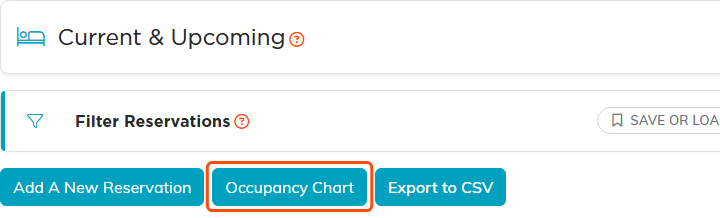
The Occupancy Chart button on the Reservations list.
The chart needs the Reservation Manager permission, or Master Admin, like the rest of Reservations. It only shows stays and changes nothing, so a Reservation Manager set to View Only Access can use it as well.
Choosing the Nights and Spaces
- Set First Night Shown to the first night you want to see. The chart opens on today.
- Select how far ahead to look in Nights Shown: 1 week, 2 weeks, or 31 nights. It starts on 2 weeks.
- Optional: Select one or more statuses in Status to show only those stays.
- Optional: Enter part of a space's name or description in Find A Space, then click Search.
Click Earlier or Later to move back or forward by the number of nights shown, and click Today to start the chart on today again. Clear Filters clears the status and the space search and leaves the dates as they are.
Argenta remembers your place. If you click a bar to open a stay and then come back, the chart shows the same nights, filters, and page of spaces.
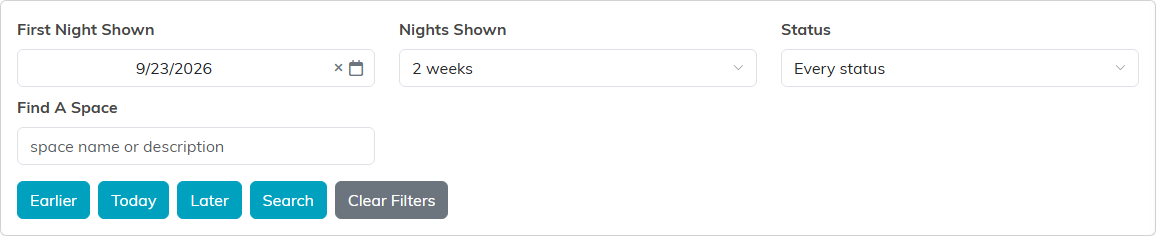
Pick the nights and the spaces you want to see.
Reading the Chart
Each bar names who booked the stay and gives its status. Point at a bar to see the reservation number, the nights it covers, and how many occupants it has, and click it to open the stay.
- A solid bar is Confirmed. No other confirmed stay can take that space on those nights.
- A striped bar is not confirmed yet, such as Pending or Waitlisted. Another stay can still be booked over it.
- A padlock means the stay's record is locked.
- Arrows at the end of a bar mean the stay starts before, or carries on after, the nights shown.
- When two stays share a space on the same nights, their bars stack one above the other.
- A stay that uses more than one space, such as parents in one room and children in another, draws a bar in each space's row. Every one of those bars opens the same reservation.
Weekends are shaded, and today's date is highlighted across the top.
Inactive spaces are left off the chart. If a stay or an Unclear night falls in an inactive space during the nights shown, the space appears with an Inactive label so the stay is not hidden.
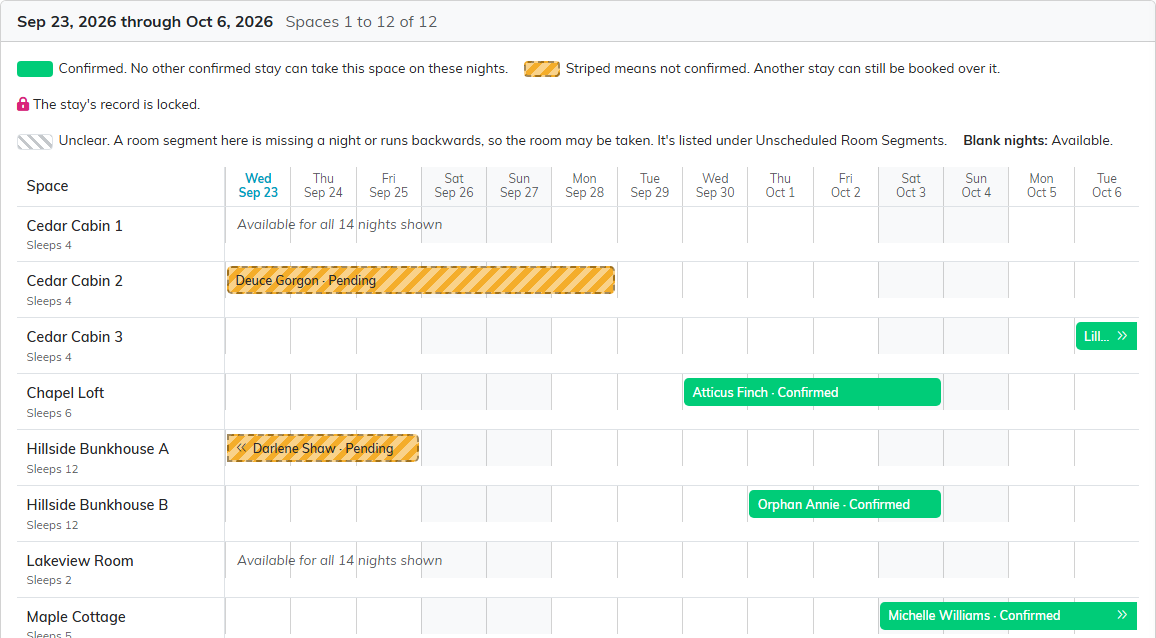
Solid bars are confirmed. Striped bars are not confirmed yet.
Available or No Visible Reservation
A night with no bar reads Available. If a status filter is on, or your access limits you to some chapters, divisions, departments, or precincts, it reads No visible reservation instead, because a stay you cannot see could still be holding the room. The legend above the chart says what is limiting the view.
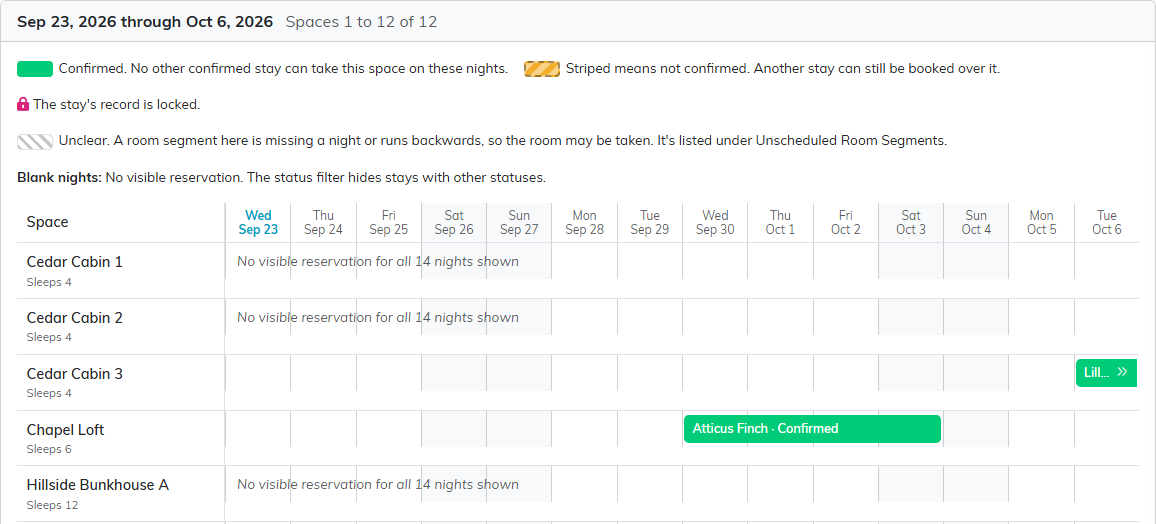
With the Status filter set to Confirmed, empty nights read No visible reservation.
Unclear Nights
A room segment that is missing a night, or whose last night comes before its first, cannot be drawn as a bar. Argenta hatches that room in grey on the nights of its stay and calls them Unclear, because the room may be taken. Fix the segment and its bar appears.

The hatched nights, December 7 through 11, are Unclear: a segment in this room has no last night.
Unscheduled Room Segments
Under the chart, Unscheduled Room Segments lists every segment that cannot go on the chart, because it has no room, it is missing a night, or its last night comes before its first. The list covers every date and every space for the stays your access lets you see, whatever the chart is showing, and the status filter does not apply to it. Click the reservation in the list to open its room segments and put it right.

A segment with no last night cannot go on the chart, so it is listed here.
More Spaces Than Fit
The chart shows your spaces 50 at a time. If your team has more, click Next Spaces and Previous Spaces at the top of the chart to page through them.
On a Phone
On a narrow screen the chart becomes a list. Each space shows its stays written out in full, then whether its other nights are Available. Tap a stay to open it.
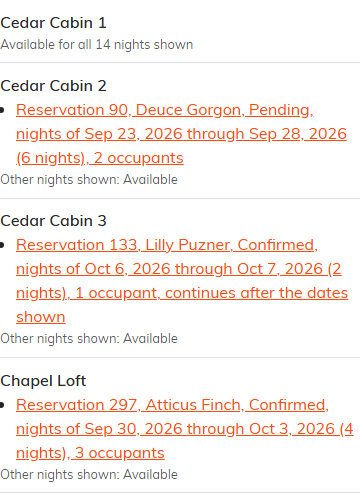
On a phone, each space lists its stays.
To set up your spaces and book stays, see How Reservations Work: Stays, Rooms, and Occupants.
