Knowledge Base Article
How Reservations Work: Stays, Rooms, and Occupants
Reservations lets your organization book people into the rooms, cabins, beds, or other spaces you have to offer. You set your spaces up once, create a stay for each guest, hold a room for a run of nights, and record who is in the room.
Reservations is switched on for a whole team, and every user on a team that has it sees the module. There is no separate per-user permission to hand out. View Only Access and record-level permissions still decide who can change what.
Where Reservations Live
Reservations adds five entries to your menu:
- Reservations is the list of stays.
- Bookable Spaces is where you set up the rooms themselves.
- Occupants is the list of people who have been in a room.
- Occupant Roles and Reservation Statuses are where you manage the roles and statuses your team uses.
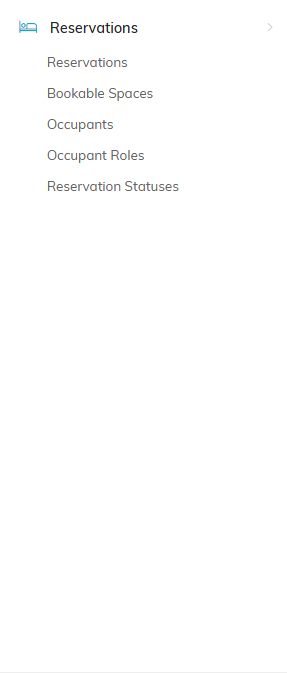
The Reservations menu.
Setting Up Your Bookable Spaces
Set your spaces up before you take a booking, because a room segment has to name one.
- Open Bookable Spaces and click Add A New Space.
- Enter the Space Name. Each name belongs to one space, and Argenta refuses a second space on your team under a name another one already holds.
- Enter Sleeps, which is how many people the space holds.
- Enter a Description for anything worth knowing about the room.
- Leave Active turned on while the space is available to book.
- Click Save.
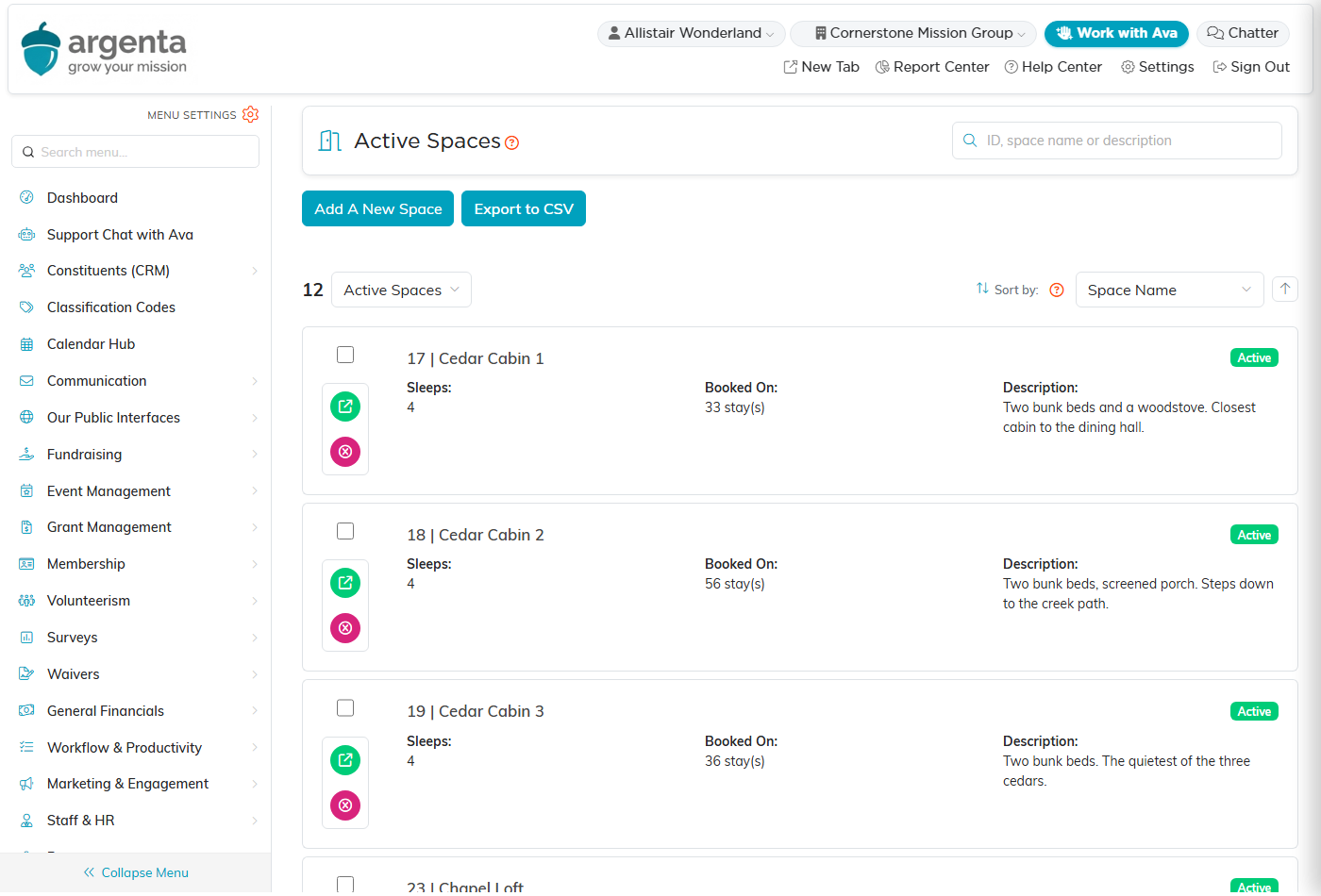
Every space you can book, with the number it sleeps.
Open a space to reach the Bookable Space Workspace. Space Details holds the Space Name, Sleeps, and Description, alongside Booked On, which counts the stays holding this room and is filled in for you. Turn Active off to take a space out of use. The workspace also carries Space Files, Space Notes, and Record Permissions.
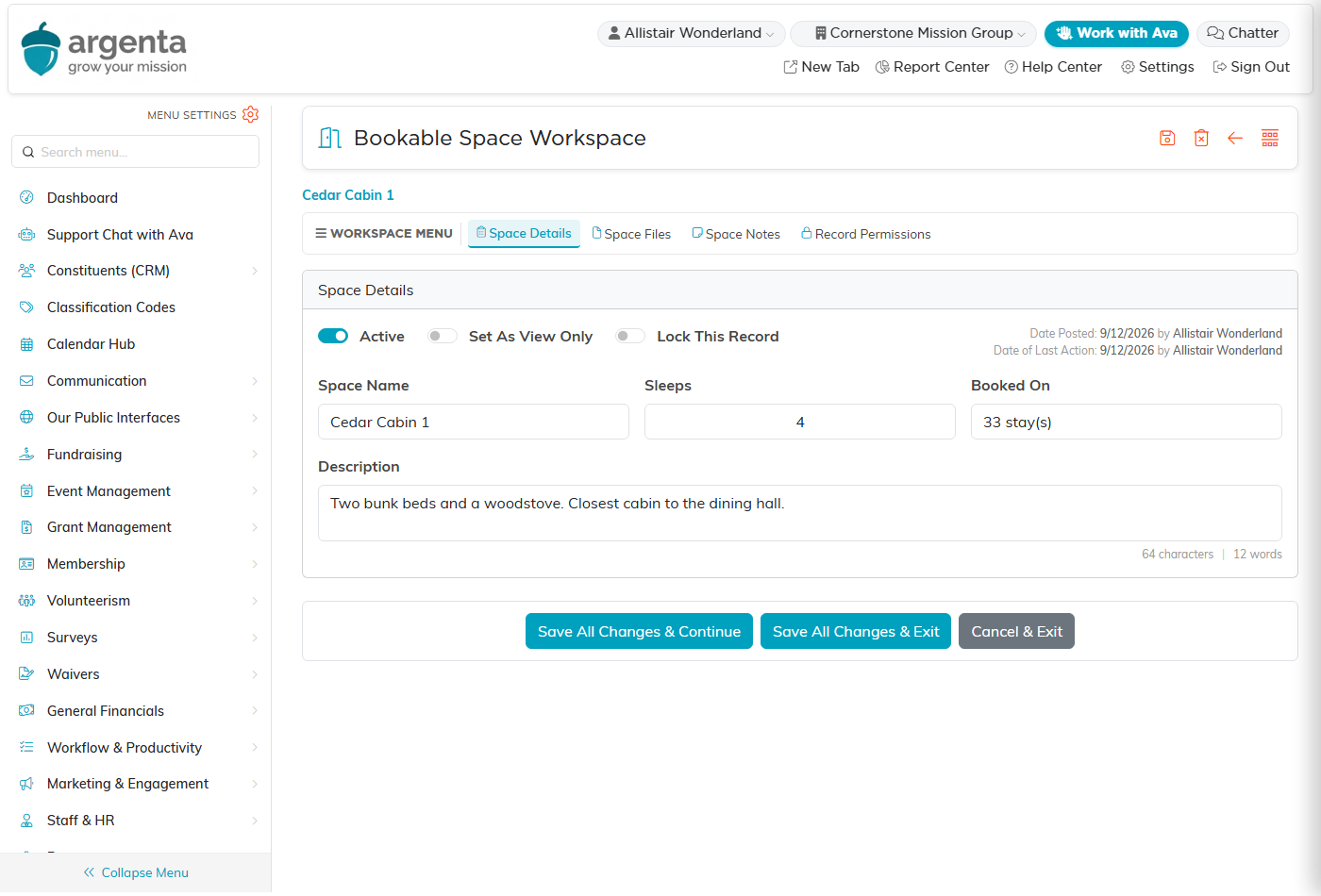
Space Details. Booked On counts the stays that hold this room.
Booking a Stay
- Open Reservations and click Add A New Reservation.
- Enter Booked By, which is the constituent the stay belongs to.
- Set the Status to Pending, Waitlisted, or Confirmed. Status decides how firmly the stay holds a room.
- Enter the Deposit if you have taken one.
- Enter the Arrival Date and the Departure Date.
- Use Notes for anything the team should know about the stay.
- Click Save And Open The Reservation. Argenta creates the stay and opens it so you can add rooms and people. Cancel leaves nothing behind.
Argenta works Nights out from the arrival and departure dates, so that field fills in for you and cannot be typed into. Once the stay has people on it, In The Room lists them across the top of Reservation Details.
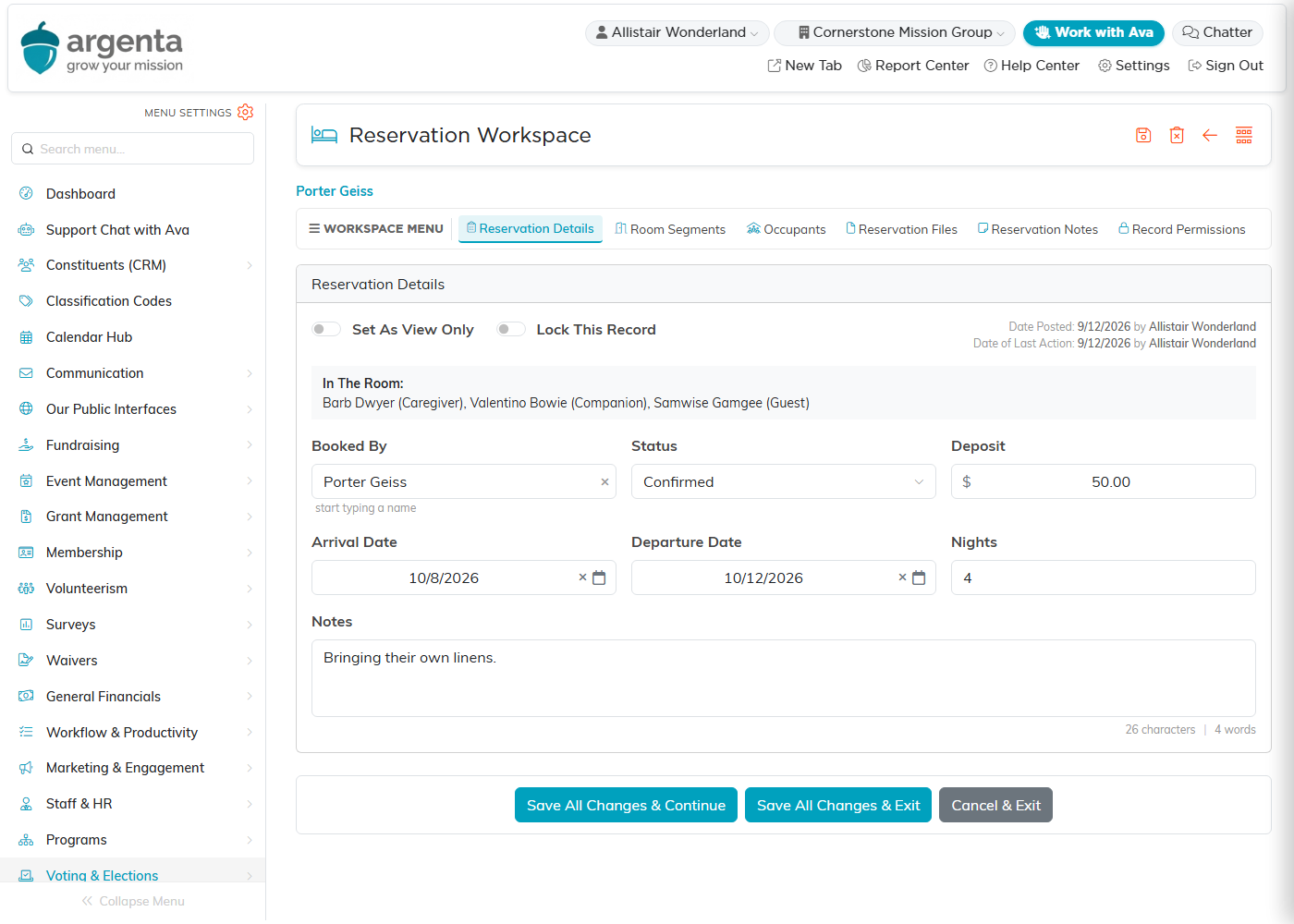
Reservation Details. Nights is worked out from the two dates.
The Reservations list opens on Current & Upcoming, and each card shows the stay's arrival, departure, nights, room, occupant count, and deposit.
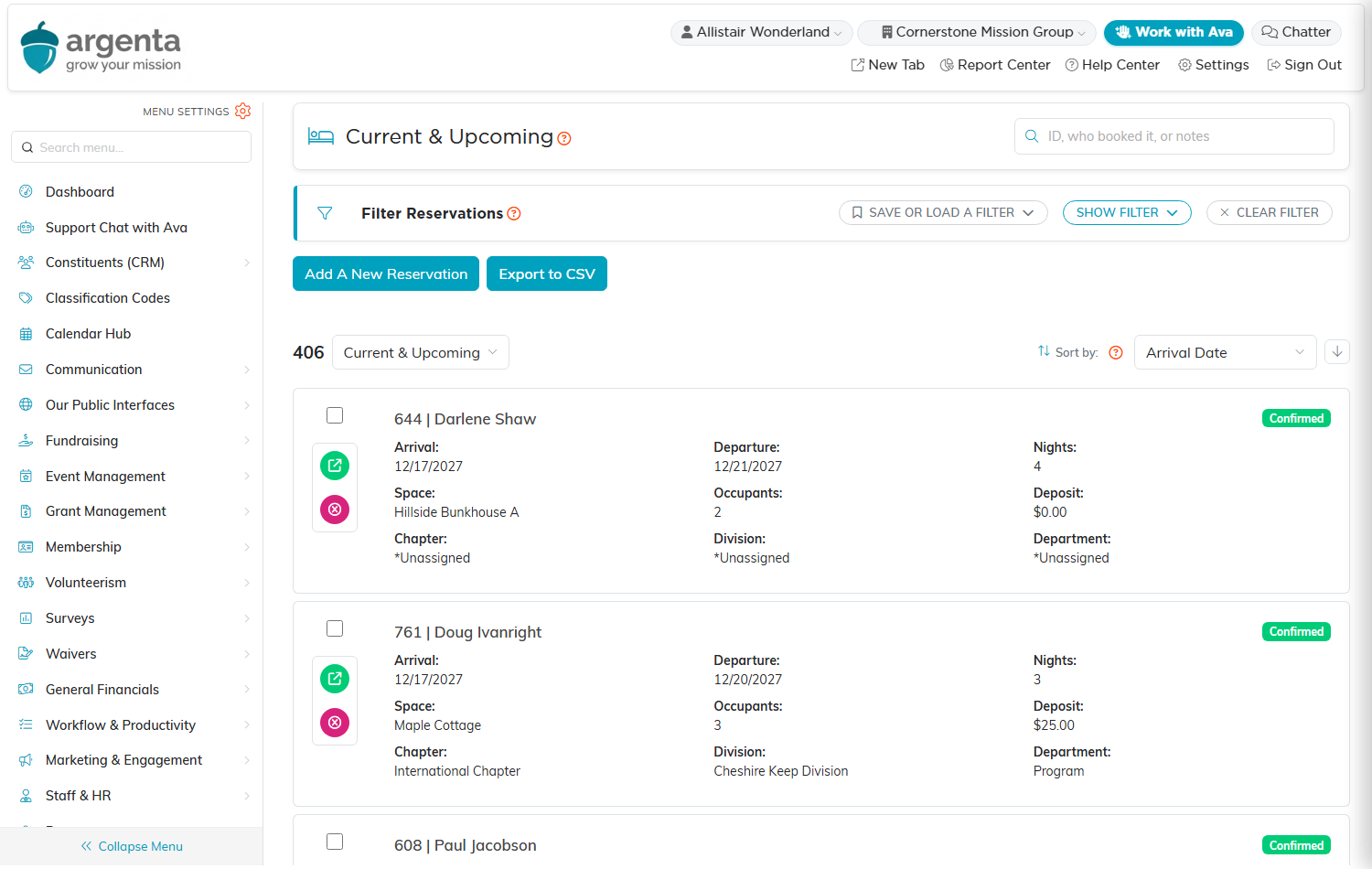
The stays list, with each stay's status badged on the right.
Putting the Stay in a Room
A stay holds its rooms as room segments. One segment is one room for one run of nights, so a stay that moves rooms partway through has two segments, and a family taking two rooms at once also has two. Add a second segment for the new room rather than editing the first one, and the record of which room the guest slept in each night stays whole.
- Open the stay and click Room Segments.
- Click Add A Room Segment.
- Select the Space.
- Enter the First Night and the Last Night. Argenta counts the nights for you at the end of the row.
- Click Save All Changes & Continue to stay on the page, or Save All Changes & Exit to go back to the stay.
Adding a segment adds a row to the page rather than a record to your database. Nothing is saved until you click one of the save buttons, so clicking Add A Room Segment and changing your mind costs nothing.
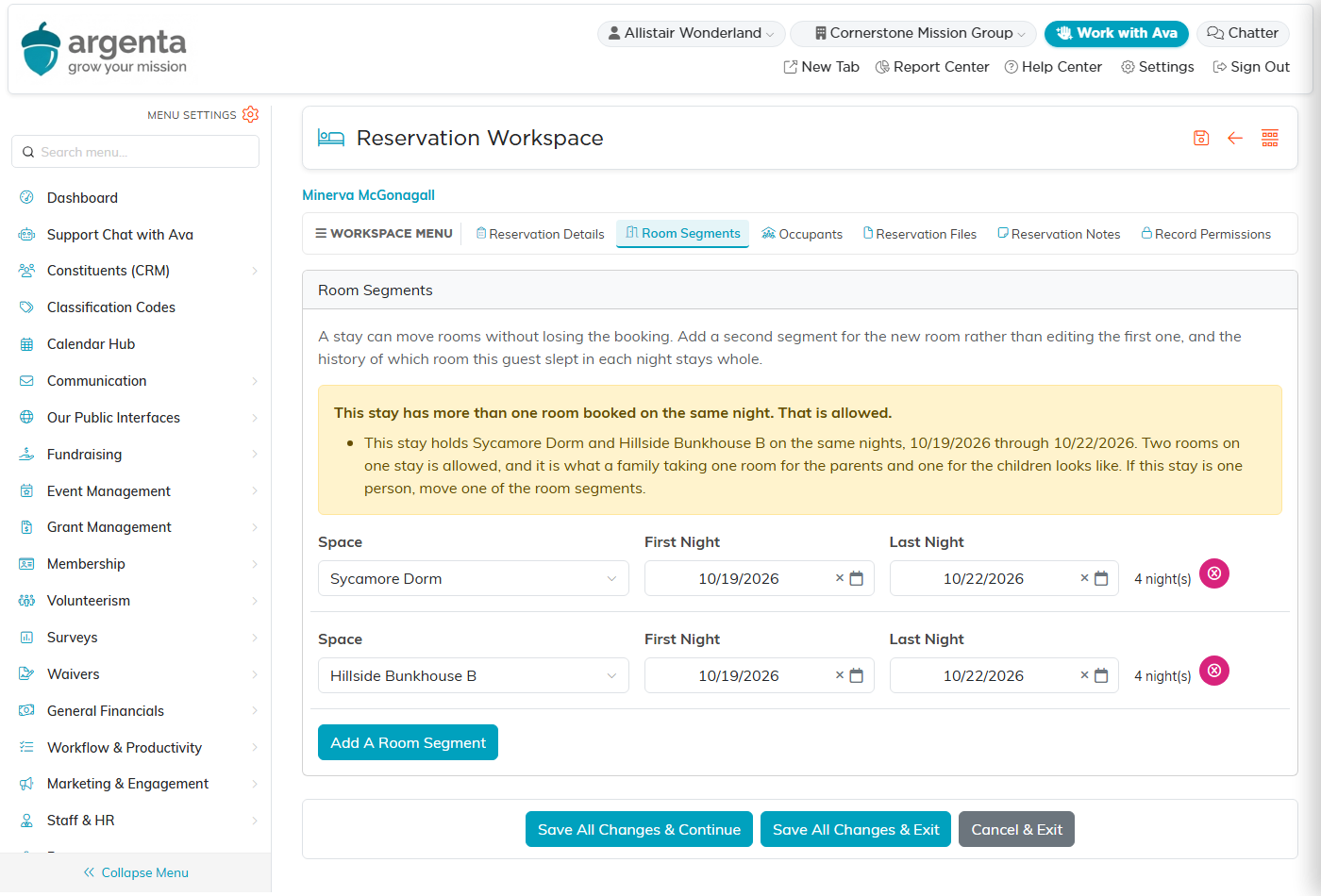
One room, one run of nights. Add a second segment for a second room.
Who Is in the Room
- Open the stay and click Occupants.
- Enter the person in Add A Person.
- Set the Role to Guest, Caregiver, or Companion. The role starts unset, so choose one.
- Click Add To This Stay.
Adding a person takes effect straight away, which is different from a room segment. Removing someone asks you to confirm first and names the person you are about to take off.
Everyone on a stay is a real constituent, so a caregiver or a companion recorded here reaches your mailing lists like anybody else.
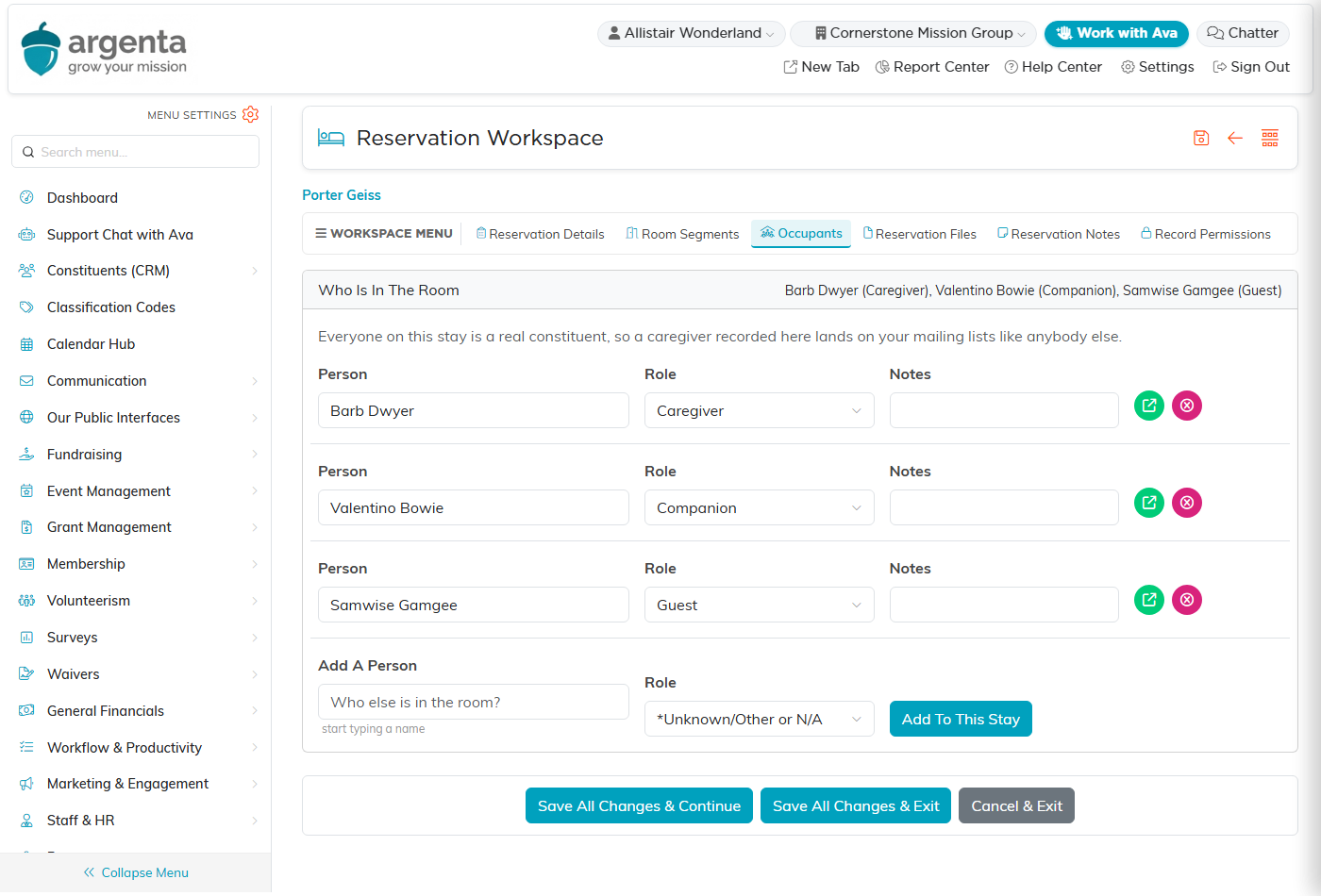
Everyone on the stay, each with their role.
What Argenta Checks When You Save
Argenta refuses some bookings outright, because they would not make sense. Each message names the room and the dates that are in the way.
- A room segment has to name a room. A segment with nights and no room is refused.
- A segment cannot end before it begins.
- A segment has to fall inside its stay. It cannot start before the stay arrives or run past the day the stay departs.
- A stay cannot depart before it arrives.
- Changing a stay's arrival or departure is refused if the new dates would leave one of its own room segments outside the stay. Move the segments first, then change the stay.
- Two Confirmed stays cannot hold the same room on the same nights. Argenta names the reservation that already holds it.
Other things Argenta allows and flags, because they are often deliberate:
- A room another stay wants, where one of the two is not confirmed. Nothing is blocked while either stay is still Pending or Waitlisted.
- More people on the stay than the room sleeps. A cot or a caregiver is normal, so Argenta lets it through and asks you to check the room will take them.
- Two different rooms on the same night. That is what a family taking one room for the parents and one for the children looks like.
- The same room twice over the same nights. That is usually a duplicate segment rather than a real second booking, so check whether one should come off.

A flagged booking names the rooms and the nights rather than leaving you to guess.
The Occupant Record
Everyone who has been in a room has a record in the Occupant Workspace. You set the Role and the Notes here. Person, Reservation, Email, Phone, and May Be Mailed are shown so you can see who you are looking at without leaving the stay, and they come from the person's constituent record rather than being edited here.
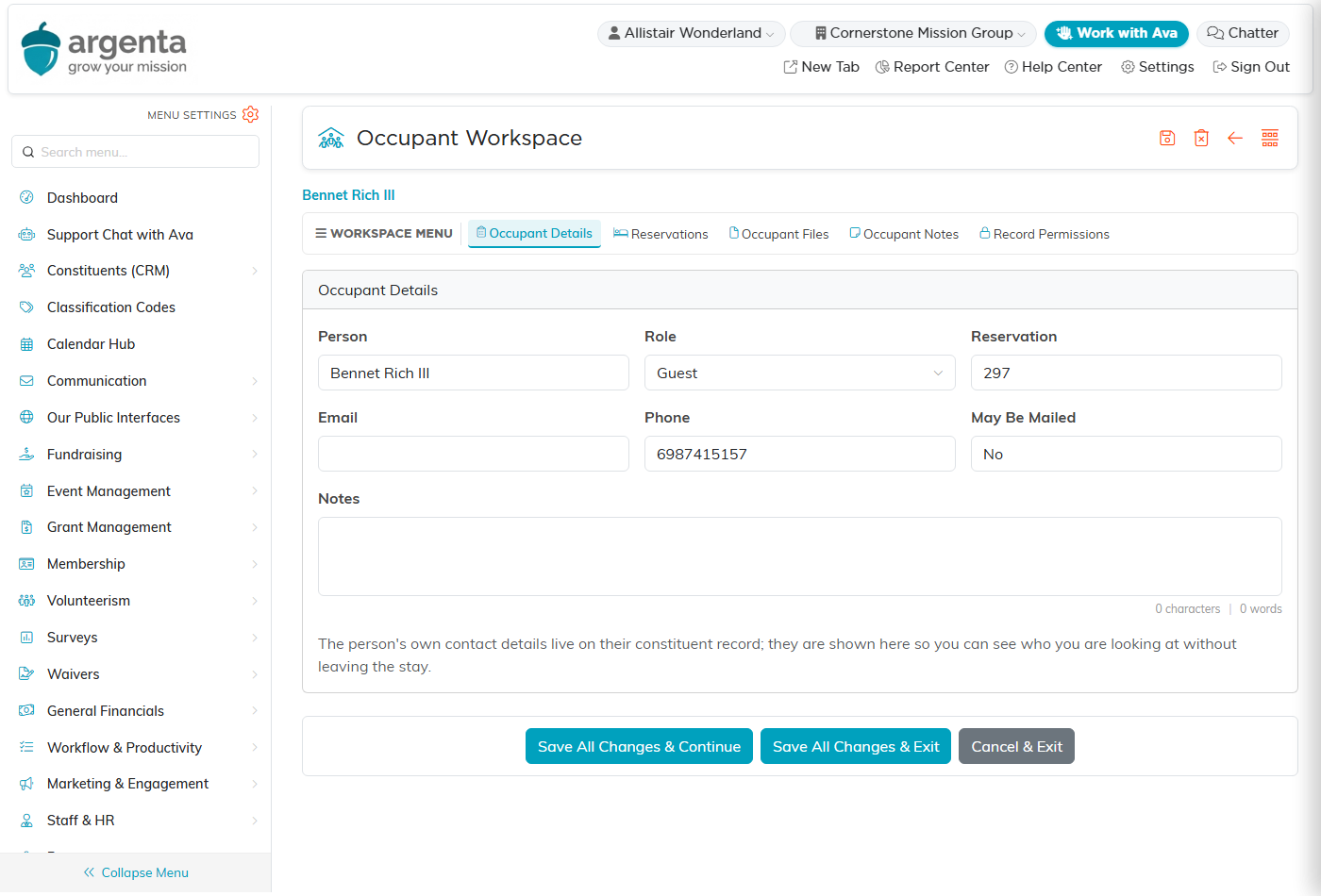
An occupant record. Only Role and Notes are edited here.
Click Reservations on an occupant to see every stay that person has been on, which is how you check whether somebody is a returning guest. Each stay carries two badges, one for the person's role on that stay and one for the stay's status, and each status has its own colour.
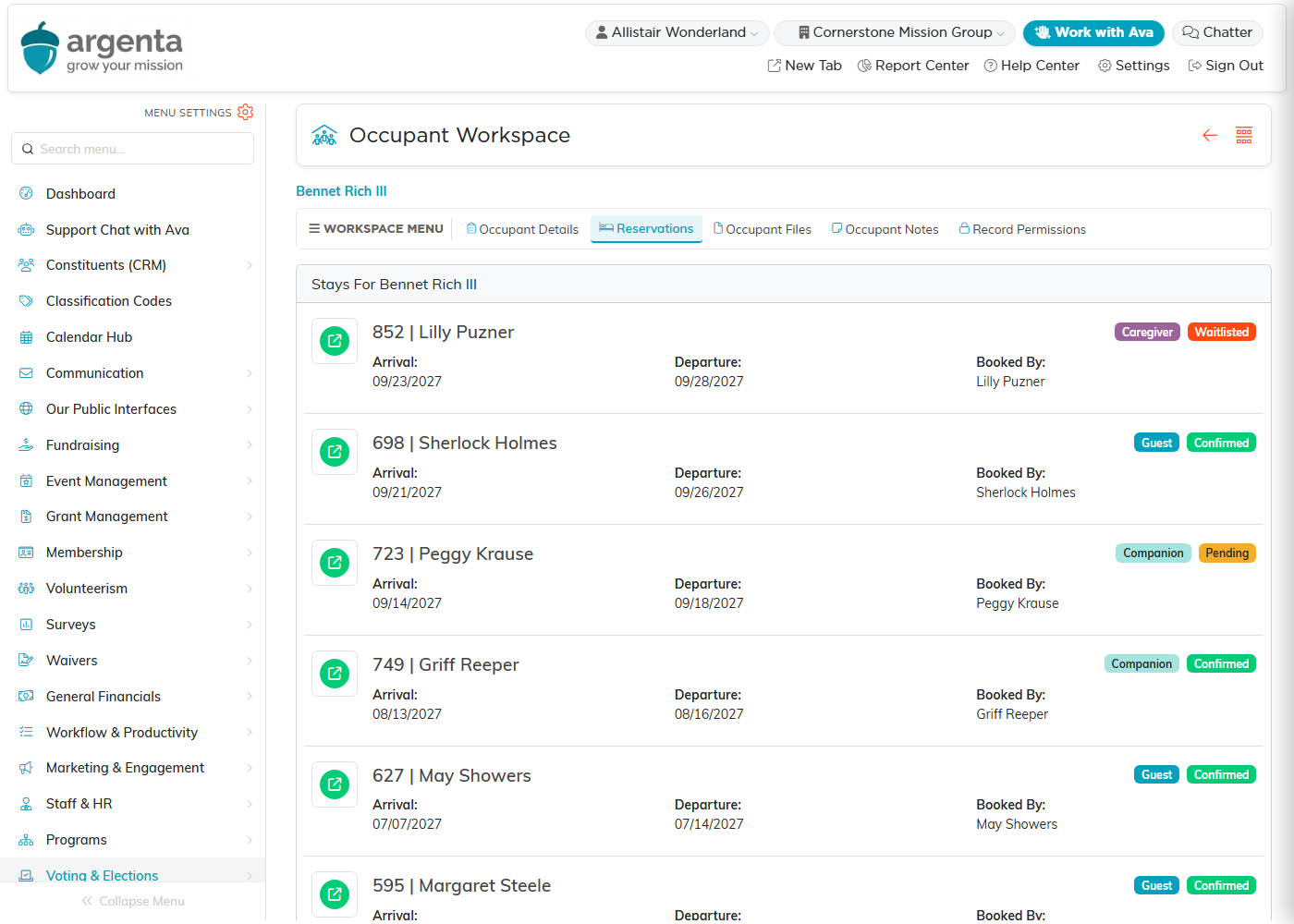
Every stay one person has been on, with Waitlisted, Confirmed, and Pending each in its own colour.
Files, Notes, and Who Can Change a Record
Reservations, bookable spaces, and occupants each open in a full workspace with their own files and notes pages, so a signed waiver or a note about a guest lives on the record it belongs to.
Deleting a reservation, an occupant, or a bookable space is done from its own workspace, and Argenta asks you to confirm before it removes anything.
Two switches control how a reservation or a bookable space can be changed. Turn on Set As View Only to leave the record readable but not editable. Turn on Lock This Record to close it to changes. Record Permissions opens for every user on a team that has Reservations, and it names the record at the top so you know what you are setting permissions on.

Set As View Only and Lock This Record sit at the top of the record.
